Search and view documents
Use Search to find archived documents and open them. The hit list shows the columns your administrator has chosen in Settings.
Open https://viewpoint.metaforce.net, sign in, and click Search in the left menu. The web app needs the Viewpoint usage licence; see Access, licences and sign-in problems.
The Search screen
The screen is headed ViewPoint Search.
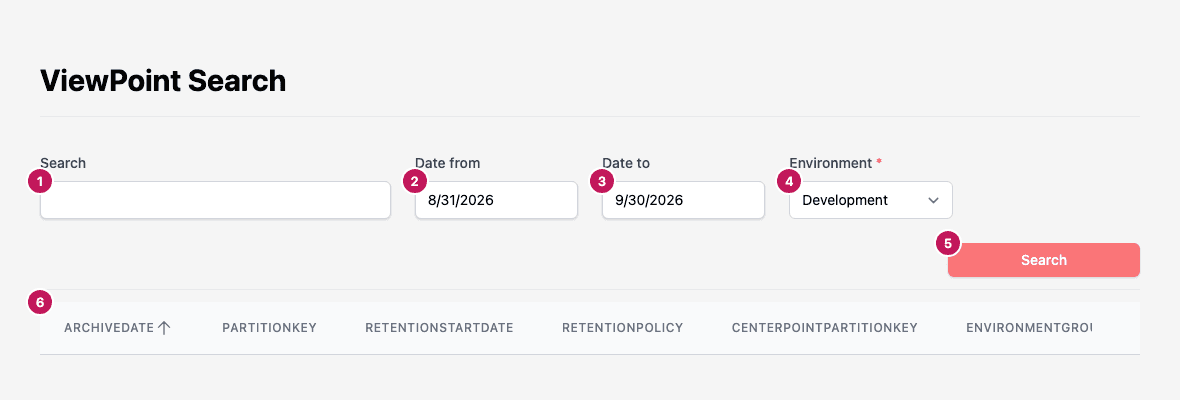
- Search: free text to look for. Leave it empty to list every document in the date range.
- Date from: the first archive date to include. It starts 30 days back.
- Date to: the last archive date to include. It starts today.
- Environment: the Doxis Doc Gen environment the documents were archived from: Development, Test, Test 1 to Test 5, IntegrationTest, AcceptanceTest or Production. It is shown for the Doxis Doc Gen archive and defaults to Development.
- Search button: runs the search.
- Column headers: the hit list columns. Click a header to sort by it.
Find documents
- Set Date from and Date to to cover the time the documents were archived.
- Choose the Environment the documents belong to.
- Type the text to look for, or leave Search empty to list everything in the date range.
- Click Search. Pressing Enter in a field does not start the search.
If Date to is earlier than Date from, To date must be greater than from date. appears under Date to and the search does not run. The same day in both fields is allowed.
The line above the hit list shows the number of documents, the page you are on and how long the search took, for example
12 Documents, Page 1 of 1 ( 0.4 seconds ). When nothing matches it says 0 Documents.
How matching works
- With no text, every document in the date range is listed.
- With text, a document is listed when the text is exactly equal to the value in at least one column marked Search Column in Settings. Part of a word does not match.
- A column that holds true or false values is only checked when you type
trueorfalse. A column that holds whole numbers is only checked when you type a whole number. - The date range always applies, also when you type text. It is matched against the archive date.
- In the shared archive, only documents from the chosen Environment are listed.
- You only ever see your own company’s documents. Documents from other companies never appear.
Read the hit list
- Click a column header to sort by it, and click it again to reverse the order.
- The list shows 20 documents per page. Use Previous, Next and the page numbers below the list to move between pages. Up to 10 page numbers are shown at a time, and on a narrow screen only Previous and Next.
- Archive dates and retention start dates are shown in your local time.
- The columns, their order and their names come from Settings. Columns that are not set to View In Hitlist are hidden.
- RetentionPolicy and RetentionStartDate show how long a document is kept; see Retention and auditing.
Open a document
- Click View at the end of the row.
- A small menu lists the files stored with the document: Original document first, then each appendix, named by the comment saved with it.
- Click a name. The file opens in a new browser tab.
Appendices are extra files stored with the same document, for example signed data for a document that was signed.
Private storage
Customers with their own private archive storage see a list of connections at the top right of Search and Settings. Each connection is named after the environment it serves. Choose one to search that storage. Connections that are no longer in use are not listed. Customers without private storage search the shared archive and do not see the list.
When something goes wrong
- If the screen cannot load, it shows ViewPoint could not be opened with the reason and a Try again button.
- If a search fails, a short message appears on the screen. Try again, and contact support if it keeps failing.
- If you see a page that says Not Found or Not Authorized, see Access, licences and sign-in problems.