Settings: choose the search columns
The ViewPoint Settings screen decides which columns the hit list on Search shows, in which order, under which names, and which columns the free-text search looks in. The setup is stored per company and schema, and every change is listed in a history.
Settings appears in the left menu only for users who have Viewpoint configuration access. Users without it only see Search.
Open https://viewpoint.metaforce.net and click Settings.
The column table
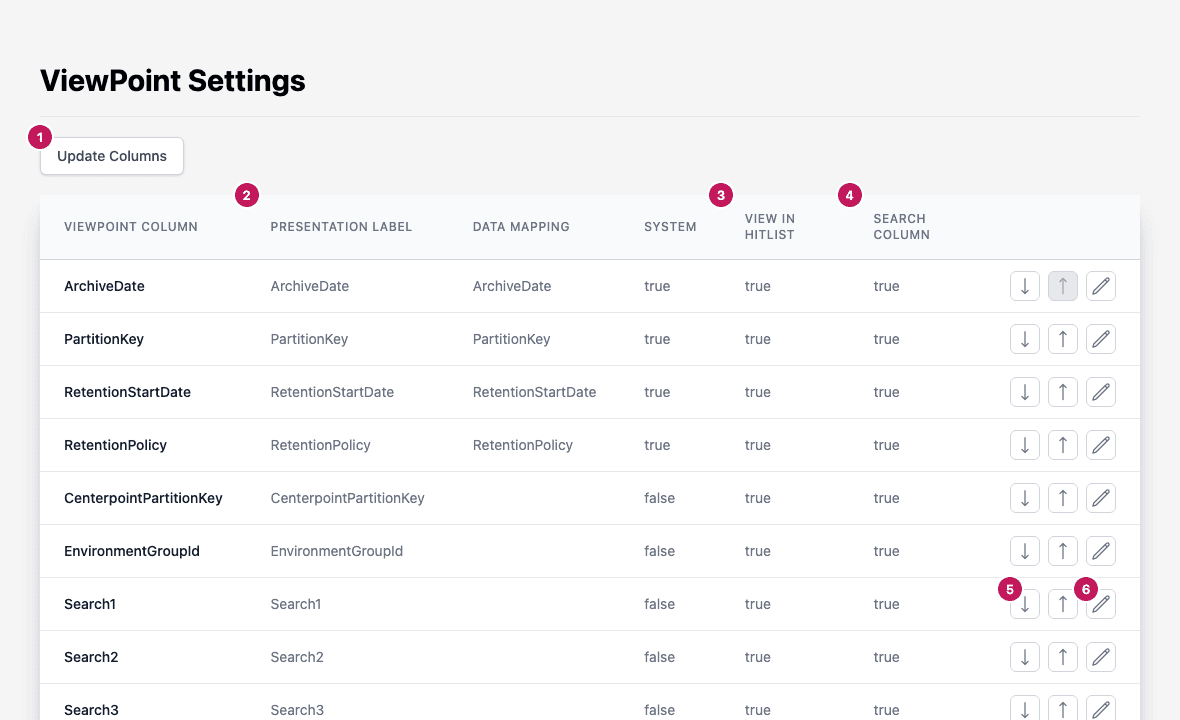
- Update Columns: reads the archive schema again and brings the list up to date. See Update columns.
- Presentation Label: the name shown as the column header on Search. Viewpoint Column is the archive’s own name for the field, and the hit list reads the value from that field. Data Mapping is saved with the column but does not change what the hit list shows.
- View In Hitlist:
truewhen the column appears in the hit list. - Search Column:
truewhen the free-text search looks in this column. - The arrow buttons move the column down or up in the list. The first column cannot move up and the last cannot move down.
- The pencil opens the column for editing.
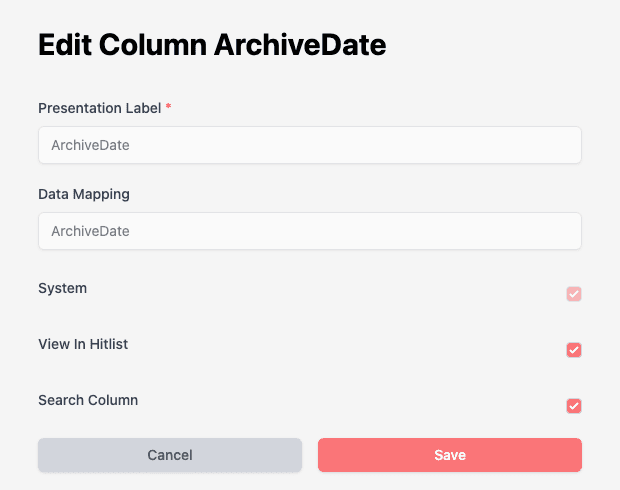
System is true for the columns every archive has: ArchiveDate, PartitionKey, RetentionStartDate and RetentionPolicy.
They cannot be renamed.
Change the order
Click the down or up arrow on a column’s row. The change is saved at once and added to the history. The order in the table is the order of the columns on Search.
Edit a column
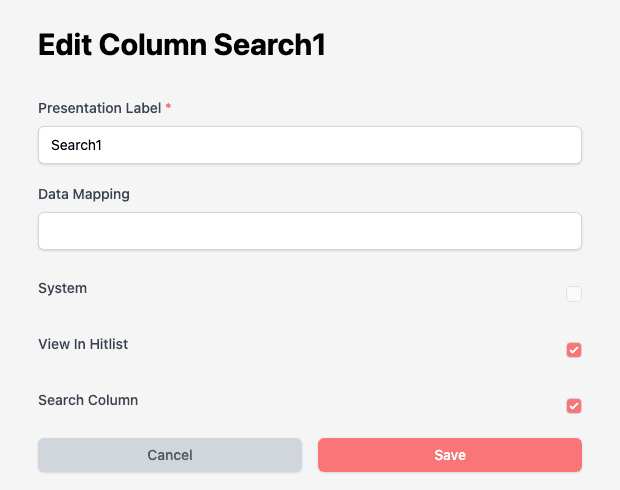
- Click the pencil on the column’s row.
- Change Presentation Label (required) and Data Mapping.
- Tick or clear View In Hitlist and Search Column.
- Click Save. Click Cancel to leave without saving.
System is read-only. For a system column the label and mapping are locked too.
Date from and Date to on Search always filter on ArchiveDate, whatever its Search Column setting.
Update columns
Click Update Columns after the archive schema has changed, for example when a new metadata field was added. Viewpoint reads the schema again and then:
- adds the new fields as columns, visible in the hit list and searchable,
- removes custom columns that no longer exist in the schema,
- keeps your labels and choices for columns that still exist,
- leaves out internal columns that are not useful to readers.
The four system columns are always present.
Schema and connection
When your company has more than one archive schema, a Schema list appears above the table. Each schema has its own column setup. With private storage, a connection list appears at the top right, as on Search.
History
The panel next to the table lists every change to the setup with its time, in UTC, and the user who made it. The oldest entry is the setup Viewpoint created when someone in your company first opened the web app. On a narrow screen, open the panel with the menu button above the table.