Archive
The Archive in Doxis Doc Gen is the place where your company keeps finished documents: Smartforms, signed PDFs, and any file your own systems send to it. You use it to find a document, download it, look at its earlier versions, and delete it when it is no longer needed. Files are stored encrypted, and each company sees only its own documents.
Your company needs the Archive licence to open it. Without it, the Archive shows a Missing License page with the text “Missing license to access Archive - Admin”. Ask your administrator to add the licence.
How it works
Documents reach the Archive from other parts of Doc Gen or from your own systems. You then search and download them on the Archive screen. A retention policy on the folder can remove them after a set time.
Where documents come from
The Archive screen has no upload button, and it does not import PDF files by itself. Documents arrive in one of these ways:
- Smartforms. Turn on Archive or Archive when created in the Smartform’s settings. See Smartform configuration.
- Workflow. Add the Archive action to a workflow and choose a folder. See Workflow actions.
- Signed Smartforms. When a Smartform with Archive turned on is signed, its signed PDF is stored as a Digitally Signed File in the Smartform’s archive folder.
- Your own systems. Send a file, for example a PDF, to the Archive API.
Each document in the Archive has one of three types:
| Type | What it is |
|---|---|
| Default Document | Any other file, such as a PDF or an image. |
| Smartform | A Smartform stored by Doc Gen. The row menu can open it again in SmartForms and create a PDF of it. |
| Digitally Signed File | A signed PDF. When it was made from a Smartform, the row menu can open that Smartform. |
Open the Archive
- Sign in to Doc Gen and open Archive in the left navigation, or go straight to https://archive.metaforce.net.
- Choose the Environment you want to look at. The Archive opens on Development. Search and download documents explains the choice.
The screen has these parts:
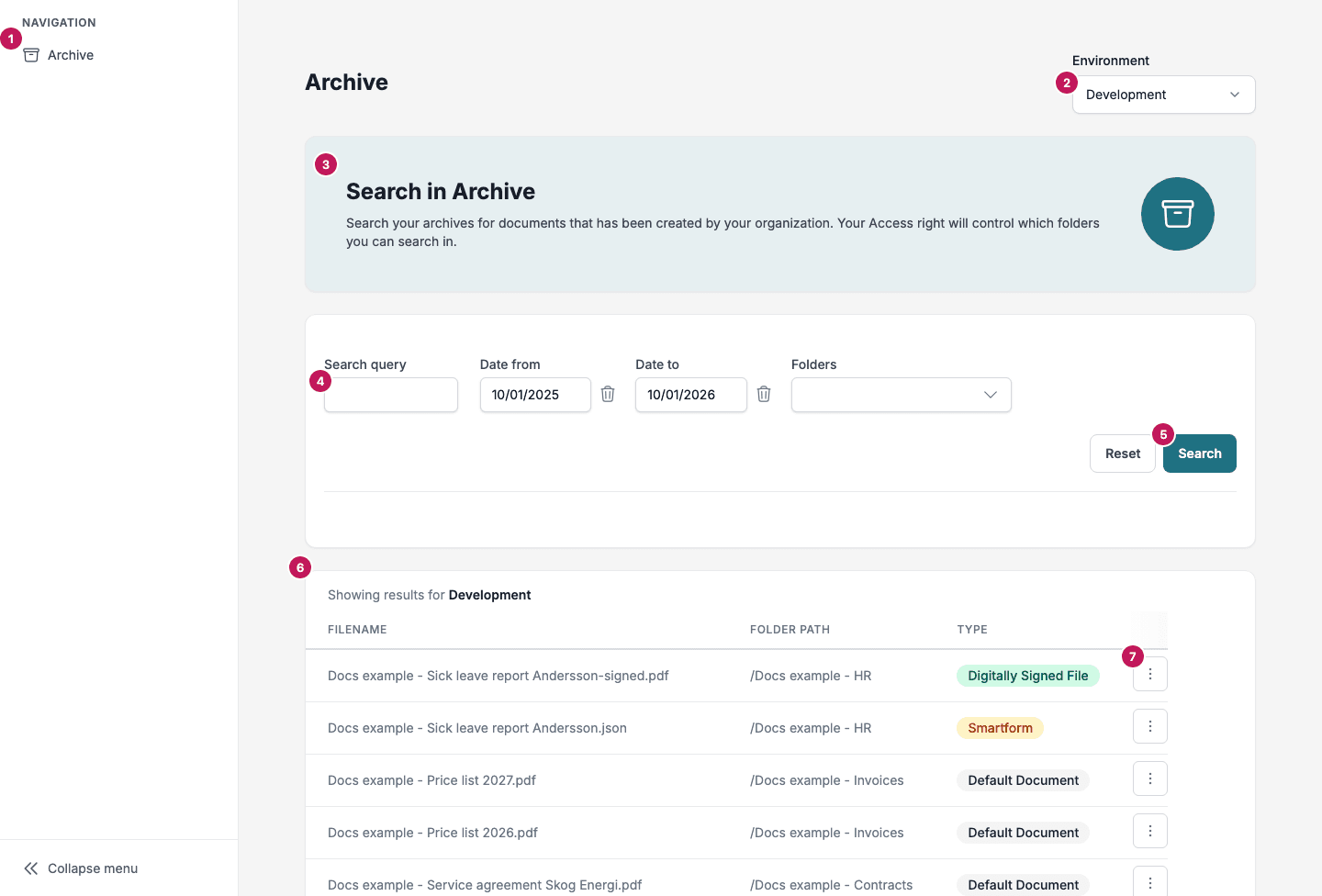
- The left navigation, with the Archive entry.
- Environment: the Doc Gen environment whose documents you see.
- The Search in Archive card. It says that you search the documents your organisation has created, and that your access rights decide which folders you can search in.
- The filter: Search query, Date from, Date to and Folders.
- Reset and Search.
- The results table, headed Showing results for the environment you searched.
- The row menu (three dots) with the actions for one document.
In this section
Troubleshooting
| What you see | What to do |
|---|---|
| Missing License | Your company does not have the Archive licence. Contact your administrator. |
| The list is empty | Check the Environment, widen Date from and Date to, and clear the Folders filter. You only see folders you have access to, see Access, retention and audit. |
| A folder is missing in Folders | The folder is limited to access groups you are not in, or it has not been created. An administrator manages folders, see Access, retention and audit. |
| Session expired | Your session has ended. Click Sign in again. |
| You open a link to the Archive and are asked to sign in | Sign in as usual. You come back to the page the link points to. |
| Not Authorized | The text is “You do not have permission to access this page.” The Archive refused a request from your account. Ask your administrator for access. |
| Page Not Found | The Archive could not find what it asked for, for example a document that was deleted after you searched. Open the Archive again, see Open the Archive, and search again. |