Archive API
The Archive API lets your own systems store documents in the Archive and read them back: upload a file, search, download, delete and roll back. Documents you store this way appear in the Archive screen like any other.
The interactive reference, with every field and example response, is at https://archive.metaforce.net/documentation-api. You can open it without signing in.
Before you start
- Register an API client of the type Standard under Integration then API Clients in the administration, and get a token as described in Authentication. Ask for the
api.externalscope. - Send the token on every call as
Authorization: Bearer <token>. - The API host is
api.archive.metaforce.net. Use it withhttps://in front. - Create the folders you want to store documents in, see Access, retention and audit.
An API client acts for the whole company, so access groups do not limit it. Your company needs the Archive licence.
Choose the environment
Each Doc Gen environment has its own documents. Name the one you want in the x-centerpoint-environment header, or put it in the address after Archive, for example /Archive/Test. The names are Development, Test, PreProduction and Production, written exactly like that: test is not recognised. A call without a name, or with a name the API does not know, uses Development.
Upload a document
Send a POST to /Archive. The file goes in fileContent as base64 text.
curl -X POST "https://api.archive.metaforce.net/Archive" \
-H "Authorization: Bearer YOUR_ACCESS_TOKEN" \
-H "x-centerpoint-environment: Development" \
-H "Content-Type: application/json" \
-d '{
  "fileName": "Invoice 4711.pdf",
  "fileContent": "JVBERi0xLjQK...",
  "folderPath": "/Invoices",
  "search1": "C-1001",
  "search2": "INV-2026-0411",
  "type": 0
}'| Field | Meaning |
|---|---|
fileContent | The file as base64 text. Required. |
fileName | The name of the file, including its extension. Required. The extension decides the file type the download is sent with. |
folderPath or folderId | The folder to store the document in. One of them is required, and the folder must already exist. Write the path as folder names separated by /, for example /Invoices or /Contracts/2026. Upper and lower case do not matter. The folderId is the Folder ID that Edit folder shows, see Access, retention and audit. |
search1 to search10 | Free text details. They appear in the Search 1 to Search 10 columns. |
type | 0 for a default document, 1 for a Smartform, 2 for a digitally signed file. The default is 0. |
callbackPayload | Text you want sent back to your webhook, see Webhook call. |
id | Leave it out. It is meant for the id of a document that is already stored, to store the file as a new version of it, but that does not work at the moment, see the note below. |
The answer has the id of the stored document:
{
"storedDocumentId": "6abd67258a668da4ba39cbef",
"rootDocumentId": null,
"version": 0
}
If no folder matches folderPath, or neither field is given, the API answers 400 with no body and stores nothing. An unknown folderId is answered with an error too. The answer to a folder lookup is kept for up to five minutes, so create the folder before you send the first document to it.
Note: Leave
idempty. Storing a new version of an existing document by sending itsiddoes not work at the moment. The API answers with an error and no version is created.
Search for documents
Send a POST to /Archive/GetAllDocuments. Every field is optional.
curl -X POST "https://api.archive.metaforce.net/Archive/GetAllDocuments" \
-H "Authorization: Bearer YOUR_ACCESS_TOKEN" \
-H "Content-Type: application/json" \
-d '{
  "searchQuery": "Andersson",
  "createdFrom": "2026-01-01T00:00:00",
  "createdTo": "2026-12-31T23:59:59",
  "foldersIds": ["FOLDER_ID"]
}'searchQueryworks as Search query does in the screen, see Search and download documents.createdFromandcreatedTolimit the result to documents stored between these two times.foldersIdslimits the result to these folders. Putnullin the list to include documents that are not in a folder.
The answer is a list of documents, newest first. Each one has its id, fileName, folderId, folderPath, type, version, the dates, search1 to search10, and a documentVersions list.
To read the company’s column settings and the folders, send a GET to /Archive/GetCompanyMetaDataColumns. The answer has the two lists colunms and folders. The first property is spelled as shown.
Download a document
Send a GET to /Archive/{id} with the id of the document. The file comes back with its own name and type. The API answers 404 when the document does not exist.
curl "https://api.archive.metaforce.net/Archive/DOCUMENT_ID" \
-H "Authorization: Bearer YOUR_ACCESS_TOKEN" \
-o invoice.pdf
Delete a document
Send a DELETE to /Archive/{id}. With the id of the document, the document and all its versions are removed. With the id of one version, only that version is removed. The API answers 200, also when there was nothing with that id.
Roll back to an earlier version
Send a POST to /Archive/Rollback. sourceFileVersionId is the id of the document and targetFileId is the id of the version to keep. All versions newer than that one are deleted. The API answers 200, or 400 when the version is not found.
curl -X POST "https://api.archive.metaforce.net/Archive/Rollback" \
-H "Authorization: Bearer YOUR_ACCESS_TOKEN" \
-H "Content-Type: application/json" \
-d '{
  "sourceFileVersionId": "DOCUMENT_ID",
  "targetFileId": "VERSION_ID"
}'
Webhook call
Webhooks are managed under Integration then Digital Archive in the administration. Webhooks is the first tab.
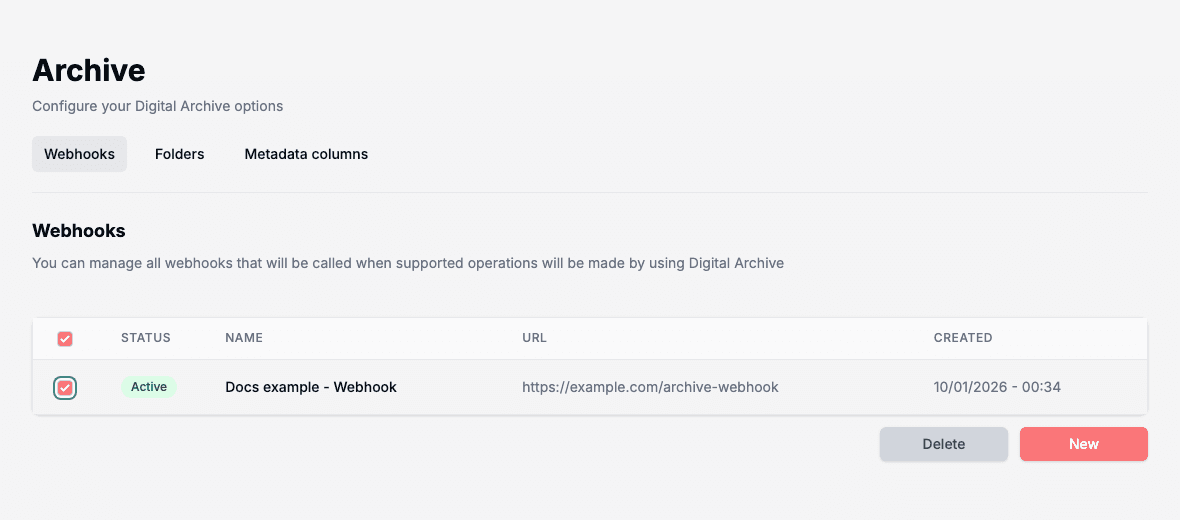
To add a webhook, click New, give it a Name and a Webhook Endpoint, keep Is Active on, and click Ok. The panel is called Editing. The list shows each webhook with a Status of Active or Deactivated, its Name, its Url and when it was Created.
To change a webhook, click its Name, Url or Created in the list. The Editing panel opens with the same fields. Switch Is Active off to stop calls without losing the webhook, which then shows Deactivated, and click Ok.
To delete webhooks, tick them in the list and click Delete. The dialog Delete Webhooks Definitions asks “Are you sure you want to delete the selected webhooks definitions?”. Click Delete to confirm.
When you store a document with a callbackPayload, the Archive sends a POST to every active webhook of your company, during the upload:
{
"ActionType": 0,
"RequestPayload": "the text you sent in callbackPayload",
"DocumentId": "6abd67258a668da4ba39cbef",
"RootDocumentId": null
}
ActionType 0 means that a document was stored. If your endpoint fails or does not answer, the Archive ignores it and does not try again.
Details
| Situation | Answer |
|---|---|
No folder, or folderPath not found, on upload | 400, nothing stored |
| Document not found on download | 404 |
| Delete of an unknown id | 200 |
| Rollback to a version that is not found | 400 |
| No token, or a token without access | 401 or 403 |