Access, retention and audit
This page explains who can see which documents in the Archive, when documents are removed automatically, and what the audit log records. The setup is done by an administrator in the Doc Gen administration. Reading documents is done in the Archive, see Search and download documents.
Folders and access groups
Every document is stored in a folder. Folders, and the rules for who may use them, are set up under Integration then Digital Archive in the administration. The Folders tab lists the folders of your company. See Digital Archive for the other tabs.
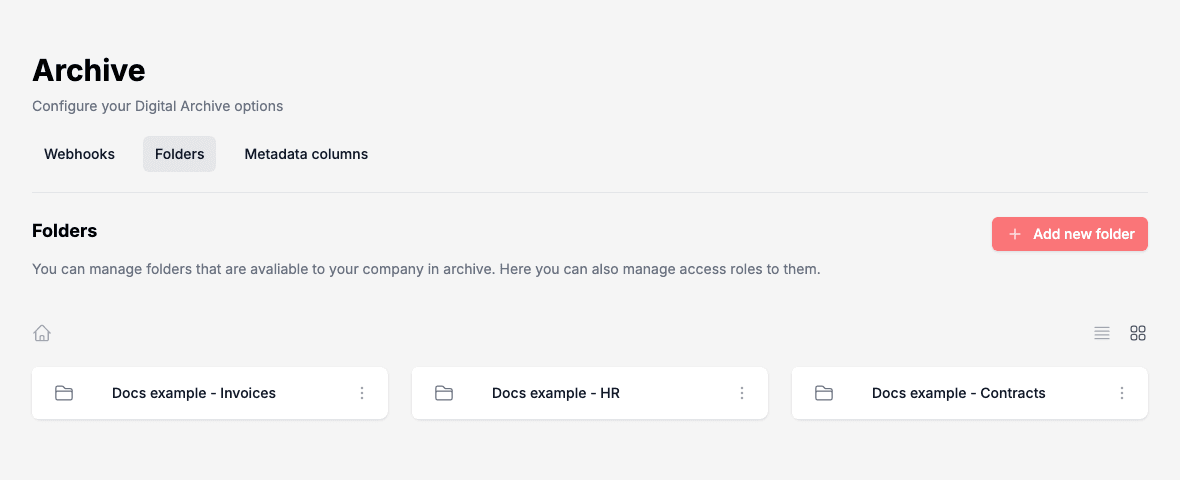
To find a folder, click it to open it and see the folders inside it. The breadcrumb above the list shows where you are. Click a folder name in the breadcrumb to go back to it, or the house icon at its start to go back to the top. The two icons at the right switch between the list view and the grid view. The grid view is the default. When a level has no folders yet, the page shows No folders.
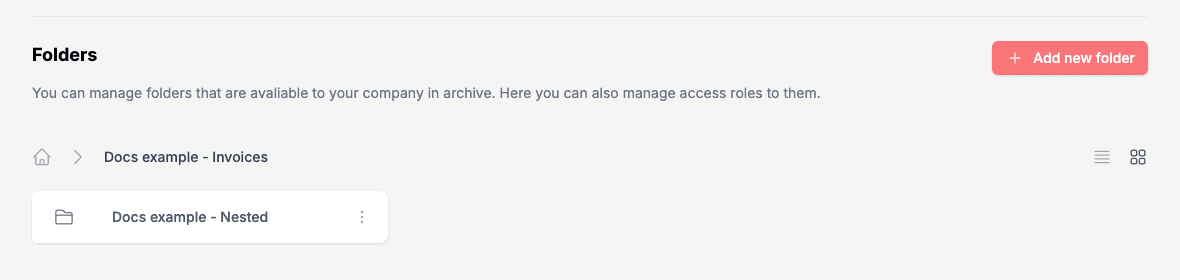
To add a folder:
- Open Integration then Digital Archive, and choose the Folders tab.
- Click Add new folder. To add a folder inside another one, open that folder first.
- Type a Name.
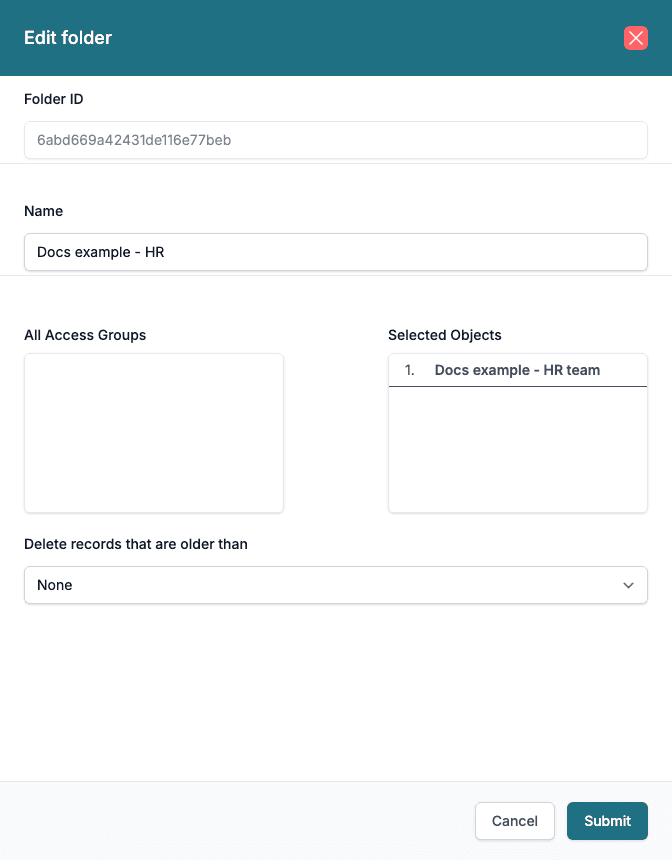
- Move the groups that may use the folder from All Access Groups to Selected Objects. Drag a group across, or click it and then click the plus button.
- Click Submit.
The Name must be new. If another folder in your company already has the name, at any level and with upper and lower case ignored, the panel shows Folder name is already used. Please use another name and does not save.
To change a folder, open the menu (three dots) on it and choose Edit. In the list view, click the pencil instead. The panel is called Edit folder. At the top it shows the Folder ID, which you cannot change. An API client sends this value as folderId when it stores a document, see Archive API.
To delete a folder:
- Switch to the list view with the list icon at the right, above the folders.
- Click the trash icon next to the folder.
The folder is deleted at once, without a confirmation question. Every folder inside it is deleted too, and the page shows Folder deleted. In the grid view, the menu (three dots) also has Delete, but at the moment its confirmation question does not respond to clicks. Press Escape to close it and use the list view.
The Archive lists only documents whose folder still exists, so after a folder is deleted its documents no longer appear in the results. Do not delete a folder that still holds documents you need.
Access groups are made under Team then Access, see Access groups. The rule is:
- A folder with no access groups is open to everyone in the company who can use the Archive.
- A folder with access groups can only be used by people who are in all of its groups.
The rule applies when you search, when you download and when you delete. A folder you may not use is not listed in Folders, and its documents are not listed in the results. An API client acts for the whole company and is not limited by access groups, see Archive API.
Columns
The Metadata columns tab under Digital Archive sets what the results table shows.
- To change a column, open its menu (three dots), choose Edit, and click Submit when you are done. You can choose Is visible and Is sortable for every column. The Label and Is searchable matter for Search 1 to Search 10: the built-in columns such as Filename and Type keep their labels, and Filename is always searched.
- To change the order, click a column in the list, then click Move up or Move down. The new order is saved at once.
The columns Search 1 to Search 10 are free for the systems that store documents, for example a Smartform, to put details in. Give them labels that make sense in your company, and mark the ones you want Search query to look in as searchable. No column is searchable until you mark it.
Retention
A retention policy removes documents automatically after a set time.
- An administrator makes a retention policy under Settings then Retention Policies, see Retention policies.
- In the Edit folder panel, choose the policy in Delete records that are older than.
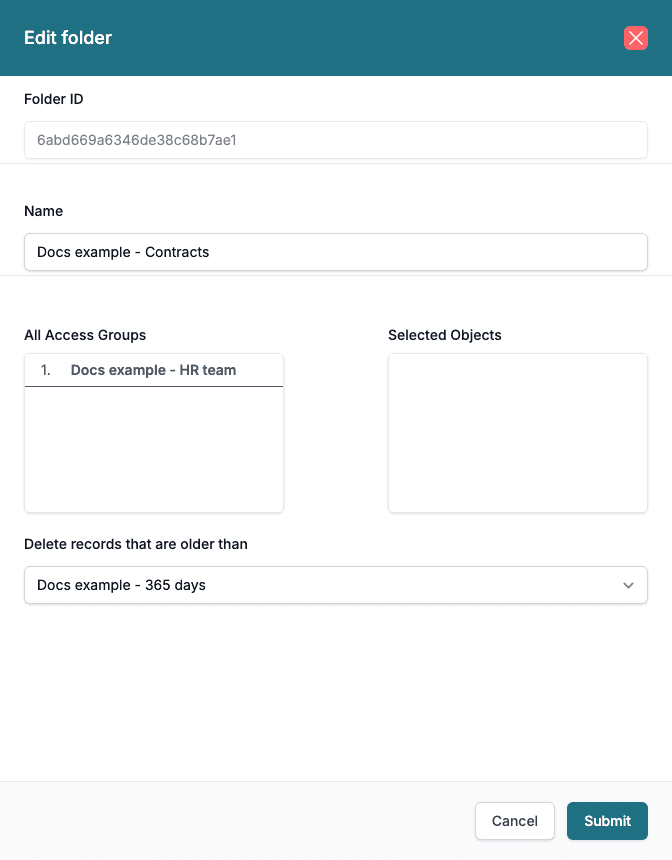
A document gets the policy of its folder at the moment it is stored. A job then runs once an hour, looks at the documents in all four environments, and permanently deletes the ones that are older than the policy’s lifetime. The age counts from the day the document was stored.
- Changing the policy on a folder does not change documents that are already stored. They keep the policy they got when they were stored.
- A folder set to None keeps its documents until someone deletes them.
- Deleted documents cannot be brought back.
Audit
The Archive writes to the audit log when:
- a document or a new version of it is stored,
- a document or a version is removed. This includes the newer versions that a rollback removes.
Changes to the folders in the administration are logged too, in the Administration category: a folder is added, a folder is changed, a folder is deleted, and the retention policy of a folder is changed.
You read these entries in the Audit application, see The Audit application. Searching, downloading and the retention cleanup do not write audit entries.
Licence
The Archive needs an Archive licence. Without it, the Archive screen shows Missing License, and the API refuses requests.