Search and download documents
Use the Archive screen to find a document by its name, its details, its date or its folder, and to download the file. This page is about the Archive application in Doc Gen, where you look at documents that are already stored.
Choose the environment first
The Archive keeps separate documents for each Doc Gen environment. The Environment list at the top right has four choices: Development, Test, Pre Production and Production. The Archive opens on Development, and it remembers your last choice in your browser.
The table heading says Showing results for and the environment of your last search, so you can always see which one you are looking at. When you change the environment, this heading disappears until you search again. Click Search to load the documents of the new environment. Until you do, the table can still hold rows from before the change.
When the table shows the results of a search you have run and you change the environment, the Archive asks first. The dialog is called Confirm Environment Change. If you have not searched yet, the environment changes at once.
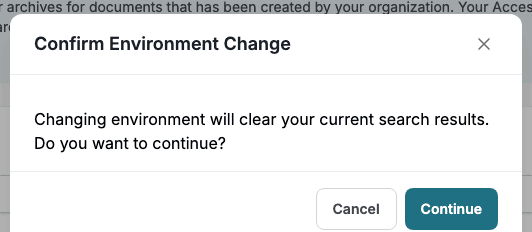
Click Continue to switch. The results are cleared and the filter goes back to its starting values. Click Cancel to stay where you are.
Find a document
- Open Archive in the left navigation and choose the Environment.
- Type a word in Search query. The search is not case sensitive and finds documents where the text is part of the Filename, or part of a value in a Search column that your company has made searchable. It also matches the ids of the Smartform and dialog a document came from.
- Set Date from and Date to. The dates filter on the day the document was stored. Click the trash icon next to a date to clear it and search without that limit.
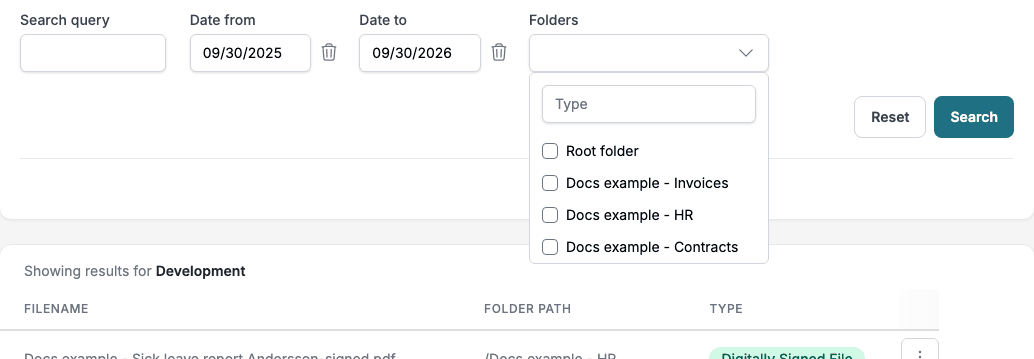
- Open Folders, tick the folders to search in, and close the list. Tick Root folder for documents that are not in a folder. You only see the folders you have access to.
- Click Search.
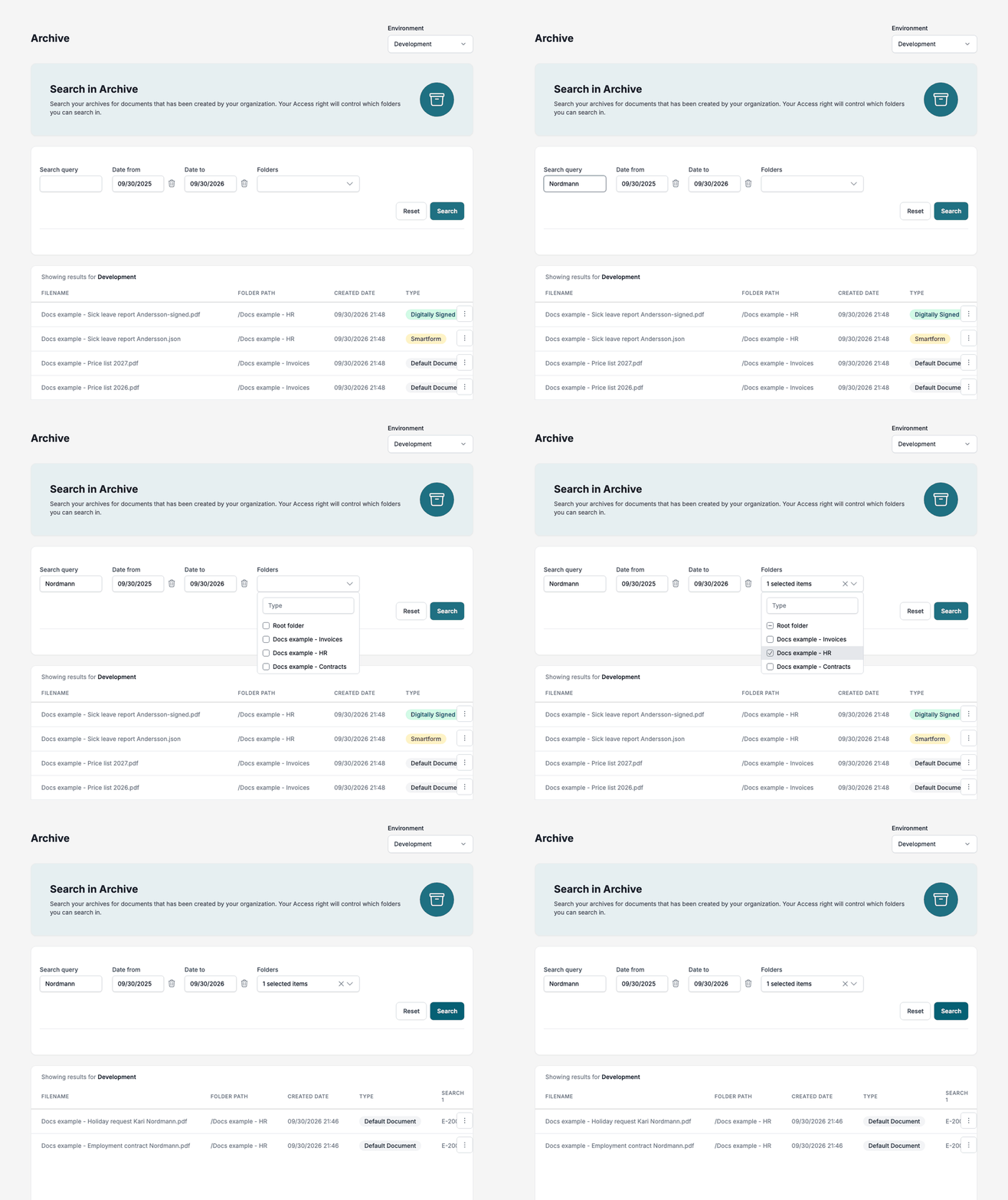
Click Reset to put the filter back to its starting values and search again.
The filter looks like this:

The Folders list shows the folders you are allowed to search:
Note: When the Archive opens, the table can list fewer documents than the dates in Date from and Date to suggest. Click Search to search with the dates shown.
Read the results
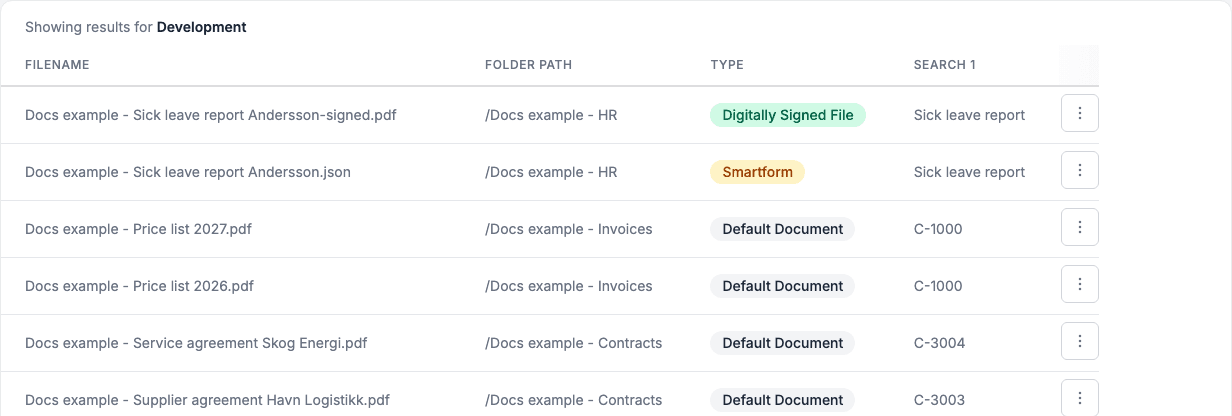
Your company decides which columns the table shows, what they are called, in which order they come, and which of them can be sorted. An administrator sets this under Metadata columns, see Access, retention and audit. Click the heading of a sortable column to sort the rows.
Columns you may see:
| Column | What it shows |
|---|---|
| Created by, Updated by | Who stored the document and who last changed it, shown as an id. |
| Filename | The name of the stored file. |
| Folder path | The folder the document is in. / means it is not in a folder. |
| Created date, Updated date | When the document was stored and last changed, in your local time. |
| Type | Default Document, Smartform or Digitally Signed File. |
| Search 1 to Search 10 | Extra details that the system storing the document fills in, for example a customer number. Your company can give these columns its own labels. |
For documents that Smartforms store, the columns are used like this:
- Search 1 holds the name of the Smartform, Search 2 and Search 3 when the Smartform was created and last changed, and Search 4 the parties of the form with their names and e-mail addresses.
- Search 7 to Search 10 hold the values that the form’s archive settings pick from the form, see Smartform configuration. Give these columns a label and mark them as searchable to find Smartforms by those values.
- Search 5 and Search 6 are for Doc Gen’s own use. On a signed PDF made from a Smartform they tell the Archive which Smartform it came from, which is what View Smartform origin uses.
Download a document
Click the three dots at the end of a row and choose Download. The file is saved with its own name. When the document has several versions, Download gives you the newest one. To get an older version, use Version history, see Versions, rollback and delete.
The row menu
The menu depends on the type of document.
| Action | Shown for | What it does |
|---|---|---|
| Download | Every document | Saves the newest version of the file. |
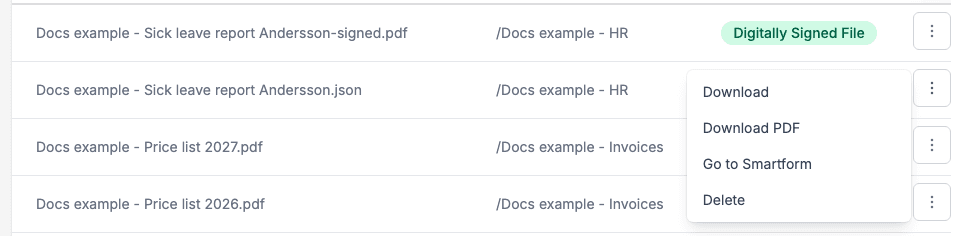
| Download PDF | Smartform | Creates a PDF of the Smartform and saves it. |
| Go to Smartform | Smartform | Opens the Smartform in SmartForms in a new tab. |
| Delete | Every document | Removes the document and all its versions, see Versions, rollback and delete. |
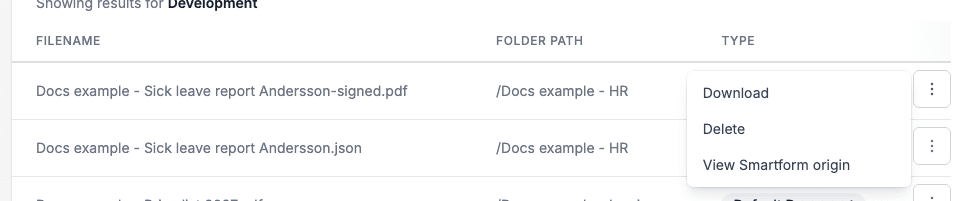
| View Smartform origin | Digitally Signed File made from a Smartform | Opens the Smartform the signed PDF came from, in a new tab. |
| Version history | A document with more than one version | Opens the list of versions. |
A Smartform row shows Download, Download PDF, Go to Smartform and Delete:
A signed file made from a Smartform shows Download, Delete and View Smartform origin:
Details
- The search only covers folders you have access to. A document in a folder you cannot access is not listed, and cannot be downloaded or deleted by you.
- Search query does not look inside the file. It looks at the name and at the details stored with the document.
- Searching and downloading do not write anything to the audit log, see Access, retention and audit.