Text, fields and layout
This page covers the everyday work in the Edit tab: typing and formatting text, filling in fields, using the right-click menu and keeping page breaks where you want them.
Text you can change
Text you can change has a white background and a text cursor. Text that is fixed by the template is grey. Click in a white text to start typing. The formatting toolbar becomes active while the cursor is in such a text.

From left to right the toolbar has:
- Bold, Italic and Underline.
- Align Left, Align Center, Align Right and Align Justify.
- Bulleted List and Numbered List.
- Table, which is active only when the cursor is in a table that is already in the document. See Tables.
- Font and Font Size. The fonts in the list are the ones the template allows. The sizes go from 6 to 48.
On a narrow screen, such as a phone, the toolbar shows only Bold, Italic and Underline, and an ellipsis button, More options. Open it to reach the alignment, list, table, font and size controls.
The editor keeps a short history of your changes. Undo and Redo, among the buttons to the right of the formatting toolbar, or Ctrl + Z and Ctrl + Y, step back and forward through them. Undo and redo also save the document, and the editor is locked for a moment while they run.
Paste text from another document
Paste as you normally do, with Ctrl + V. To paste without the formatting of the source, right-click and choose Paste as plain text.
Fields
A template can put fields in the text. A field is a box you fill in, and the template decides its type:
- Text
- Whole number and decimal number
- Date, with a date picker
- Selection list
- Checkbox
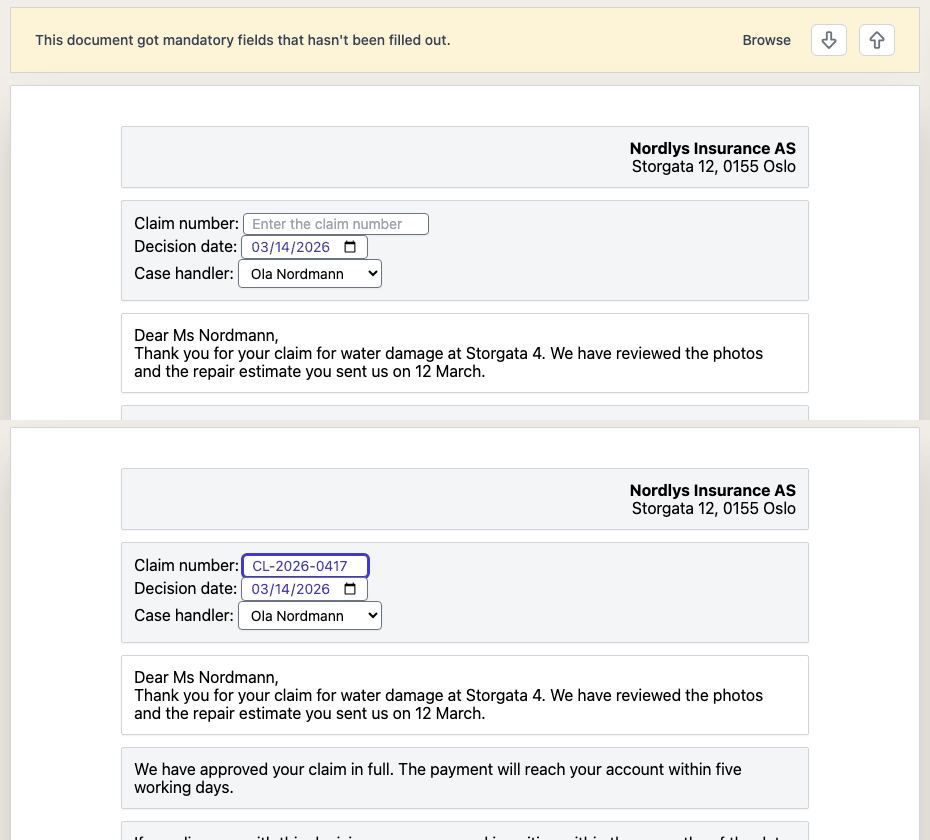
If the same information is used in several places in the document, typing it once fills it in everywhere.
Required fields
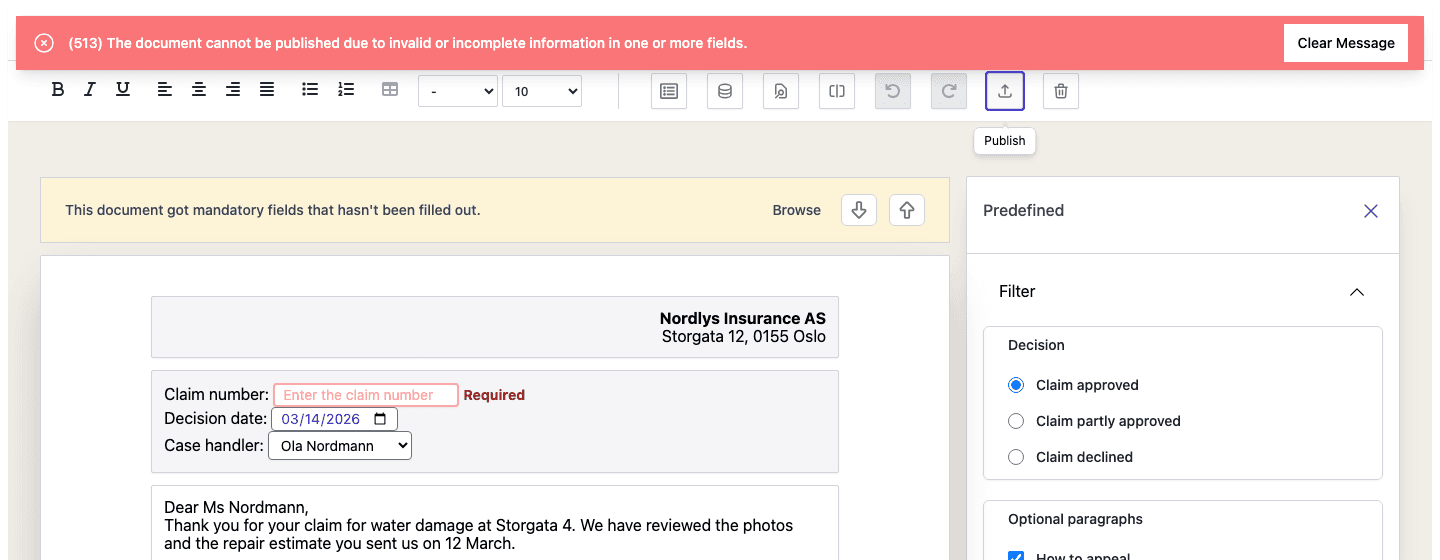
A template can make a field required. While a required field is empty, a yellow banner above the document says This document got mandatory fields that hasn’t been filled out. Use the two arrow buttons next to Browse to jump to the next or the previous empty required field.
A required field that belongs to a predefined text is only required while that text is switched on.
A field can also check what you type. The editor shows one of these messages next to the field:
| Message | Meaning |
|---|---|
| Required | The field must be filled in. |
| At least n character required | The value is shorter than the template allows. |
| At most n character required | The value is longer than the template allows. |
| invalid | A number field contains something that is not a number. |
Publish does not go through while a required field is empty or a value is not valid. The editor shows the field errors and the message (513) The document cannot be published due to invalid or incomplete information in one or more fields.
The right-click menu
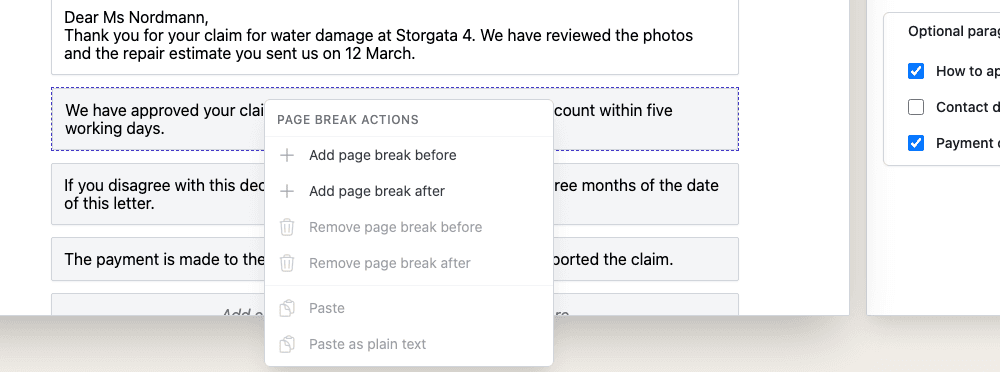
Right-click in the document, or press Shift + F10, to open a menu for the place you are in.
| Menu item | What it does |
|---|---|
| Add page break before, Add page break after | Adds a page break before or after the block you clicked. The item is grey where a page break is not allowed. |
| Remove page break before, Remove page break after | Takes the page break away again. These are grey when there is no page break there. |
| Paste, Paste as plain text | Pastes what you copied. Grey when there is nothing to paste. |
| Delete text | Removes the whole text box you are in. It appears in text boxes you can change. |
| Table Actions | Appears inside a table. See Tables. |
Page breaks
A page break shows as a dashed line marked Page Break between two pages. Right-click it and choose Remove page break to take it out. The last page has no page break after it.
Tables
The Table button works on tables that the template already put in the document. You cannot insert a new table from the toolbar. With the cursor in a table, open Table in the toolbar, or right-click the table and use Table Actions:
- Add Row Before and Add Row After
- Delete Row
- Delete Table
Repeating table rows
Some templates let you add and remove rows in a list, such as a table of items. Right-click a row in such a table and open Table Actions:
- Insert row above and Insert row below
- Delete row
- Move up and Move down
The menu appears only where the template allows changes to the table, and only while the document is a draft. The Editor saves the document after each action.
Keyboard shortcuts
| Keys | What it does |
|---|---|
| Ctrl + Z | Undo. |
| Ctrl + Y | Redo. |
| Ctrl + E | Puts the cursor back in the last text you worked in. |
| Shift + F10 | Opens the right-click menu. |
Saving and errors
The Editor saves on its own, so there is no Save button. If a save fails, the message (501) Failed to save document appears. The editor carries on when a later save works.
These messages mean that the Editor could not load something or that a search failed:
| Message | When it appears |
|---|---|
| (500) Failed to load DXML file | The document itself could not be loaded. |
| (502) Failed to load file | A preview or an attachment could not be loaded. |
| (503) Failed to load data | The Text Library panel could not load its lists. |
| (504) Failed to search | A search in the Text Library panel failed. |
| (505) Failed to search attachment | A search in the attachment library failed. |
Reload the page and try again. If the message comes back, contact your administrator.
A document that has been published or discarded is locked. The buttons in the toolbar are grey and the text cannot be changed. See Preview, publish and discard.