Text Library
The Text Library holds approved standard wording. In the Editor you search it and put a text into your document, so every document uses the same wording. The library is the same Text Library that the administrators maintain. The Editor only reads it.
There are four ways to use it:
- Search in the Library panel and insert a text where your cursor is.
- Click an insert point in the document to add a text in a place the template has prepared.
- Type
###and a space on an empty line to open the panel without leaving the keyboard. - Type
##and the code of a text, then a space, to insert that text at once.
Search in the Library panel
- Click Library, the second button after the toolbar. The Text Library panel opens beside the document.
- Type a name or code in the search box.
- Choose a Language, a Folder and a Group if you want to narrow the search.
- Click Search.
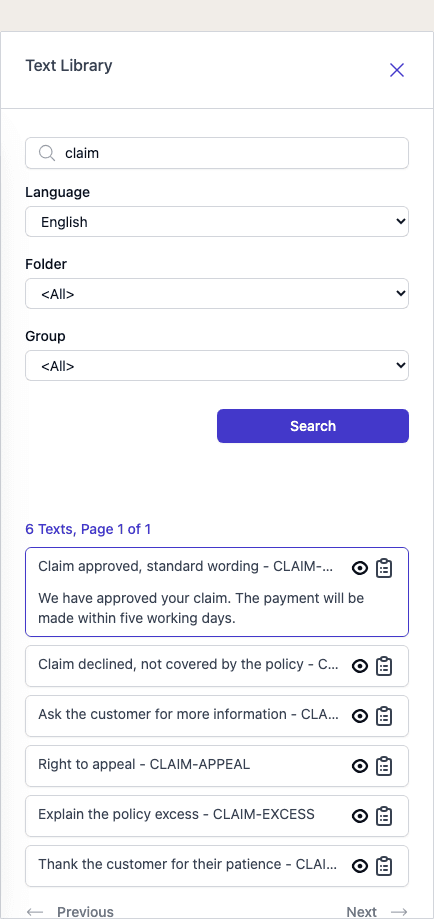
The panel shows the number of texts found and the page you are on, for example 6 Texts, Page 1 of 1. Use Previous and Next to move between pages.
- Click a text to read it in the panel. Click it again to fold it up.
- Click the clipboard icon, Press ENTER to copy the text, to insert the whole text. You can also select the text with the arrow keys and press Enter.
- Click the eye icon, Press Shift + ENTER to view and copy parts of the text, to open the text in a window. Select the part you want, then click Copy.
The text is inserted where your cursor is in the document, and it is also copied to your clipboard. The panel shows Copied!.
The Language starts as the language of the document. The Folder list holds the folders
that Pages Manager makes available for this template. Choose <All> to search in all of them.
Insert points
An insert point is a grey box with a hint such as Add extra information from the Text Library here. It is a place the template owner has prepared for library texts.
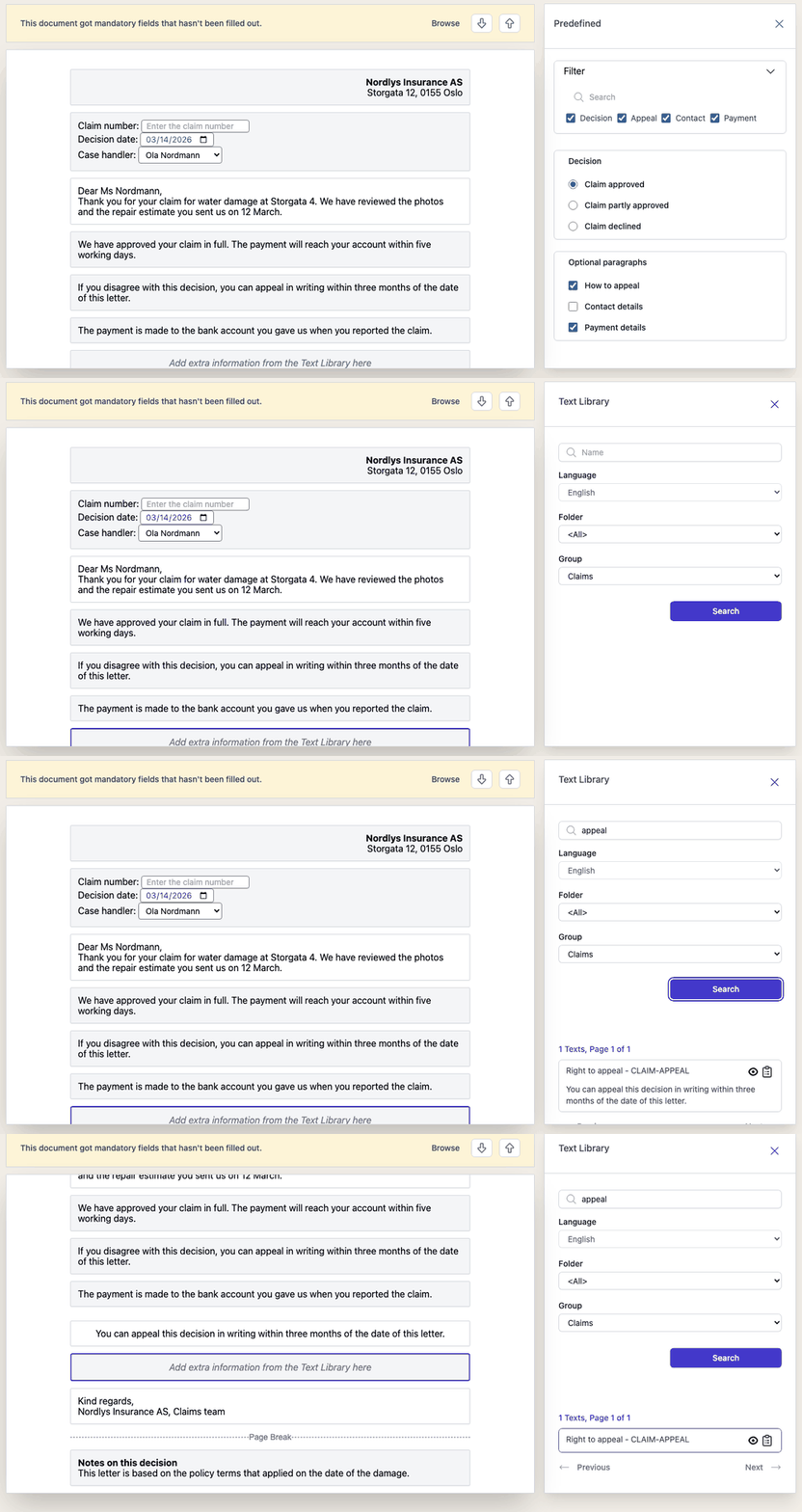
- Click the insert point. The Text Library panel opens, and its Group and Language are set for that place.
- Search, and click the clipboard icon on the text you want.
The text appears above the insert point, and the insert point stays so that you can add more. Click an inserted text to see Delete and Cancel. Delete removes the text again.
Insert points are locked when Show Text Library is switched off for the environment. See Availability.
Open the panel from the keyboard
In a text you can change, type ### and a space on an empty line. The Editor removes those characters,
opens the Text Library panel and puts the cursor in the search box.
Insert a text by its code
If you know the code of a text, you do not need the panel. On an empty line in a text you can change,
type ## followed by the code, then a space. For example, ##THANKS inserts the text with the code
THANKS. The code is the text’s Identifier in the Text Library.
- Type the code exactly as it is written in the library, with the same capital and small letters.
- The characters you type are highlighted in red until the Editor has looked up the code.
- The Editor removes what you typed and inserts the text in the language of the document.
- If no text has that code, nothing is inserted and what you typed stays in the document. Delete it and search in the panel instead.
To search for a text instead of typing its code, use ### as described above.
Messages
| Message | Why | What to do |
|---|---|---|
| (512) A table cannot be inserted within another table. | The text you inserted contains a table, and your cursor is inside a table. | Move the cursor out of the table and insert the text again. |
Availability
The Library button and the ### and ## shortcuts work in every draft document on the Edit tab. The
Show Text Library setting under Visibility in the environment settings in
Pages Manager decides whether the
insert points in a document can be used. When it is off, you cannot click an insert point, and you
cannot select or delete a text that was added to one.