Predefined texts
A template can contain paragraphs that are not always used, such as a decision, a sentence about how to appeal or contact details. In the Editor these are predefined texts. You switch them on and off in the Predefined panel, and the document changes at once.
Open the panel
When a draft document has predefined texts, the Predefined panel opens on its own beside the document. To open or close it yourself, click the Predefined button, the first button after the toolbar. The button is grey when the template has no predefined texts. To close the panel, click the cross, Close panel.
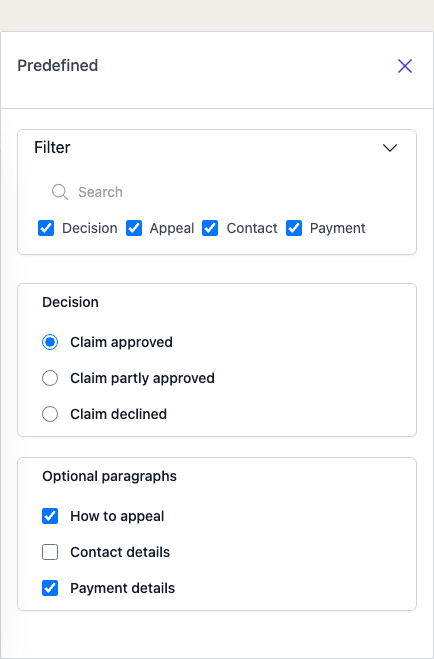
On a narrow screen the panel opens over the document instead of beside it.
Choose texts
The texts are grouped. The template sets the heading of each group, for example Decision or Optional paragraphs.
- A group with round buttons lets you choose one text. Choosing another replaces the first.
- A group with checkboxes lets you switch each text on or off on its own.
A text you switch on appears in the document, and the document scrolls to it. A text you switch off disappears. The Editor saves the choice on its own.
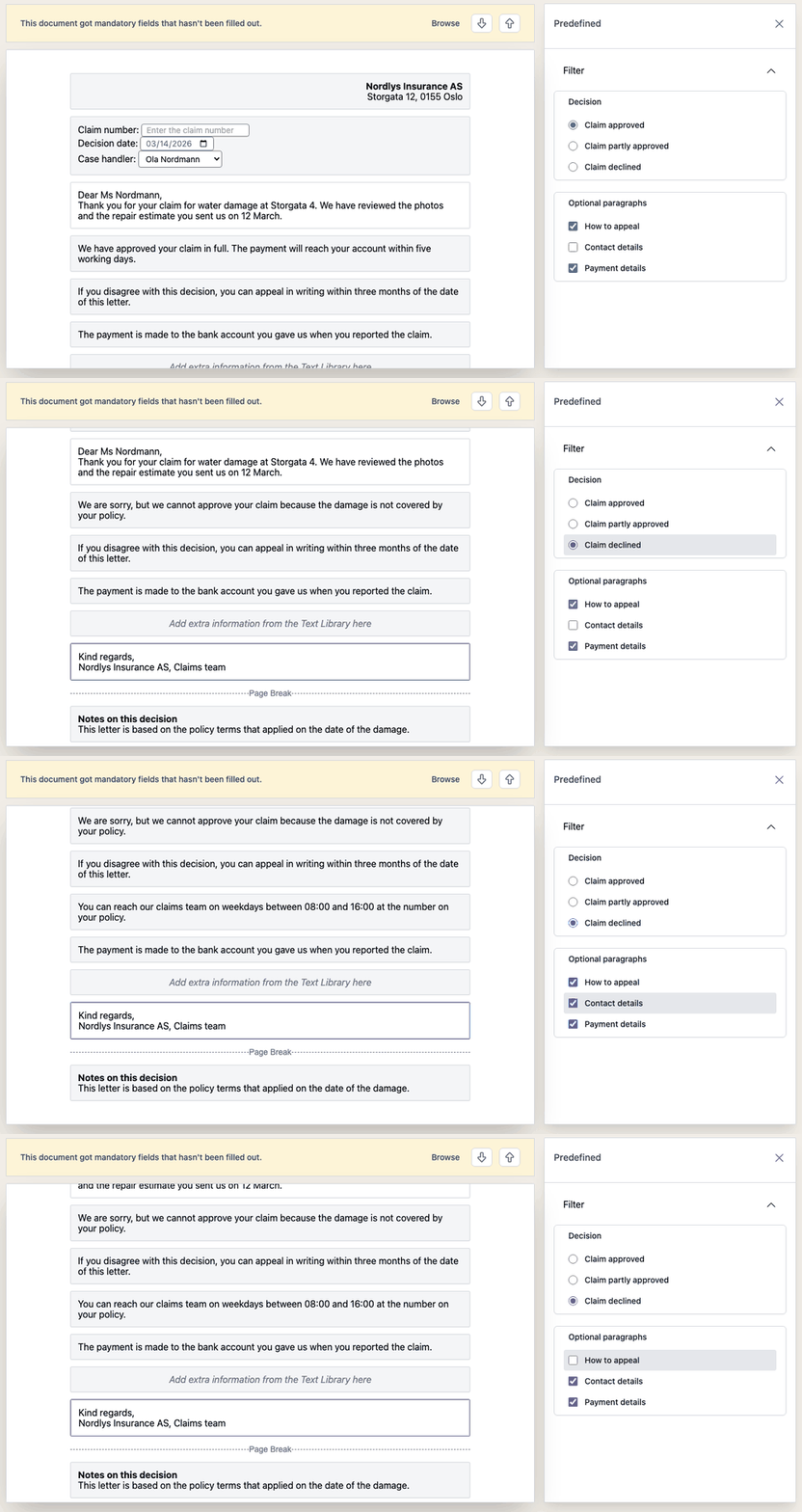
To see how a text looks before you choose it, point at it in the panel. The document shows the text for as long as you point at it, and nothing changes.
Note: A required field inside a predefined text must be filled in only while that text is switched on.
Find a text in a long list
Open Filter at the top of the panel to narrow the list.
- Search shows only the texts whose name contains what you type.
- The keywords below the search box are checked when you open the panel. Clear a keyword to hide the texts that have it.
Texts that have no keyword are listed under
<Blanke>.
A text is shown when its name matches the search and at least one of its keywords is checked.