PDF attachments
You can add PDF files to a document. They follow the document in the order you choose. You can upload a PDF from your computer, or pick ready-made attachments from a library.
Open the Attachment tab at the top right of the Editor. The number next to Attachment counts the attachments that will be included.

- Add From Library opens the attachment library.
- Upload PDF-file adds a PDF from your computer.
Below the buttons a table lists the attachments with their Name and Description. The Editor saves every change on its own.
Upload a PDF file
- Click Upload PDF-file.
- Choose a PDF file on your computer.
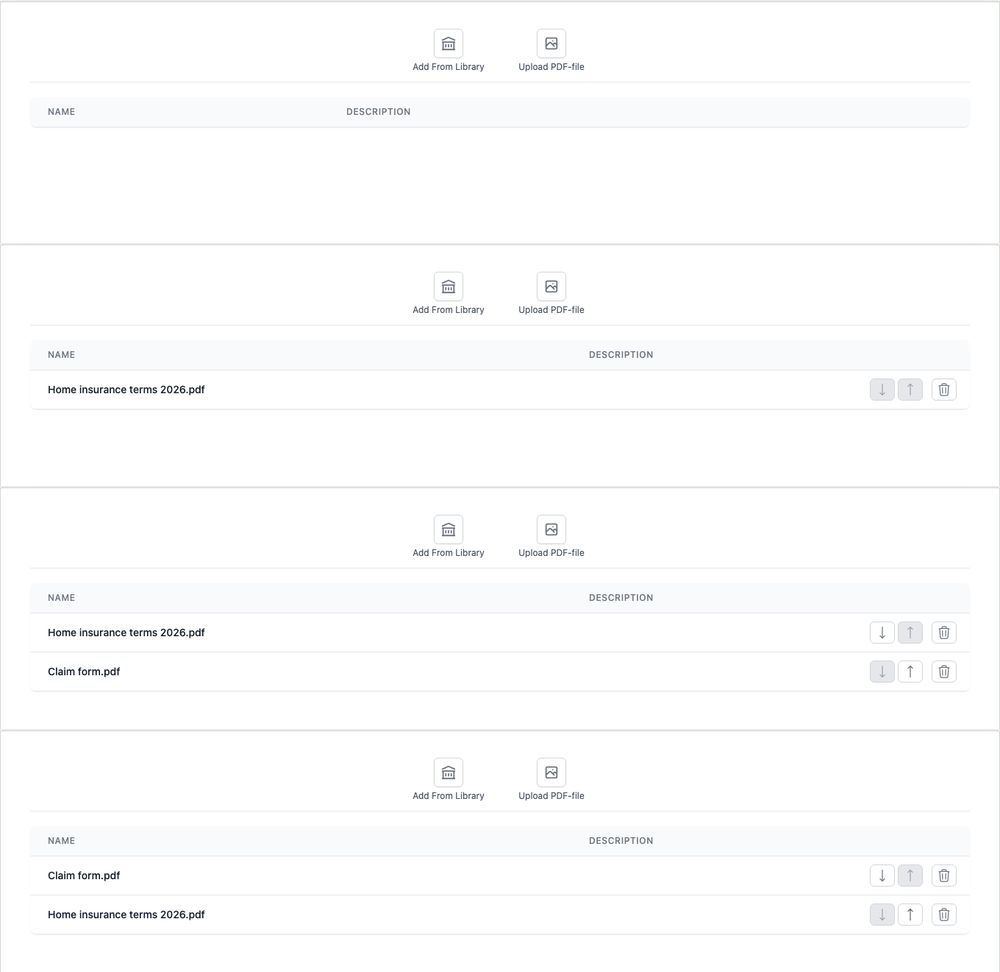
The file is added at the end of the table. The Upload PDF-file button is grey when the document is no longer a draft, or when uploading PDF files is not allowed:
- The environment decides with PDF Attachment in its settings in Pages Manager.
- A template document can override that with Allow PDF Attachments from Disk in the Edit Workflows for document window of the template in Pages Manager: Follow global setting, Not allowed or Allowed.
- Uploading from your computer works only in VM environments. In a Kubernetes environment the button is always grey, whatever the settings say.
The Editor converts the uploaded PDF with the DPI, Color Depth and Duplex values of the environment’s PDF Attachment settings.
Some files are refused:
| Message | Why |
|---|---|
| (506) Failed to load file because file extension x is not supported. | The file is not a PDF. Only .pdf files are accepted. |
| (509) The selected file is too large. The maximum file size is n bytes | The file is larger than your environment allows. |
Add attachments from the library
- Click Add From Library. The Attachment Library opens.
- Tick the attachments you want. Tick the box at the top of the list to select all attachments on the page.
- Click Save.
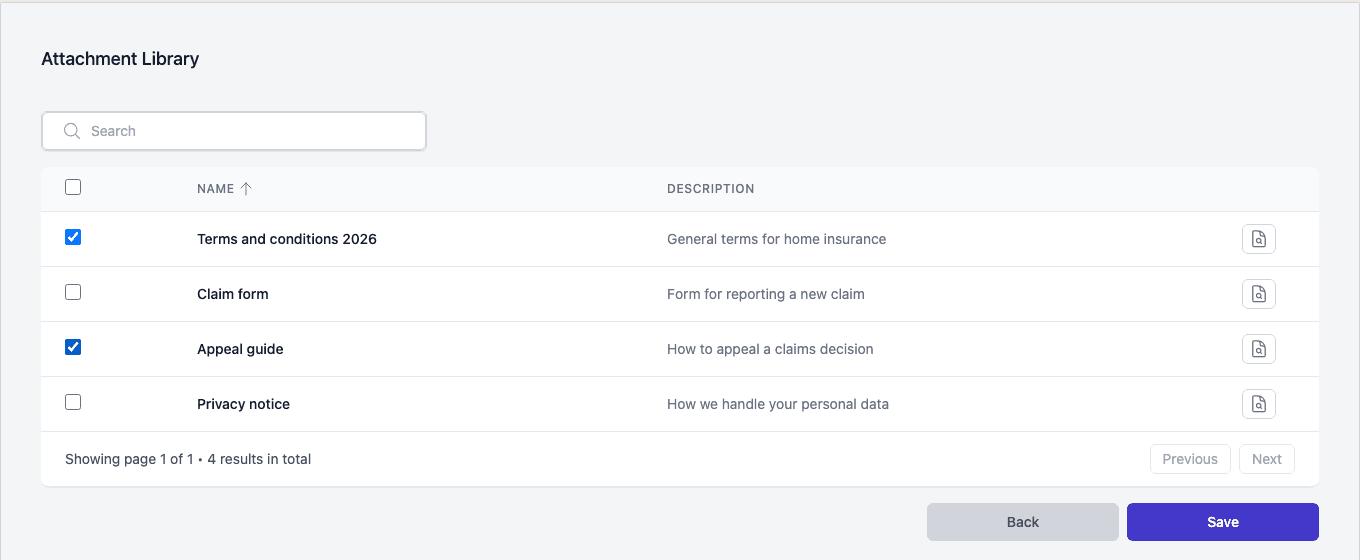
- Type in the search box and press Enter to search.
- Click Name or Description in the header to sort the list. Click again to reverse the order.
- Click the document icon at the end of a row to open the attachment as a PDF and read it first.
- Showing page 1 of 1 and the number of results are shown below the list. Use Previous and Next to change page.
- Save is grey until you have ticked at least one attachment. Back returns to the table without adding anything.
Order and remove attachments
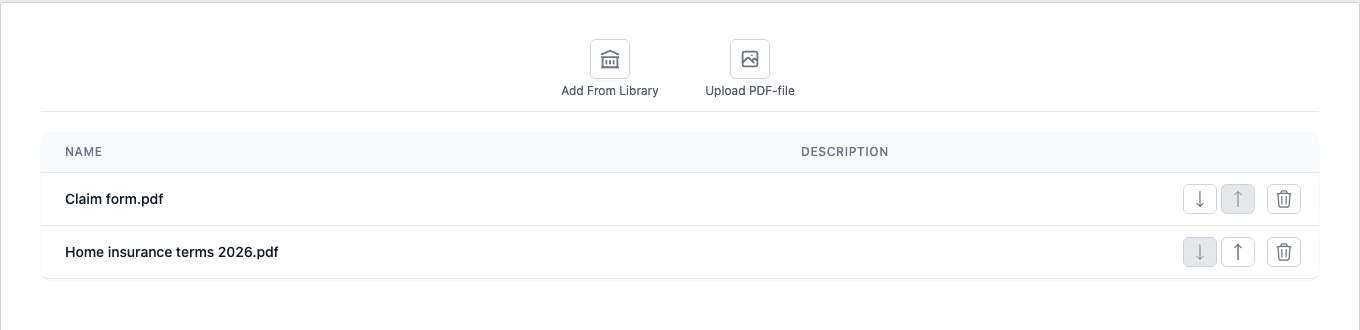
The order of the rows is the order of the attachments in the document. On each row:
- The down arrow, Move down, moves the attachment one place later.
- The up arrow, Move up, moves it one place earlier.
- The bin, Delete, removes the attachment.
The arrows are grey where the attachment cannot move any further.
Attachments that are selected in advance
A template can select library attachments for you. When some attachments can be selected or not, the table has a preselect column with a tick box on those rows. Clear the box to leave that attachment out. The number next to Attachment only counts the attachments that are still ticked.
Preview and publish
The PDF preview shows the document followed by its attachments. The HTML preview shows only the document. See Preview, publish and discard. After you publish or discard the document, the attachments are locked together with the text.