Preview, publish and discard
When the text is ready you can check the result, publish the document or discard it. Publishing and discarding are final: after either, the document is locked and cannot be edited again.
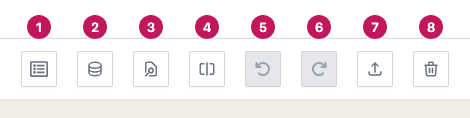
- Predefined opens the predefined texts.
- Library opens the Text Library.
- Preview shows the finished document.
- Split Screen shows the preview beside the editor.
- Undo steps back through your changes.
- Redo steps forward again.
- Publish finishes the document.
- Discard abandons it.
The buttons show only icons. Point at a button to see its name.
Preview
Click Preview to see the document as it will look, with its attachments. The Editor saves your latest changes first, so the preview always includes what you just typed. On a single screen the preview opens in a new tab.
If Show Preview Html is switched on for the environment in Pages Manager and the template has content for it, Preview offers Preview PDF and Preview HTML. The HTML preview shows only the document, without the attachments.
Split screen
Click Split Screen to keep the preview open beside the editor. The preview is on the left, with its own title, PDF Preview or HTML Preview. The button is now called Single Screen. Click it to go back to one screen.
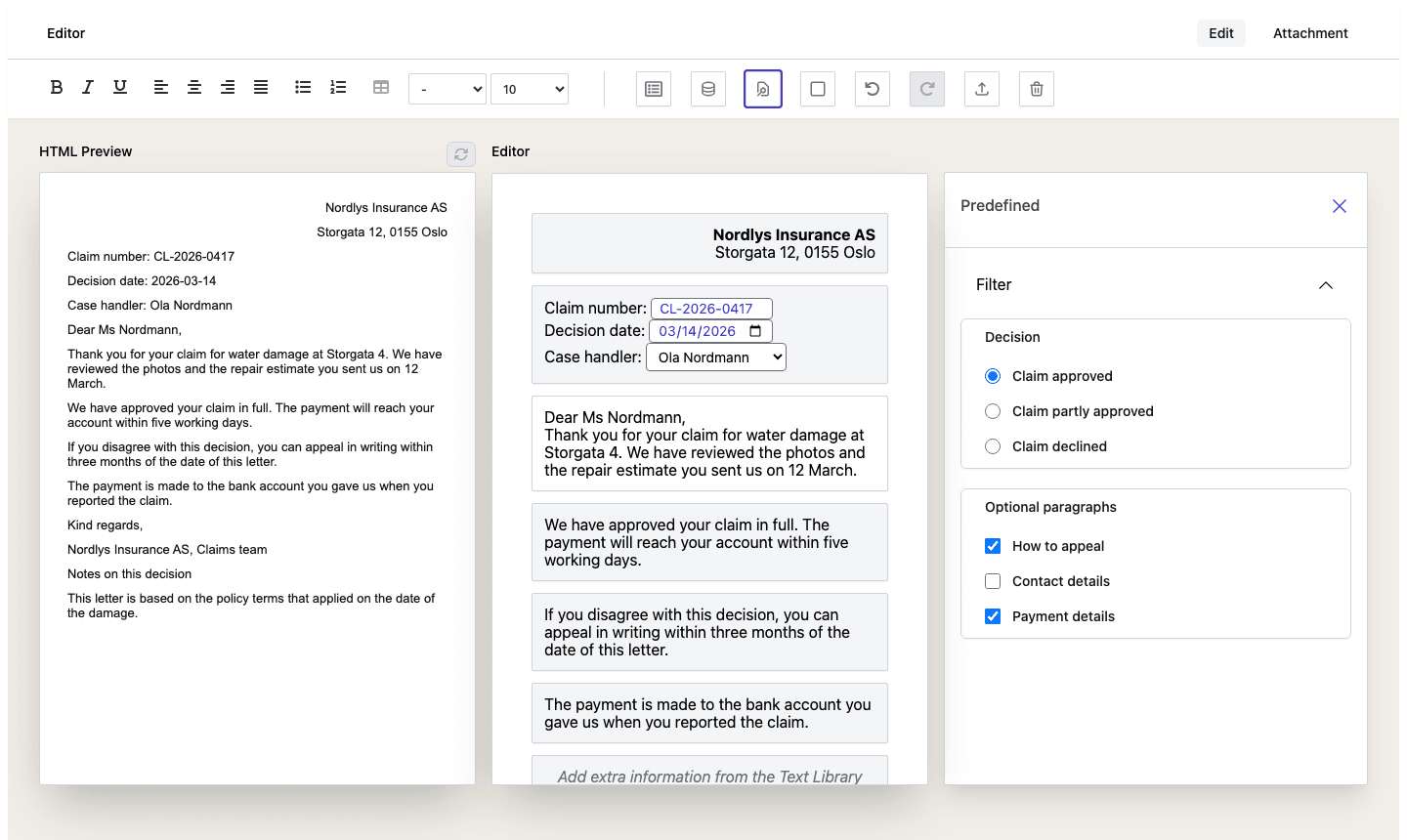
The preview does not update while you type. When you have changed the document, the Refresh with latest changes button beside the title becomes active. Click it to load the new version. It is grey with the hint There are no changes to refresh when the preview is up to date.
Publish
- Click Publish. If a required field is empty or a value is not valid, nothing is published and the editor shows the field errors. See Required fields.
- The Distribution window asks Are you sure you want to publish the document? If you can choose how to send the document, it lists the channels under Select Distribution Channel.
- Choose a channel, if the window lists any, and click OK. Click Cancel to go back and keep editing.
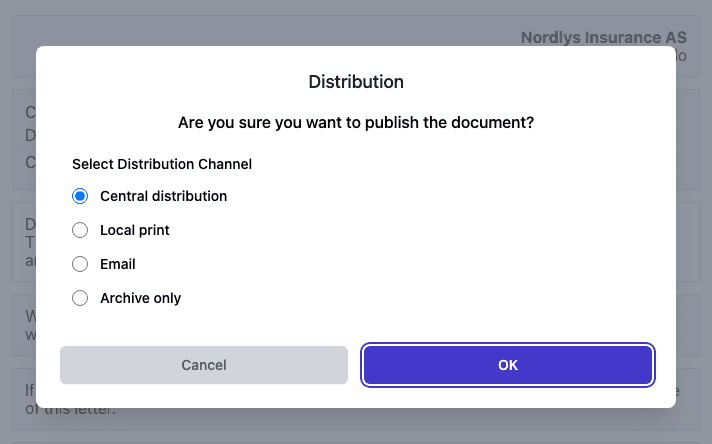
The channels depend on the environment’s settings in Pages Manager:
| Channel | What happens |
|---|---|
| Central distribution | The document is sent on for central delivery. |
| Local print | The Editor makes a PDF and opens it in a Local Print window, where you can Download or Print it, and Close the window. |
| The document is sent by e-mail. | |
| Archive only | The document is archived and not sent. |
If your organisation uses a distribution list, the window lists the alternatives of that list with their descriptions instead. When the document was started with a fixed channel, there is nothing to choose and the window only asks you to confirm.
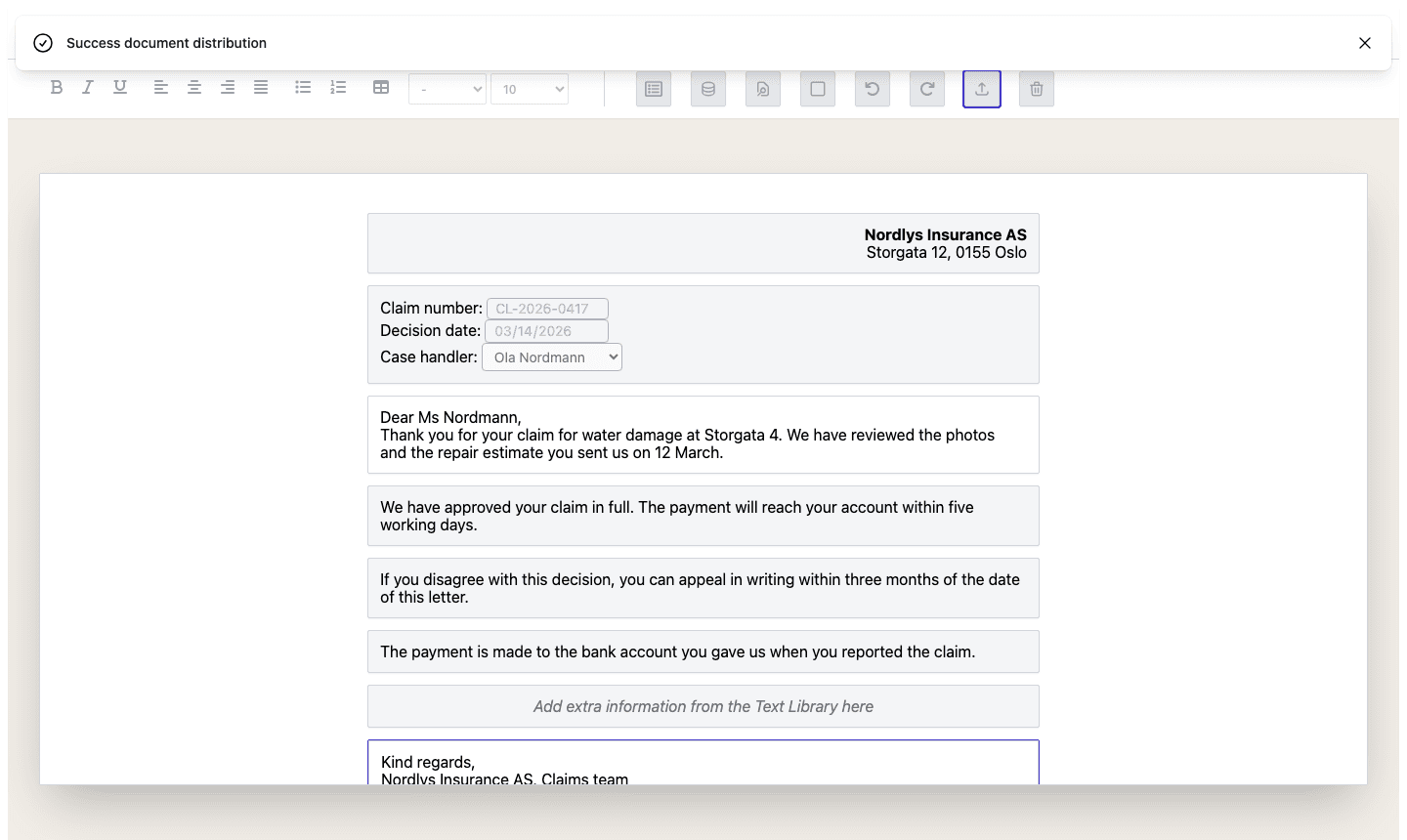
If distribution is switched off for the environment in Pages Manager, the window only asks you to confirm. After OK the Editor shows Success document publishment. With distribution switched on it shows Success document distribution.
If your organisation has set up a check that runs when a document is published, the Editor runs it first. When the check fails, the document is not published and the Editor shows the reason.
After publishing, the text and the buttons are locked and the status is OK.
If publishing fails, the Editor unlocks the document again and shows an error, so you can try again.
Messages you may see
| Message | What to do |
|---|---|
| (507) It can not publish document. Please disable distribution in the WebEditor settings in the CenterPoint. | Appears when the Editor is embedded in an application that handles publishing itself. Your administrator has to switch distribution off for the environment in Pages Manager. |
| (510) The distribution list in the Pages manager is not activated. | Your administrator has to activate the list. |
| (511) No distribution alternative has been added in the distribution list: followed by the name of the list | Your administrator has to add an active alternative to the list. |
| (513) The document cannot be published due to invalid or incomplete information in one or more fields. | Fill in or correct the fields the Editor marks. |
| (514) No distribution channel is selected in the WebEditor settings. | Your administrator has to choose at least one channel. |
Discard
- Click Discard.
- The Discard Document window asks Are you sure to discard document? Click OK to discard or Cancel to keep editing.
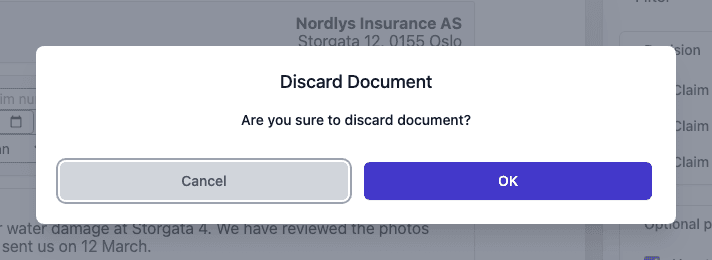
The status becomes Discarded and the document is locked. A discarded document should not be delivered.
Back to the form
When the Editor was opened from a SmartForms flow, a back arrow appears at the left of the top bar. Its hint is Back to Smartform. It takes you back to the form.
Sign-in
If the environment protects its documents, the Editor asks you to sign in before it opens a document. A window titled Authentication Required says that the document is protected. Click Authenticate. If you are not allowed to open the document, the window is titled Forbidden and gives the reason. Click Retry, or Exit to leave.