Environments
The Environments page is where you set up the structure that logic files travel through. You work with three levels:
- An environment group is a named chain, for example your normal chain or a chain for a partner.
- An environment is one step in a chain, such as Development, Test or Production.
- A server belongs to one environment and downloads the logic files of that environment.
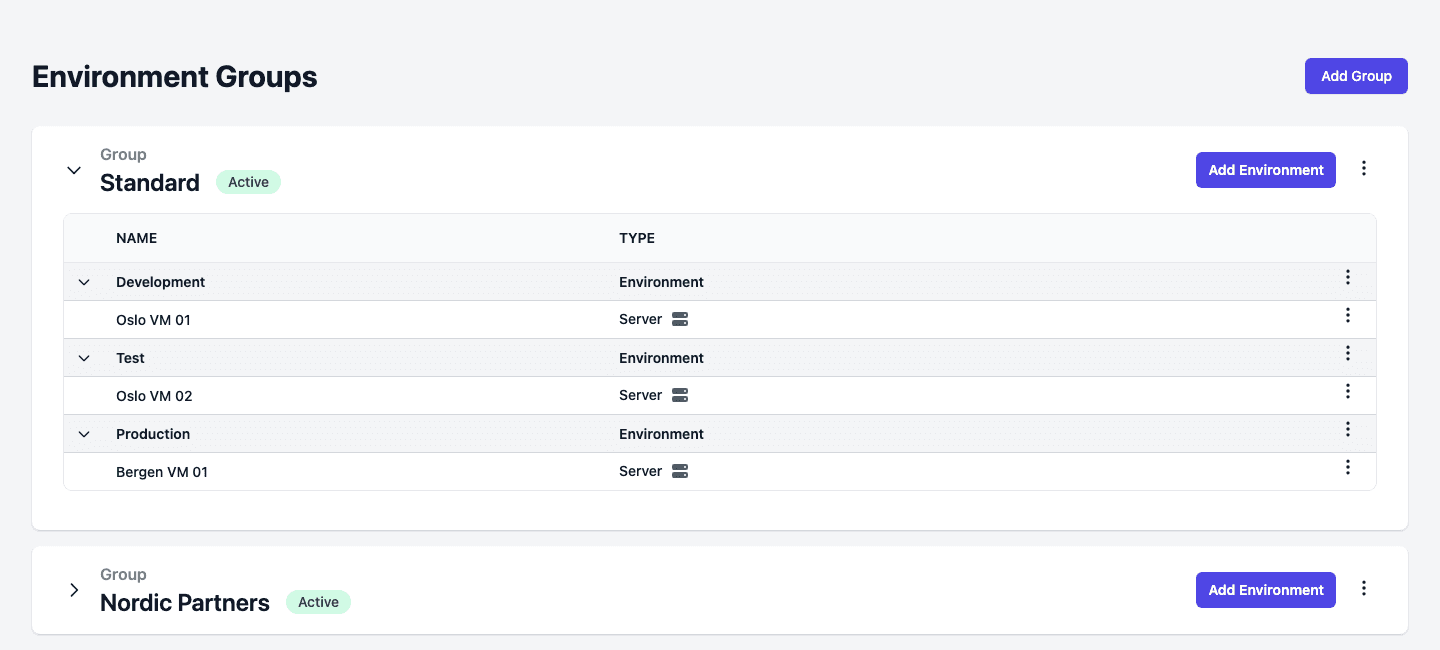
The page is called Environment Groups. Each group is a card with its environments in publish order. Click the arrow in front of an environment to show its servers. The group named Standard always exists.
Preset environments
You choose an environment from this fixed list:
- Development
- Test
- Test1, Test2, Test3, Test4 and Test5
- IntegrationTest
- AcceptanceTest
- Production
A group can hold each of them once. You decide which ones you use and in what order.
Environment groups
Use more than one group to keep separate chains apart, for example one for your own files and one for a partner. The Standard group cannot be changed: its Edit, Disable and Delete actions are greyed out.
Click the three dots on a group card to open its options:
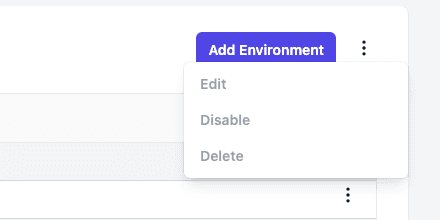
- Edit changes the name, description and status of the group.
- Disable or Activate turns the group off or on. Only active groups show up on Home and on Templates.
- Delete removes the group. For a virtual group the action is called Disconnect.
Add a group
- Click Add Group.
- Type a Name and, if you like, a Description.
- Switch on Activate to make the group active. Leave it off to prepare the group first.
- Click Save. Back returns to the list without saving.
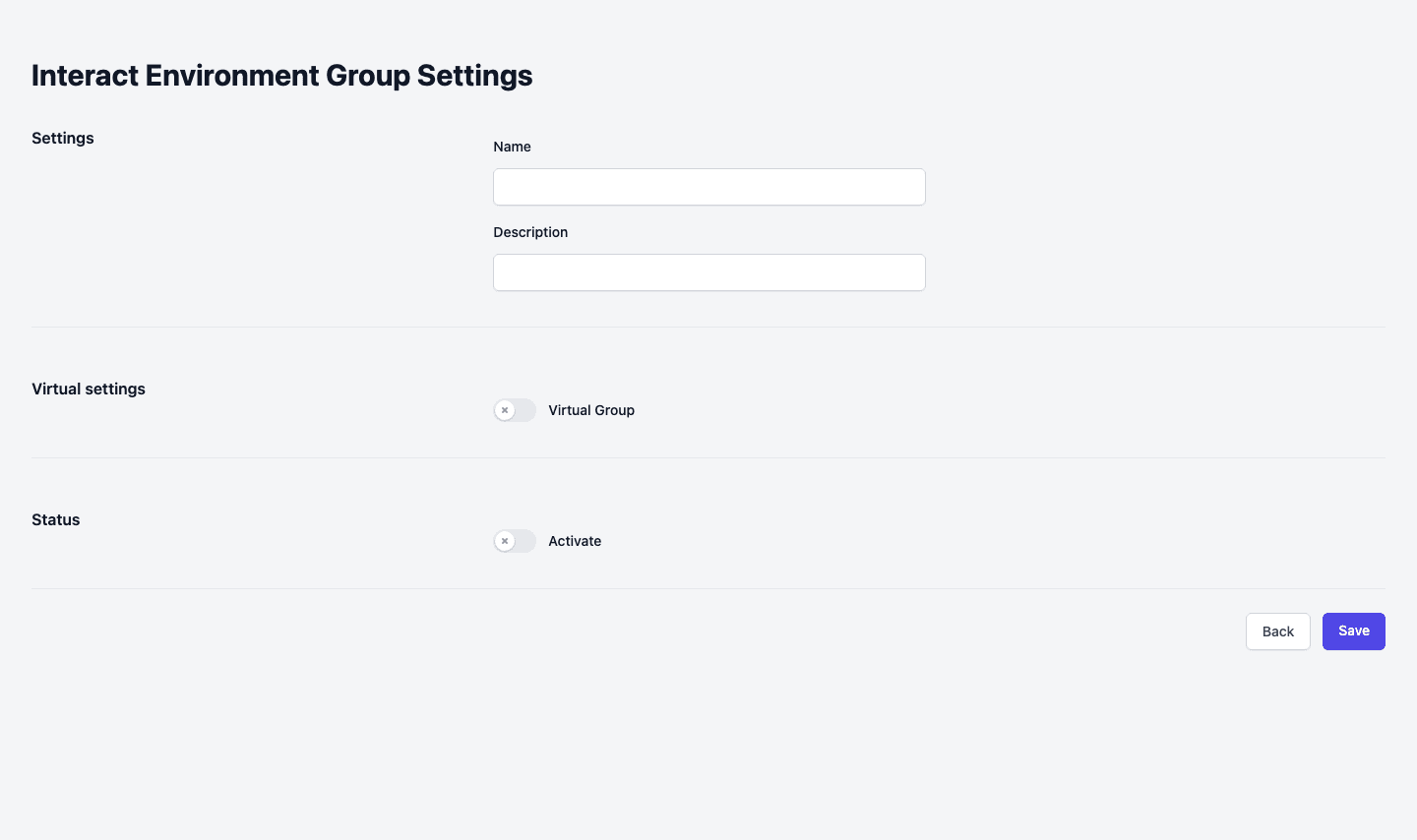
Switch on Virtual Group to show a group that lives in another Pages Manager installation. You then fill in the Pages Manager Endpoint, the Identity Endpoint, a Client ID, a Client Secret and which group to use there. A virtual group is read only: you can see its files, but you cannot upload to it, and it has no status on Home.
Add an environment manually
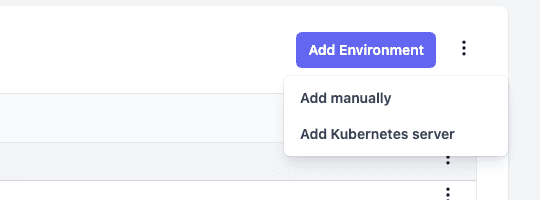
- On the group card, click Add Environment.
- Choose Add manually.
- Under Customer Environment, choose one of the preset environments. The list only offers environments that the group does not have yet.
- Fill in the Endpoint of the Pages server and the other settings. They are described in Environment settings.
- Click Save.
The other choice in the menu, Add Kubernetes server, deploys a server for you. See Kubernetes servers.
Environment menu
Click the three dots on an environment row:
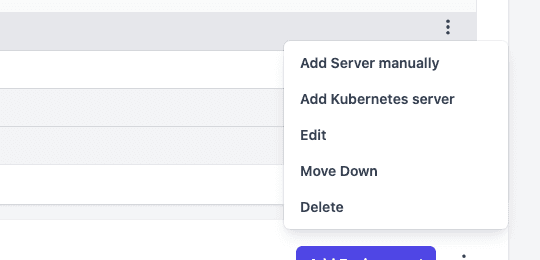
- Add Server manually adds a server that you run yourself.
- Add Kubernetes server deploys a server in Kubernetes.
- Edit opens the environment settings.
- Move Up and Move Down change the order of the environments. The order is the path that logic files travel. The first environment is where new files arrive.
- Delete removes the environment. If the environment has Kubernetes servers, Pages Manager warns you that deleting removes their deployments from Kubernetes and that this cannot be undone.
Add a server manually
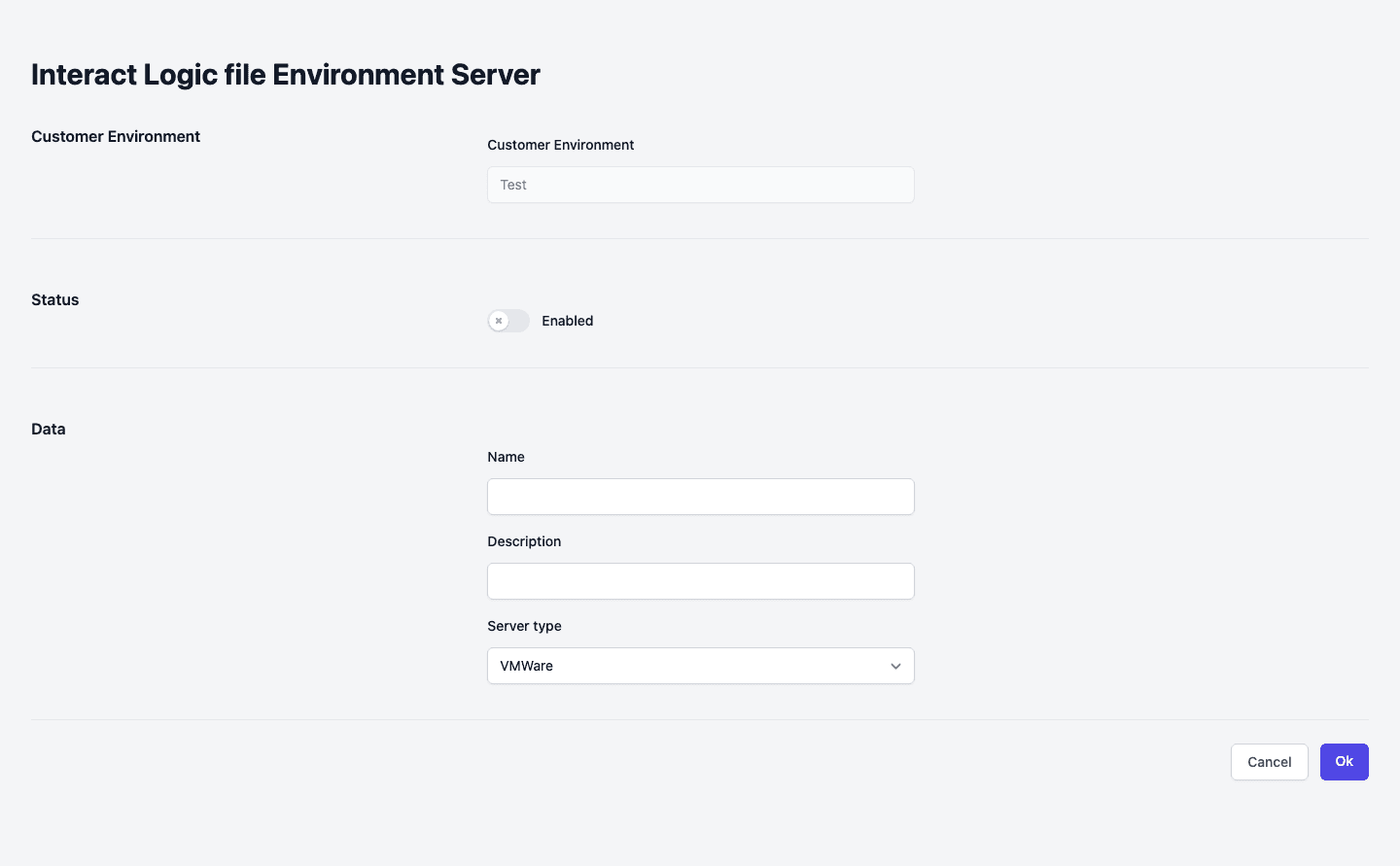
- Open the menu of the environment and choose Add Server manually.
- Switch on Enabled to let the server take part. A server that is not enabled does not download files.
- Type a Name and a Description.
- Choose a Server type: VMWare for a virtual machine you manage, or Container.
- Click Ok.
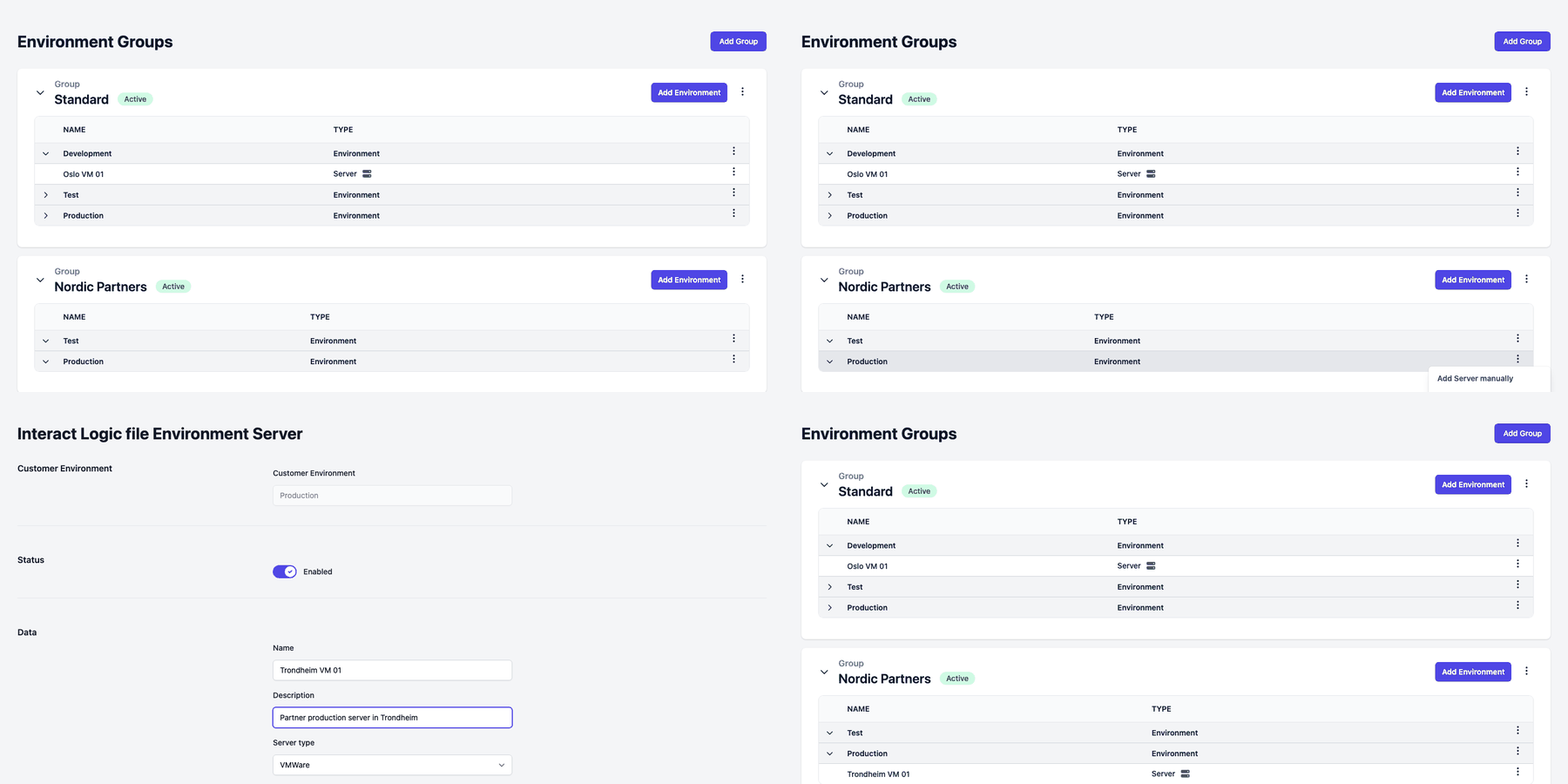
A server that has been added but is not yet connected shows as an error or a warning on Home until it reports in.
Server menu
Click the three dots on a server row:
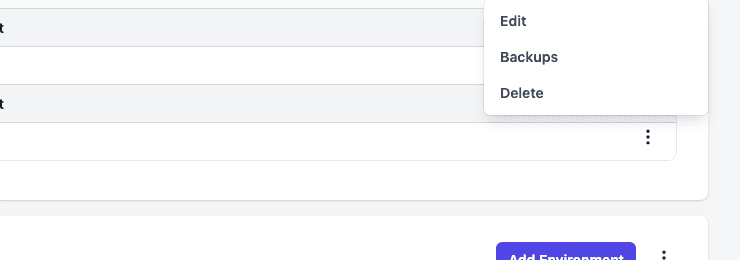
- Edit opens the server form.
- Backups lists the backup files of the server, each with Download and Remove.
- Delete removes the server. Deleting a Kubernetes server also deletes its deployment.
A server that Pages Manager deployed in Kubernetes has Information instead of Backups, and its menu also has Update kubernetes server and Kubernetes settings. See Kubernetes servers.