Pages Manager
Pages Manager is the administration application for Pages. It moves your Pages logic files (.mfl files made in Metatool) through an ordered chain of environments, manages the servers behind each environment, and holds the Editor settings and Distribution lists that go with them. You can publish a logic file straight from Metatool, but you need Pages Manager to see versions, control which environment gets which version, and set up the environments themselves.
Open Pages Manager at https://interactadmin.metaforce.net. The address follows the environment you pick above.
How it fits together
A logic file always enters the first environment of a group. You then update it, environment by environment, in the order you set on the Environments page. Servers in each environment download the file that environment holds.
| Term | Meaning |
|---|---|
| Environment group | A named chain of environments. The group named Standard always exists. |
| Environment | One step in the chain, such as Development, Test or Production. Each has its own settings and servers. |
| Server | A Pages server that belongs to one environment. It is either a virtual machine you manage yourself, or a Kubernetes container that Pages Manager deploys. |
| Logic file | An .mfl file with your Pages documents and logic. |
| Distribution list | A company-wide list of delivery choices that you attach to a document in a logic file. |
Sign in and pick a company
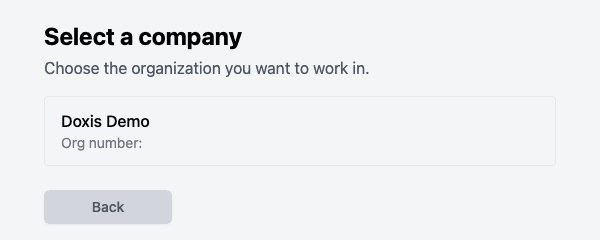
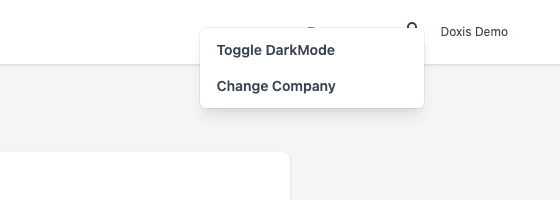
Sign in with your Doxis account. If your account belongs to more than one company, Pages Manager shows Select a company. Pick the company you want to work in. To switch later, open the user menu in the top right corner and choose Change Company.
Some screens can appear instead of the application:
| Screen | What it means | What to do |
|---|---|---|
| User is missing license to access this feature. | Your company has no license for Pages Manager. | Ask your administrator to add it. |
| You are not allowed to access this page. | Your account may not open this page. | Ask your administrator for access. |
| Session expired | Your sign-in has ended. | Choose Sign in again. |
| Not authenticated | The sign-in link was already used. | Choose Sign in again. |
| Page not found. | The address does not match a page. | Use the top bar to go to the page you want. |
The top bar

- Home shows the health of each environment group. See Home and server status.
- Templates holds the logic files of each environment. See Templates.
- Environments is where you set up groups, environments and servers. See Environments.
- Distribution holds your Distribution lists. See Distribution.
- Docs opens this documentation.
- The user menu holds Toggle DarkMode and Change Company. After you have toggled dark mode, it also offers Reset darkmode settings, which goes back to the theme of your system.
Where to start
Set up in this order the first time:
- On Environments, add the environments you need, in the order files should travel. See Environments.
- Add a server to each environment, or deploy a Kubernetes server. See Kubernetes servers.
- Check the settings of each environment. See Environment settings.
- On Templates, upload a logic file and update it to the next environment. See Templates.
- Optional: create a Distribution list and attach it to a document under Manage Workflows.
- Optional: publish from your build pipeline instead of by hand. See CI/CD deployment.