Distribution
A Distribution list gives the Editor a set of delivery choices, for example e-mail, post or Digipost. You create the lists here, fill them with alternatives, and then attach one to a document in a logic file.
Distribution lists belong to your company. They are not tied to one environment, so every environment of your company can use the same lists.
The list page
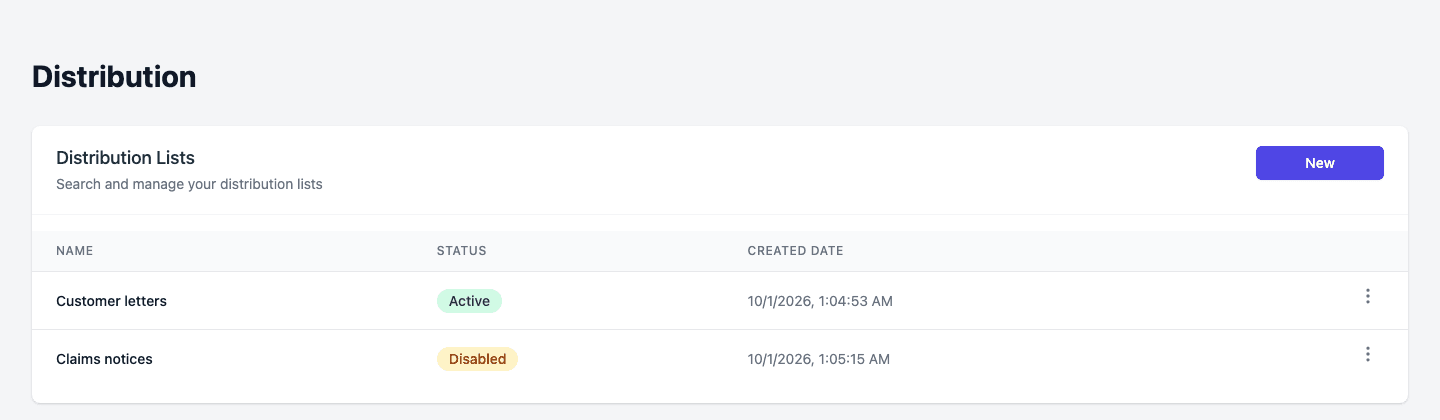
Open Distribution in the top bar. The page Distribution Lists shows every list with its Name, Status (Active or Disabled) and Created Date.
Click the three dots on a row to open its menu:
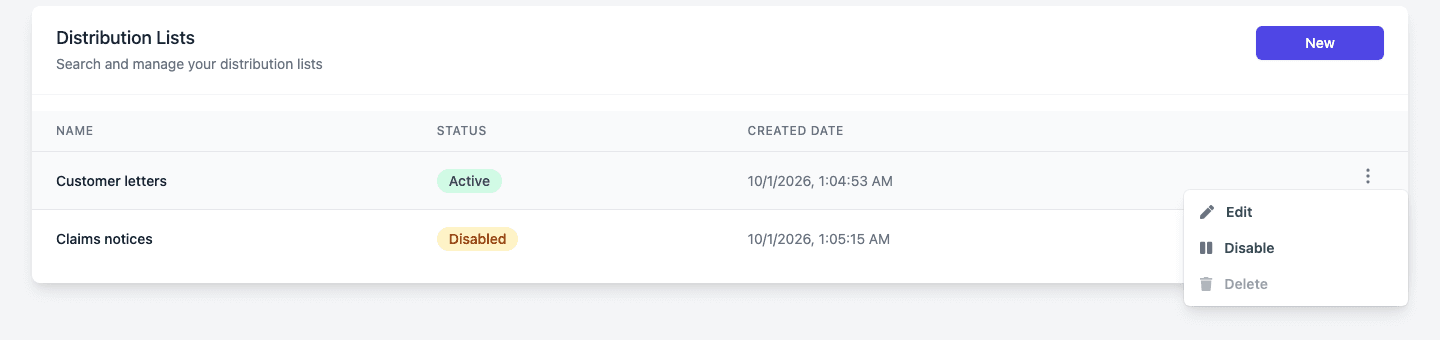
- Edit opens the list.
- Disable turns an active list off. Enable turns a disabled list on again.
- Delete removes the list. It is greyed out while the list is Active: disable the list first.
Create a list
- Click New.
- Type a Distribution List Name. The name is required.
- Click Create.
Pages Manager creates an empty, active list and opens it.
Add alternatives to a list
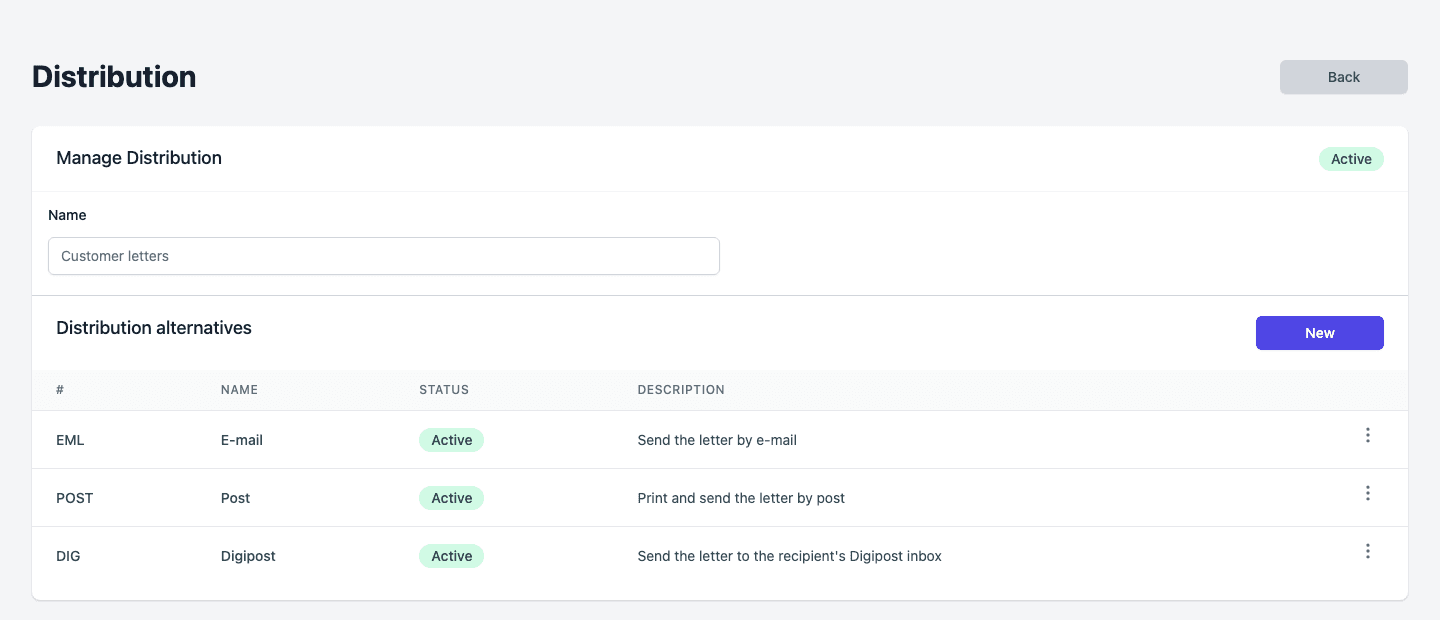
An alternative is one delivery choice in the list. Open a list by clicking its name. The page Manage Distribution shows the status of the list and a table of its Distribution alternatives with the columns #, Name, Status and Description.
-
Click New above the table.
-
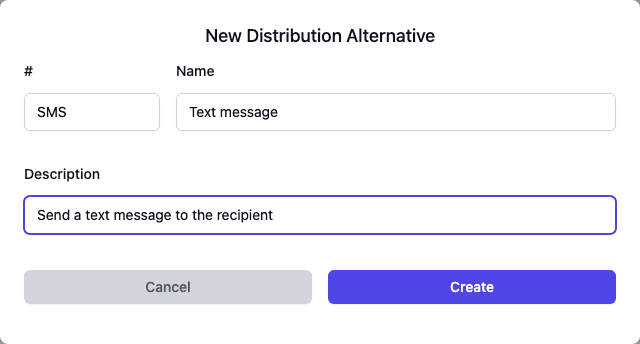
Fill in the form:
Field Rule # The code of the alternative, 2 to 10 characters. Logic files use it, so give each alternative its own code. Name 3 to 40 characters. Description Optional, up to 250 characters. -
Click Create.
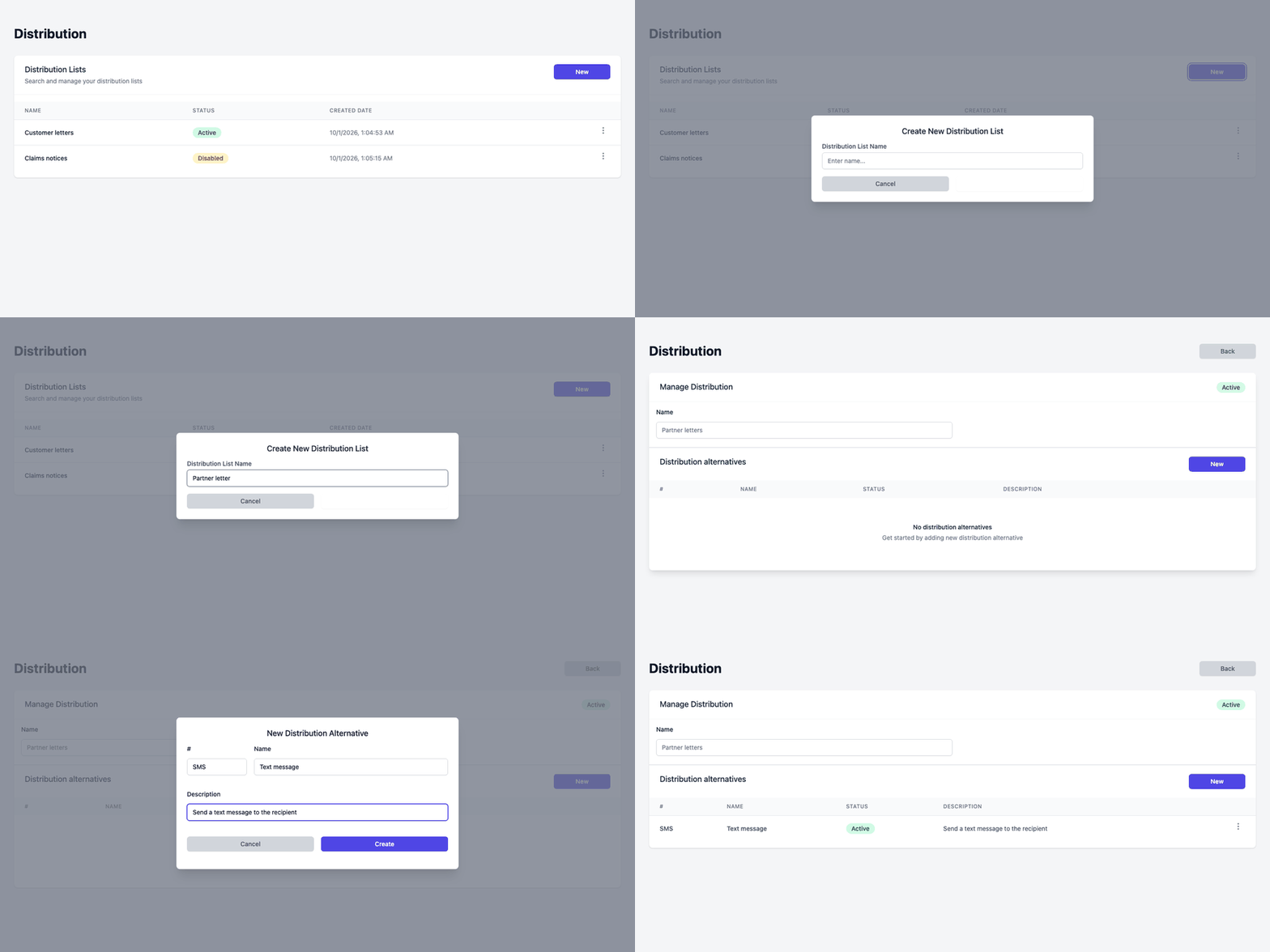
Click the three dots on an alternative to choose Edit, Disable or Enable, or Delete. As for lists, Delete is greyed out while the alternative is active.
Note: A name you change in the Name field at the top of Manage Distribution is not saved at the moment. Choose the final name when you create the list.
Disable and delete
- A disabled list stays in the system but is not offered when you attach a list to a document.
- A disabled alternative stays in its list with the status Disabled. Enable turns it on again.
- A list that is already attached to a document stays attached when you disable it. The document shows it marked (disabled).
- Delete is only possible for disabled lists and alternatives.
Attach a list to a document
You attach a list to a document in the logic file under Manage Workflows, in the Distribution List field. See Manage Workflows and logic file settings. Distribution must also be switched on in the environment settings of the environment.