Environment settings
Each environment has its own settings: where its Pages server listens, how PDF files are made, and how the Editor behaves for users of that environment.
To open them, click the three dots on the environment row on the Environments page and choose Edit. Click Save to keep your changes or Cancel to leave without saving. The same form opens when you add an environment with Add manually.
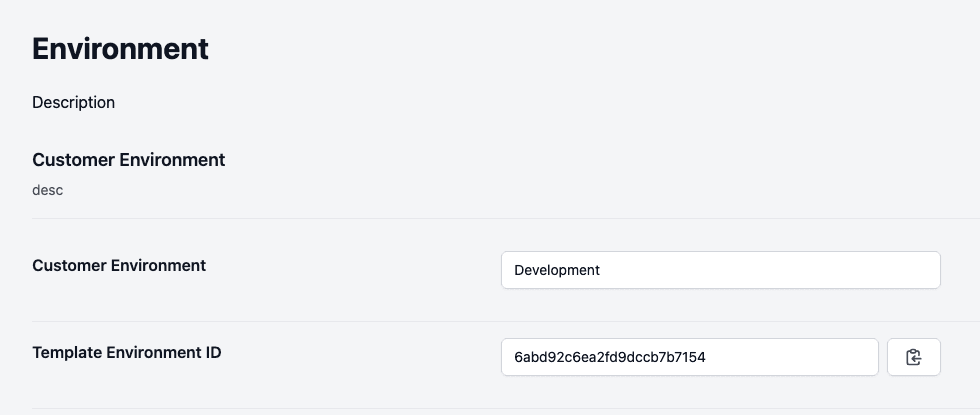
Customer Environment and Template Environment ID
- Customer Environment is the environment you are editing. You choose it when you add the environment, and you cannot change it afterwards.
- Template Environment ID identifies the environment. Click the button beside it to copy it. You need this value when you publish logic files from a pipeline. See CI/CD deployment.
Interact SOAP Client Settings
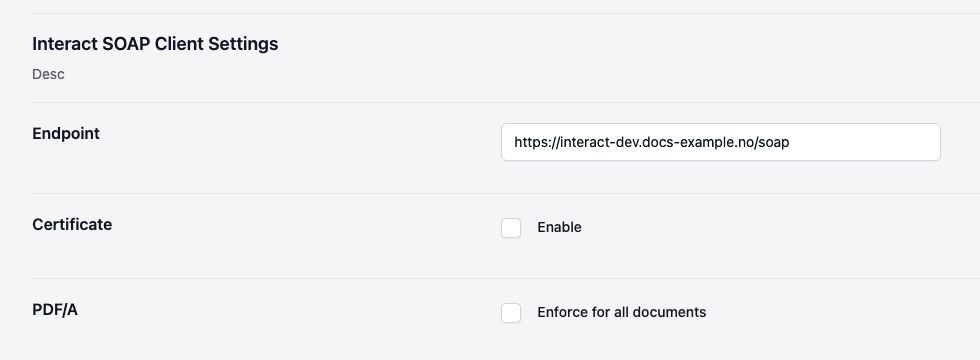
| Setting | Description |
|---|---|
| Endpoint | The address of the Pages server’s SOAP service for this environment. Do not change it for a Kubernetes environment, because it points at the container that Pages Manager deployed. |
| Certificate | Tick Enable if the server requires a client certificate (used for virtual machine environments). You then upload a .pfx file and type its password. |
| PDF/A | Tick Enforce for all documents to make every generated PDF file PDF/A compliant. |
WebEditor Settings
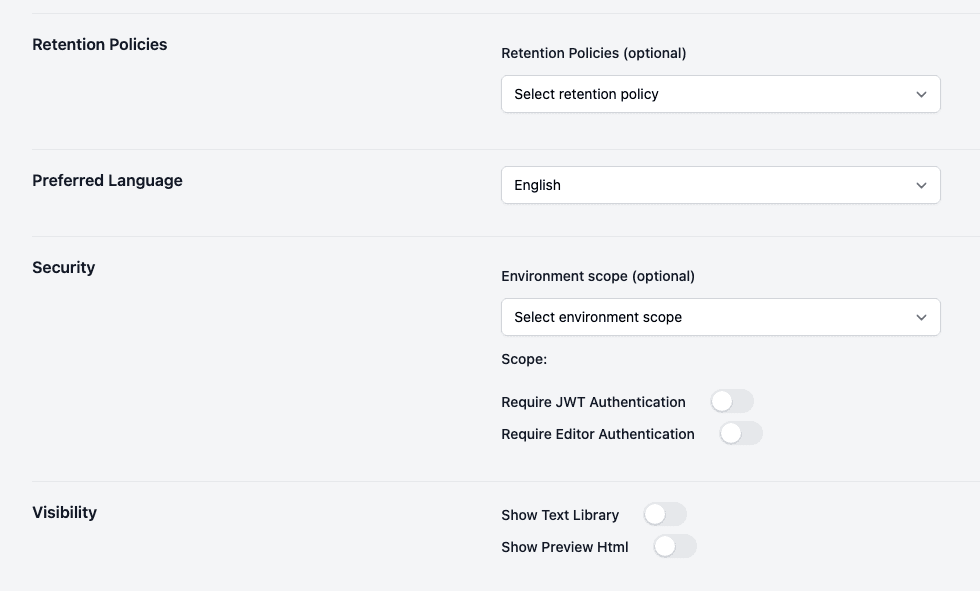
| Setting | Description |
|---|---|
| Retention Policies | Optional. Choose a retention policy to override the system default for documents made in this environment. Retention policies are defined under Administration, Settings. See Retention policies. |
| Preferred Language | The language of the Editor: English, Norsk or Svenska. Required. |
| Security | See below. |
| Visibility | Show Text Library shows the text library in the Editor (needs a license). Show Preview Html shows the HTML preview in the Editor. |
Security
- Environment scope is optional. Choose the scope an API client needs to reach this environment. You create API clients under Administration, Integration, API Clients, where you choose the scope for the client. See API Clients. The scope you pick here is repeated under the field.
- Require JWT Authentication requires JWT authentication for access to this environment.
- Require Editor Authentication requires users to authenticate in the Editor. When you switch it on, the field Required User Domain appears, where you type the domain (after the
@) that users must belong to.
The two Require switches exclude each other: switching one on switches the other off.
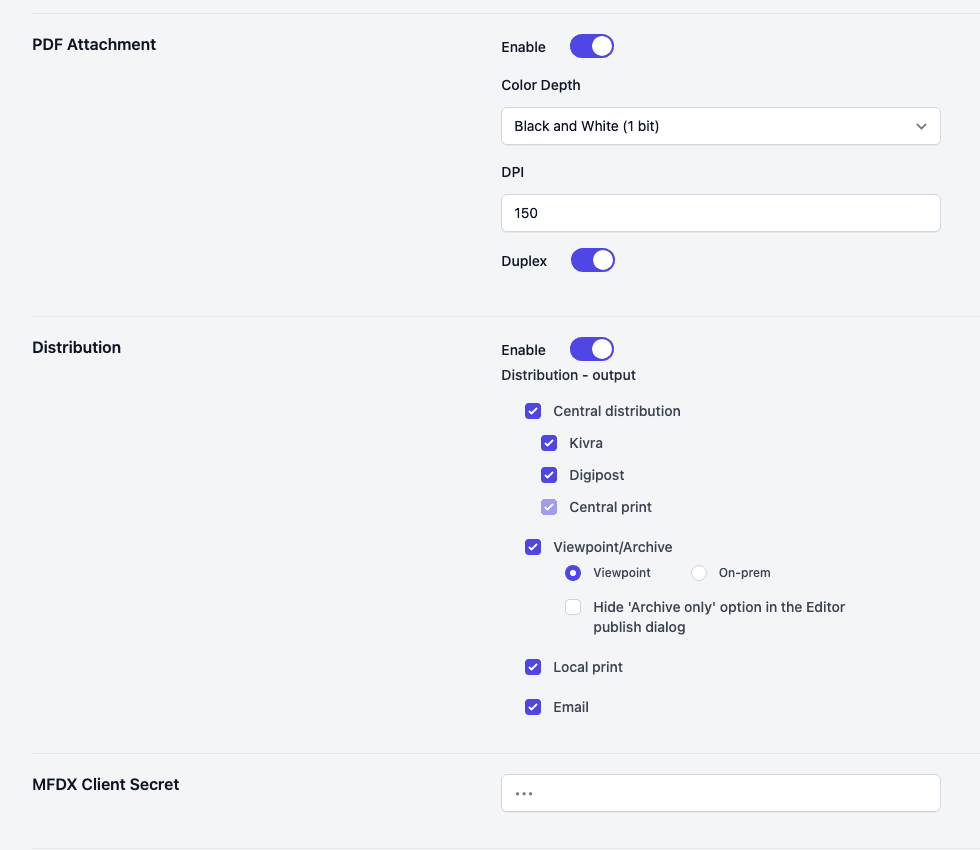
PDF Attachment
Switch on Enable to let users add PDF files as attachments to Editor documents. Then set:
- Color Depth: Black and White (1 bit) or Color, RGB (24 bit).
- DPI: a whole number from 72 to 300.
- Duplex: whether the attached PDF files are printed on both sides.
You can allow or forbid PDF attachments for a single document under Manage Workflows.
Distribution
Switch on Enable to offer distribution in the Editor, and then choose the outputs under Distribution - output. These work together with the logic file and its Distribution list.
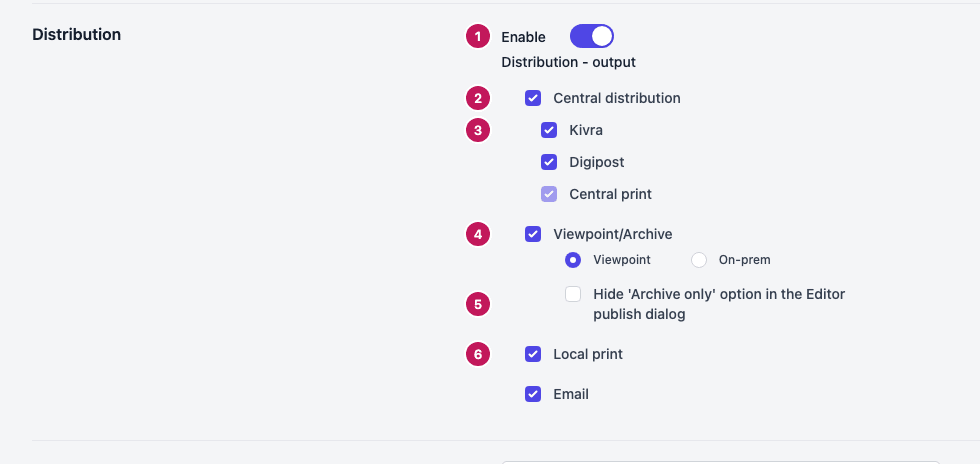
- Enable switches distribution on or off in the Editor.
- Central distribution sends the document through central distribution. When it is ticked you must pick at least one channel below it.
- Kivra, Digipost and Central print are the channels of central distribution. Central print is always included and cannot be changed.
- Viewpoint/Archive lets users archive the document. Choose Viewpoint or On-prem for where the archive is.
- Hide ‘Archive only’ option in the Editor publish dialog removes the option to archive without distributing.
- Local print and Email let users print locally or send by e-mail.
MFDX Client Secret
Type the client secret if you use MFDX. The field is required the first time you save, because Pages Manager keeps the value hidden after that. If you do not use MFDX, type any value, for example N/A.
What must be filled in
Pages Manager refuses to save until:
- Endpoint has a value.
- A certificate file and its password are given, when Certificate is enabled.
- Preferred Language has a value.
- At least one distribution output is ticked, when distribution is enabled.
- Central distribution has a channel, when it is ticked.
- DPI is between 72 and 300, when PDF Attachment is enabled.
- MFDX Client Secret has a value, when none is stored yet.