Kubernetes servers
Pages Manager can deploy a Pages server as a container in Kubernetes for you, instead of you setting up a virtual machine. It creates the environment, the storage and the server in one guided flow, and it can later update the server to a newer image.
This is available only when deployment is enabled for your installation. If it is not, Add Kubernetes server is greyed out in the menus.
Add a Kubernetes server
- On the Environments page, click Add Environment on the group card and choose Add Kubernetes server. You can also open the menu of an existing environment that has no Kubernetes server yet and choose Add Kubernetes server.
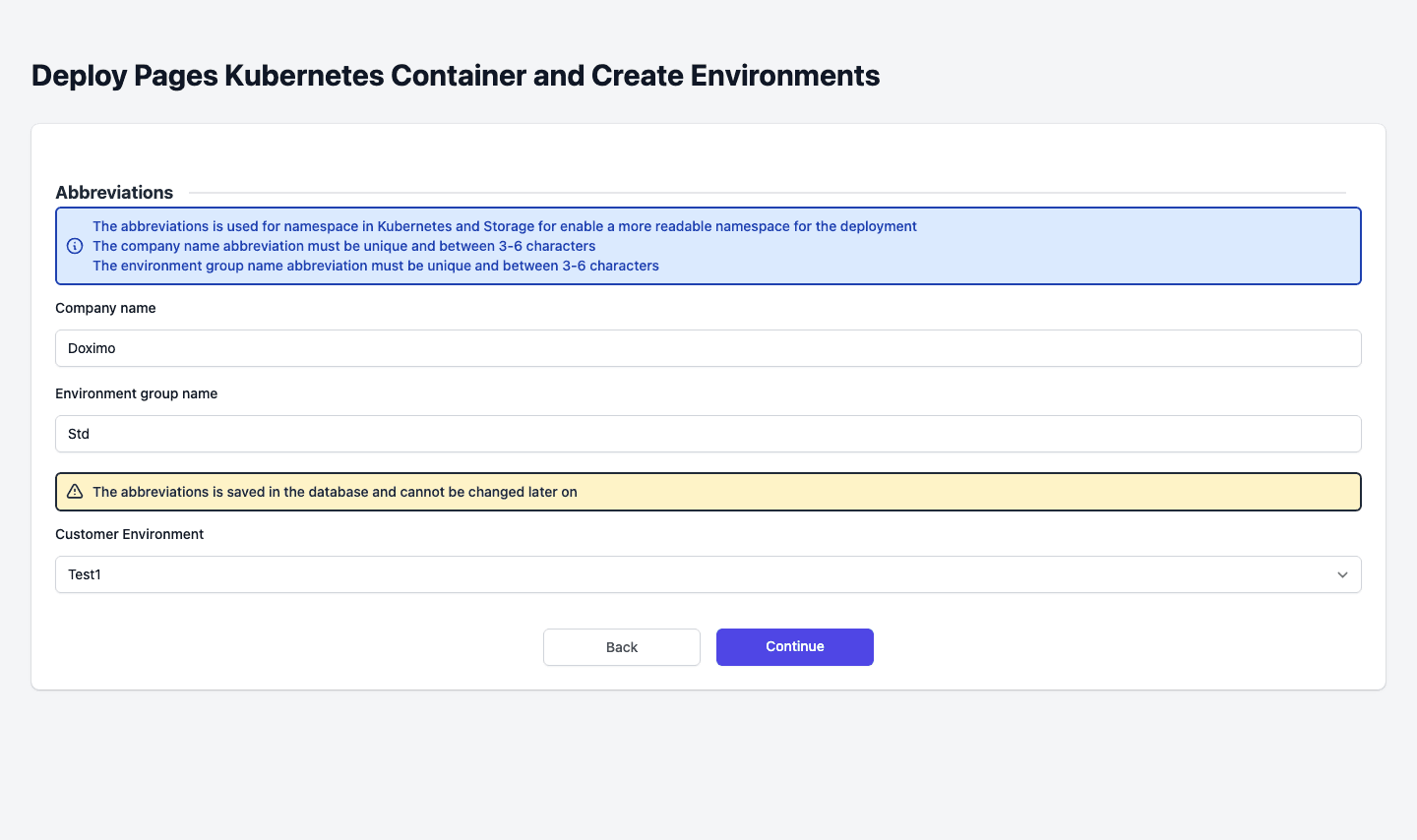
- Pages Manager opens Deploy Pages Kubernetes Container and Create Environments.
-
Check the two abbreviations. They become part of the names in Kubernetes and in storage:
- Company name is an abbreviation of your company.
- Environment group name is an abbreviation of the group.
Each abbreviation must be unique and 3 to 6 characters long. Pages Manager warns that the abbreviations is saved in the database and cannot be changed later on, so choose them with care.
-
Under Customer Environment, choose the environment to create. The list offers the environments the group does not have yet.
-
Click Continue. Back returns to the Environments page.
Pages Manager then runs the deployment and shows its progress: it initializes the template, creates the storage, deploys to Kubernetes and starts the Pages server. When it reports Deployment complete, the page shows what was deployed, including the version. Click Create Test Page to check that the new environment works, and Close to finish.
The new environment and its server appear on the Environments page. Open its environment settings to set the Editor options. Leave the Endpoint as it is, because it points at the new container.
Update a Kubernetes server
When a newer image exists, Home shows the event Server … should be updated, and the server row on the Environments page offers Update kubernetes server.
- Click Update in the event, or open the menu of the server and choose Update kubernetes server.
- Follow the upgrade wizard. It updates the existing server to the newer image.
Kubernetes settings and information
Open the menu (three dots) on a Kubernetes server row:
- Kubernetes settings shows the settings that are specific to that server. Change them and click Save.
- Information opens Deployments with the name, the image version and the creation date of each deployment of the server.
- Delete removes the server. This deletes the deployment from Kubernetes, and the server and its content are permanently erased. You cannot undo it.
Deleting an environment that has Kubernetes servers has the same effect, and Pages Manager warns you before it does it.