Manage Workflows and logic file settings
Manage Workflows lets you attach settings to each document in a logic file, so the Editor behaves the way you want: which smartform loads first, which workflows run at which moment, which Distribution list applies, which text library folders are offered, and whether PDF attachments are allowed.
You set these per document and per environment group, and only in the first environment of the group. When you later update the next environment, the settings follow the file. A changed setting shows up there as File process updated.
Open Manage Workflows
- Go to Templates.
- Click the tile of the first environment of the group, for example Development.
- Open the menu (three dots) on the logic file row and choose Manage Workflows.
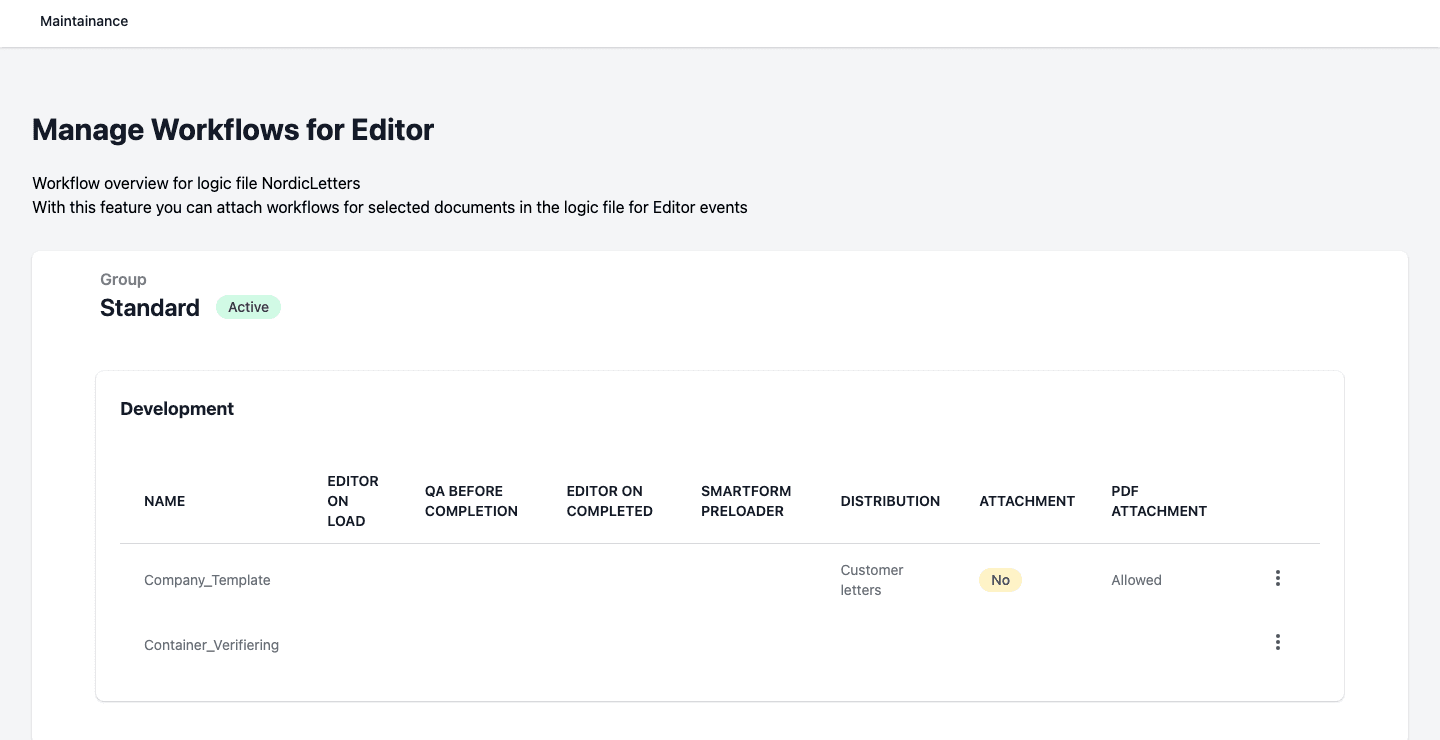
The page Manage Workflows for Editor lists every document in the file, with one column for each setting:
| Column | What it shows |
|---|---|
| Name | The document in the logic file. |
| Editor On Load | The workflow that runs when the Editor opens the document. |
| QA Before Completion | The workflow that runs before the user completes the document. |
| Editor On Completed | The workflow that runs when the user has completed the document. |
| Smartform Preloader | The smartform that loads data into the Editor. (Forced) after the name means it always runs before the Editor session. |
| Distribution | The Distribution list that belongs to the document. A list that has been disabled is followed by (disabled). |
| Attachment | Whether the document can be used as an attachment in the Editor. |
| Pdf Attachment | Whether users may add PDF files from disk. Empty means the global setting applies. |
A group that is connected from another installation (a virtual group) shows the table, but has no Edit action.
Edit the settings of a document
- Open the menu on the document row and choose Edit.
- Fill in the settings you need, described below.
- Click Save.
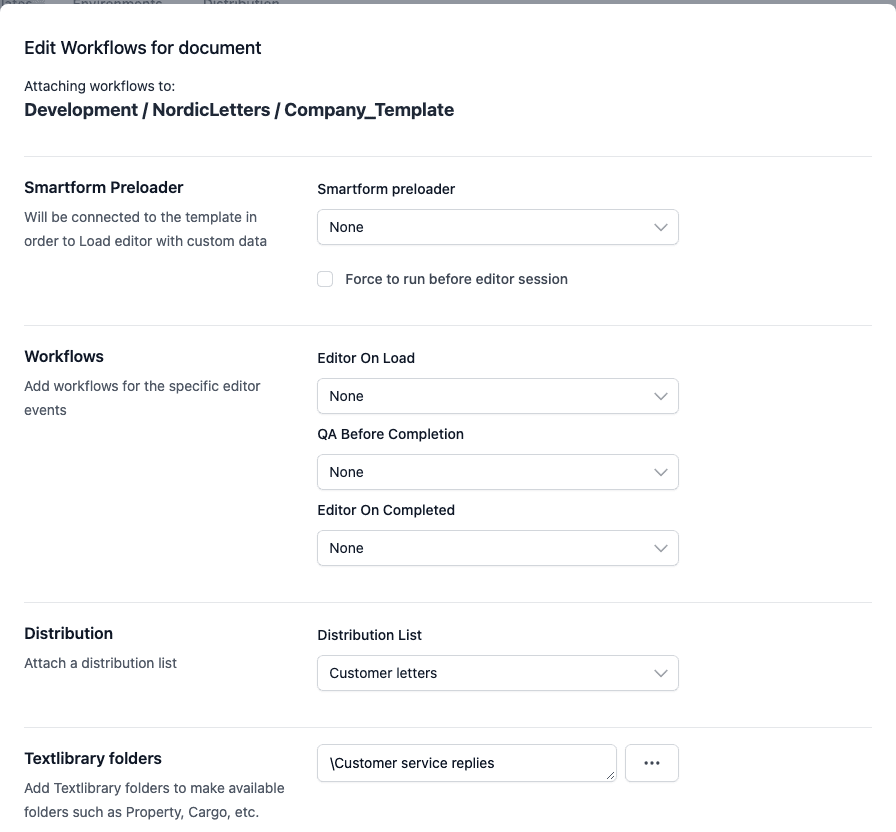
The heading of the dialog names the environment, the logic file and the document you are editing.
Smartform Preloader. Choose a smartform under Smartform preloader to load the Editor with your own data. Tick Force to run before editor session to make it run every time. The list holds the smartforms in your company that are prepared for this use.
Workflows. Choose a workflow for each of Editor On Load, QA Before Completion and Editor On Completed. None leaves the moment without a workflow.
Distribution. Choose a Distribution List to give the Editor the delivery choices of that list. The list offers the lists that are active. A list that you have disabled is not offered, but if it is already attached to the document it stays selected and is marked (disabled). To create lists, see Distribution. The Editor only offers distribution when it is enabled in the environment settings.
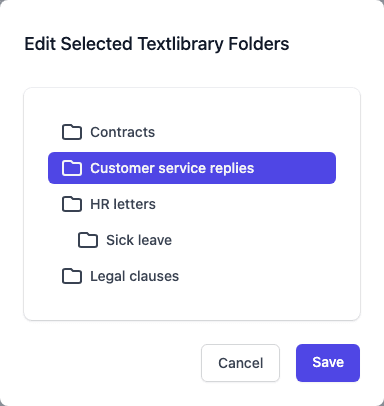
Textlibrary folders. Click the button with three dots beside the field to open Edit Selected Textlibrary Folders. Click the folders whose texts the Editor should offer for this document, then click Save.
Document Tags. Tick Document is an attachment to be used in Editor if other documents may add this one as an attachment.
PDF attachments. Under Allow PDF Attachments from Disk, choose Follow global setting, Not allowed or Allowed. The global setting is the PDF Attachment setting of the environment.
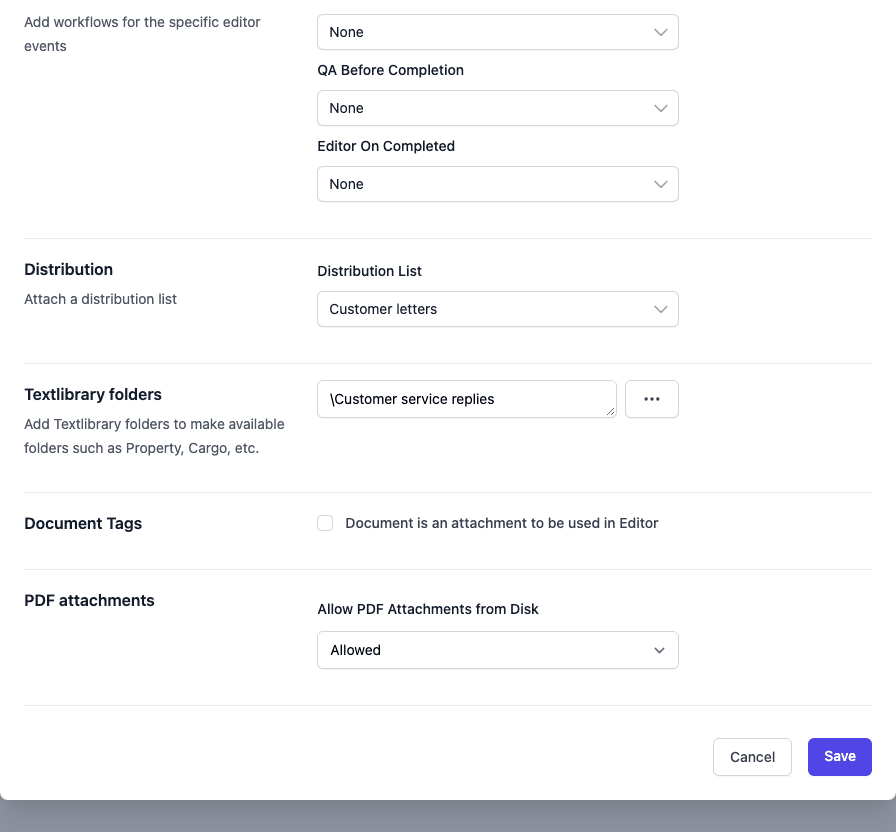
To remove all settings from a document, set every field back to its empty value (None, unticked, Follow global setting) and click Save. Pages Manager then deletes the settings of that document.
Requirements
- Manage Workflows needs access to and a license for the Workflow application. Without it, Pages Manager shows No workflow access/license available instead of the table, and none of the settings on this page can be edited.
- The smartform and text library pickers need access to SmartForms.
- Workflows and smartforms must also exist in the next environment before the file can be updated there. See Templates.