Templates
The Templates page is where you manage the logic files of each environment group. It shows the path a logic file travels, how many files each environment holds, and which environments are waiting for an update.
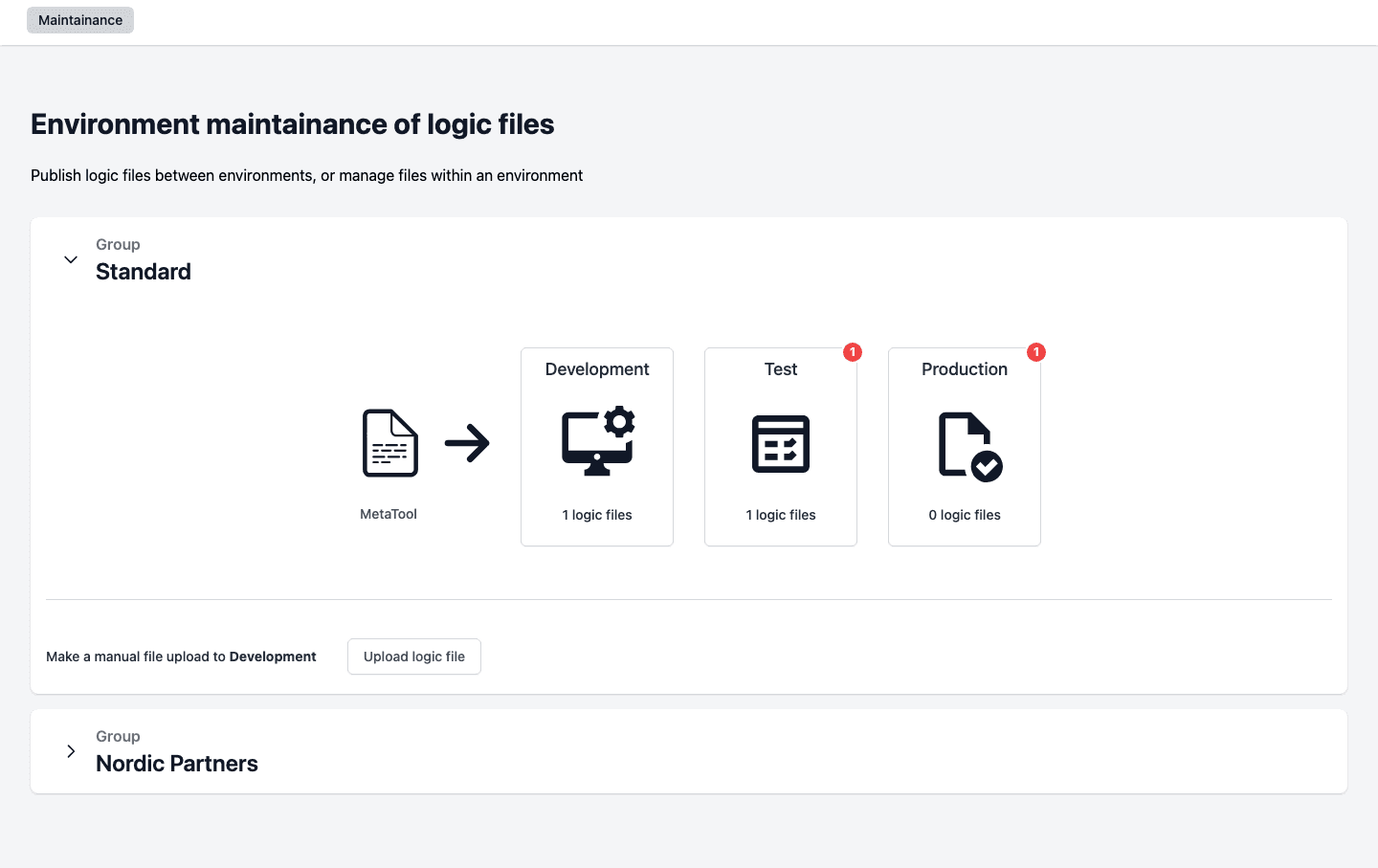
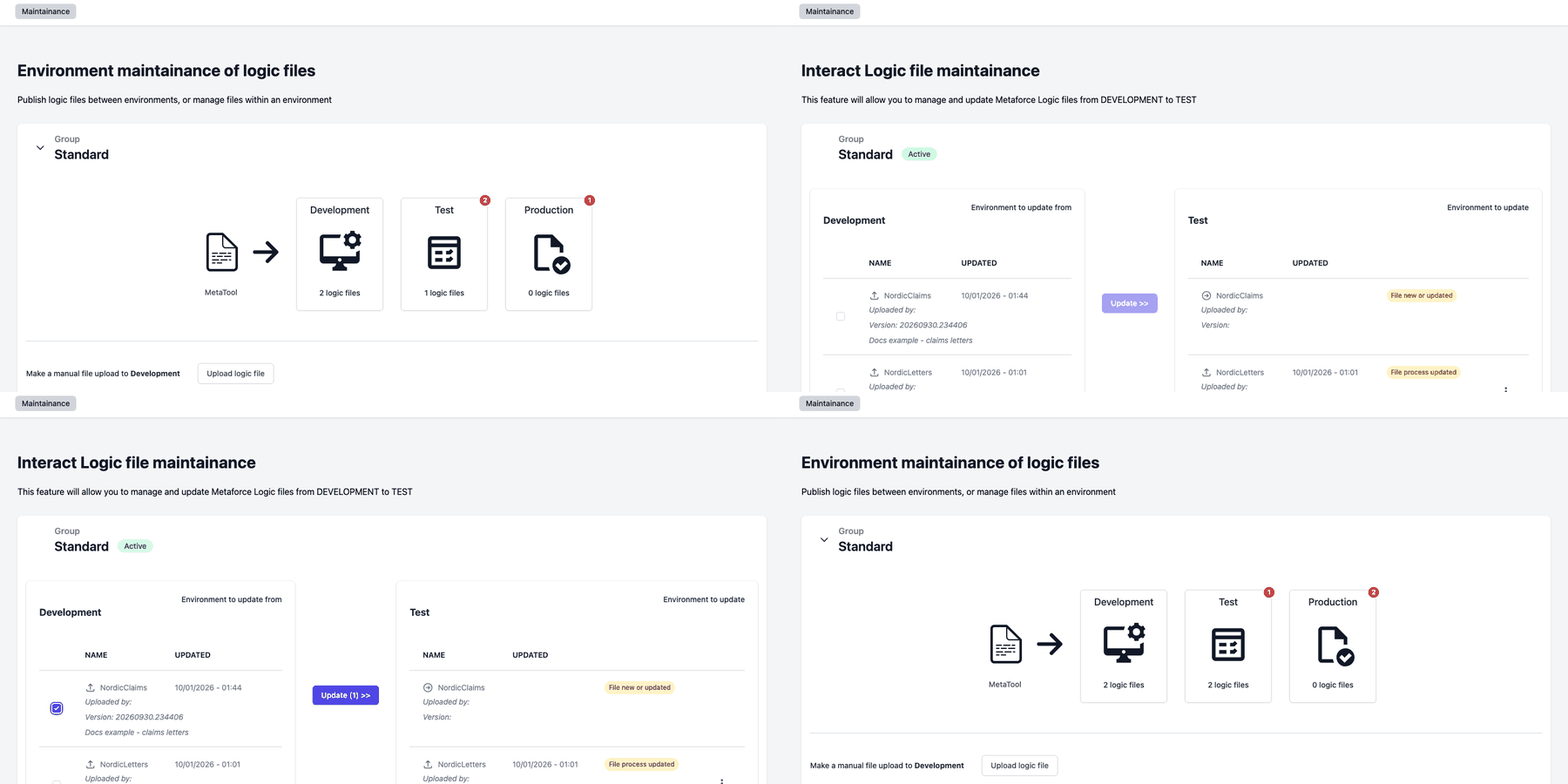
Each active group has its own card. The tiles show the environments of the group in publish order, with MetaTool as the starting point. Every tile shows how many logic files the environment holds. A red number on a tile means that environment is behind the one before it and has updates waiting.
Environment groups that are linked from another installation (virtual groups) are read only here. You cannot upload files to them.
Upload a logic file
A logic file always enters the first environment of a group. You can get it there in two ways: upload it here, or publish it from Metatool.
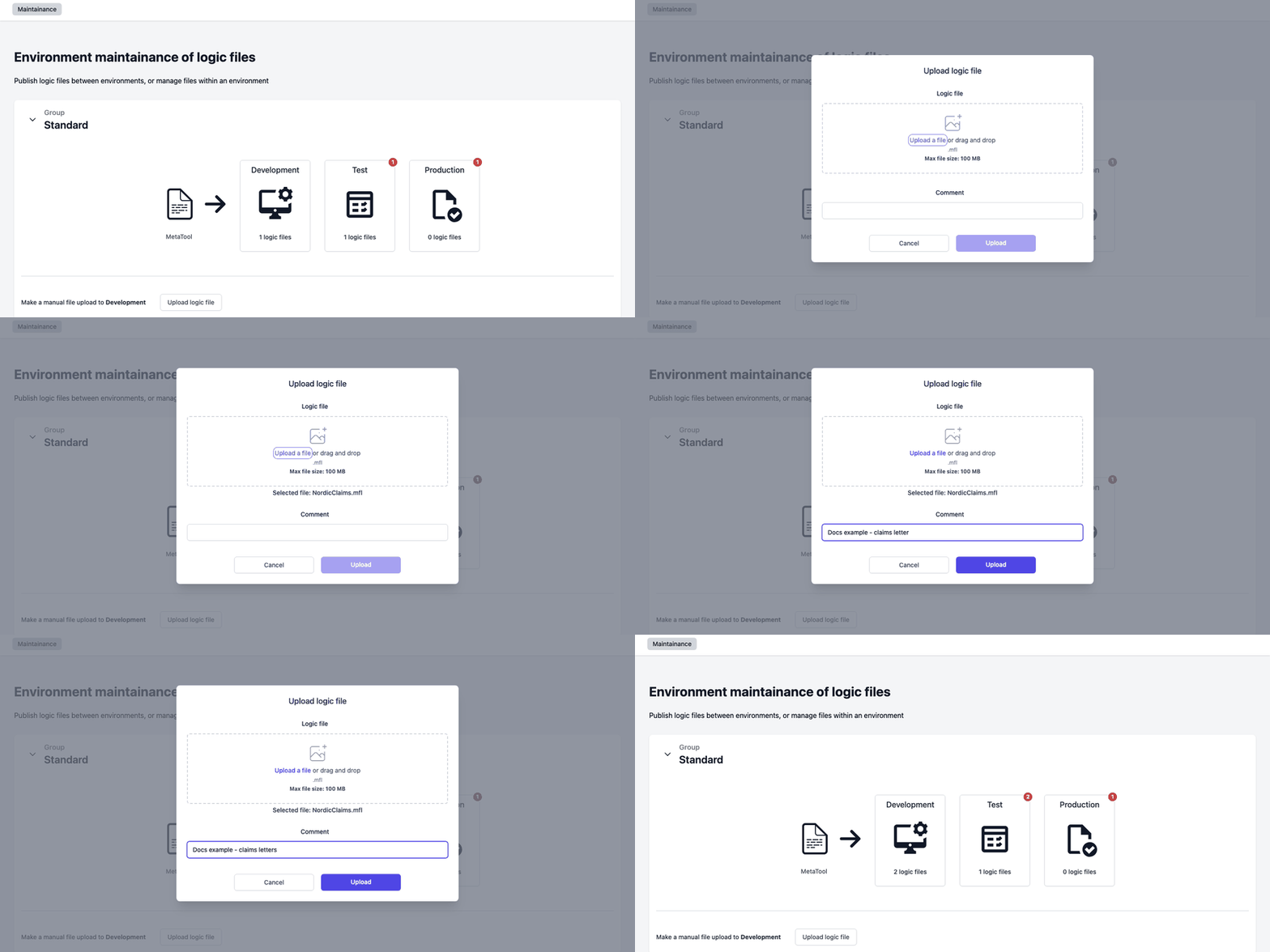
- Under the group, find Make a manual file upload to followed by the name of the first environment, for example Development.
- Click Upload logic file.
- Click Upload a file and choose the file, or drag the file onto the upload area. The file must be a
.mflfile of at most 100 MB. - Write a Comment. The comment is required and follows the file to every environment.
- Click Upload. The Upload button stays grey until you have chosen a file and written a comment.
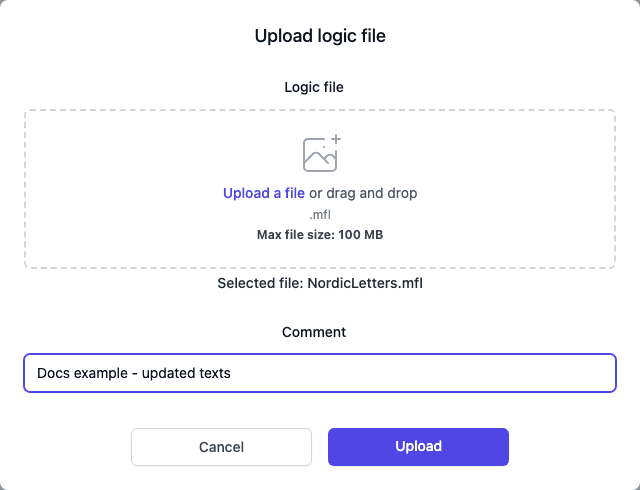
Pages Manager gives the upload a version number. The comment and the version number stay with the file as it moves on. Uploading a file with the same name again creates a new version of that file.
Metatool can also send a logic file to Pages Manager with Publish to Centerpoint. Metatool asks you for a comment, and the file arrives in the first environment in the same way.
Update the next environment
- On Templates, click the tile of the environment you want to update. A red number on the tile tells you there is something to update.
- Pages Manager opens Interact Logic file maintainance. The left table shows the files in the environment before. The right table shows the files in the environment you are updating, with a status pill on each file that differs.
- Tick the files you want to send.
- Click Update (n) >>, where n is the number of ticked files.
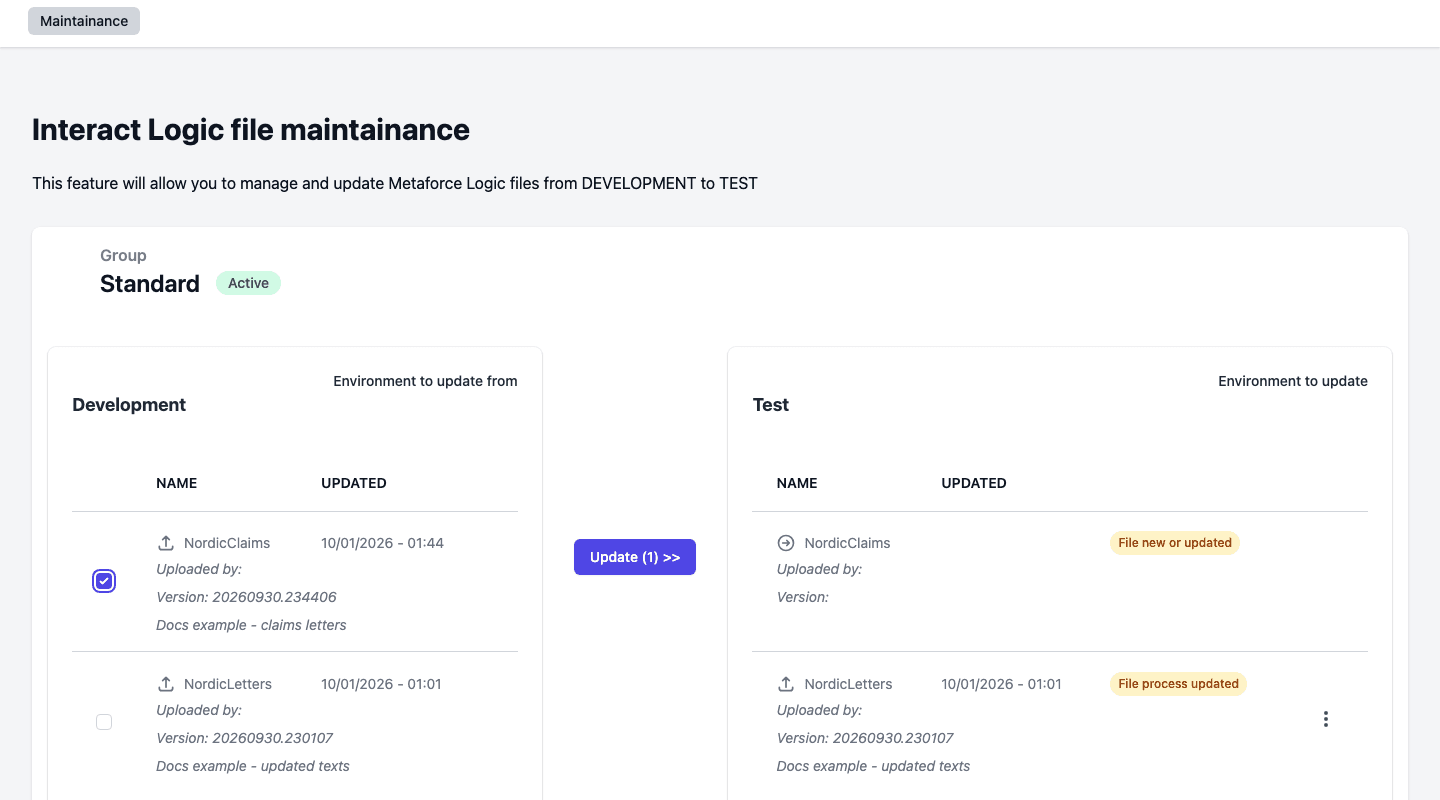
The status pills mean:
| Status | Meaning |
|---|---|
| File new or updated | The file is new in this environment, or the file in the environment before is a newer version. |
| File process updated | The file is the same version, but its workflow settings were changed in the first environment. |
| File is older | The file in the environment before is older than the file in this environment, so it cannot be sent. |
| File missing | The file exists in this environment but not in the environment before, so there is nothing to send. |
You can only send a file that is new or updated, or whose settings changed. Files marked File is older or File missing cannot be ticked.
Before a file with workflow settings moves on, Pages Manager checks that the smartforms and workflows it uses also exist in the target environment. If one is missing, the update stops and tells you which one. Deploy the missing item to that environment first and try again.
Click Back to return to the overview.
The file menu
Open the menu (three dots) on a file row to see what you can do with it:
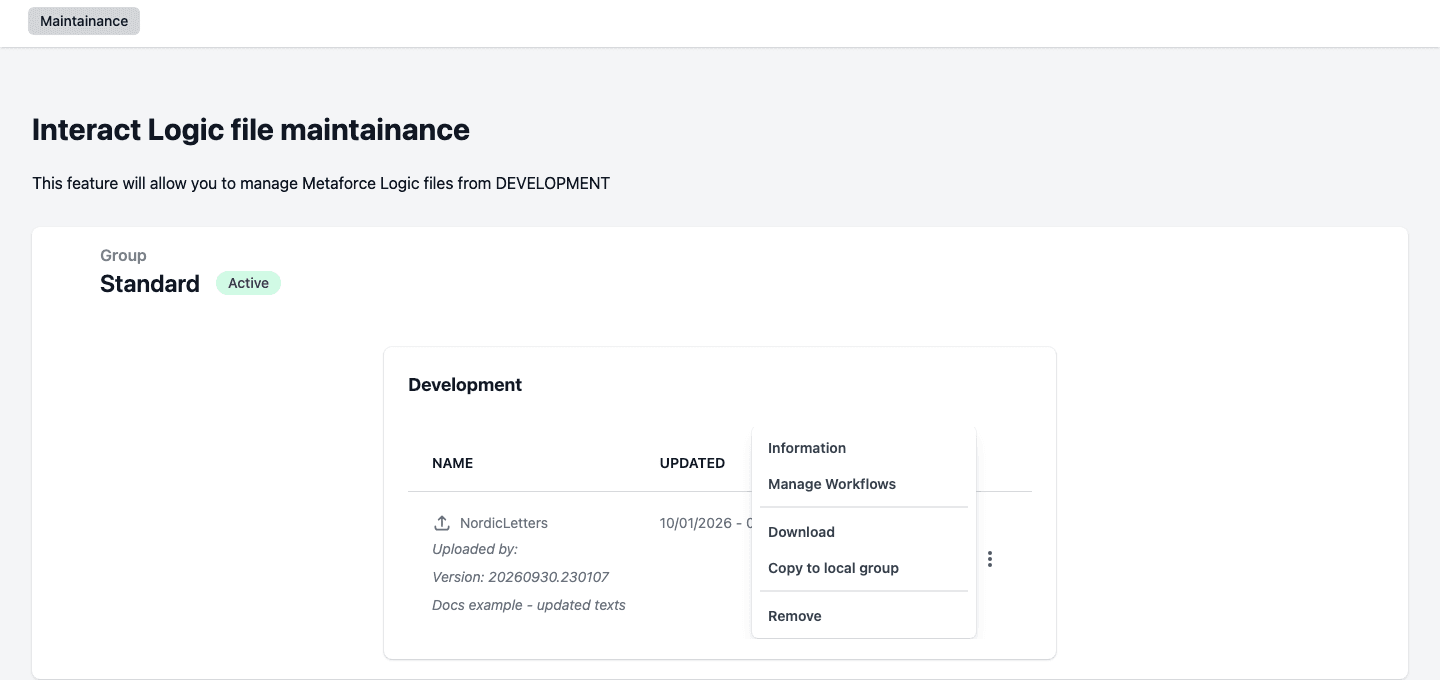
- Information shows the versions and downloads of the file. See below.
- Manage Workflows sets how the Editor treats each document in the file. It appears only in the first environment. See Manage Workflows.
- Download saves the logic file to your computer.
- Copy to local group copies the file to another group.
- Remove deletes the file from this environment, after you confirm with Delete. The dialog is called Delete Interact Template Environment File and names the file.
Copy to local group
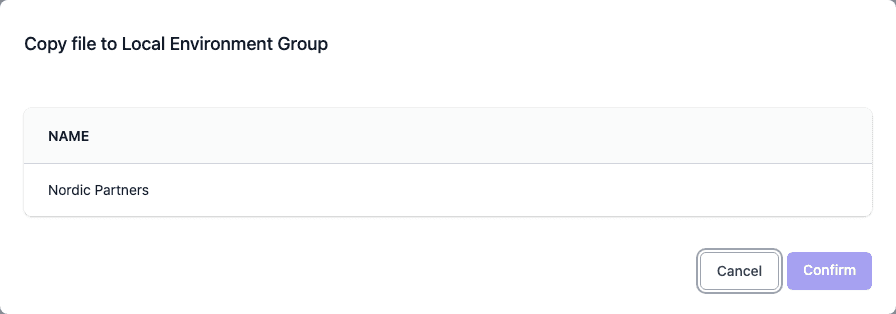
Use this to send a file to the first environment of another group, for example a partner group.
- Open the file menu and choose Copy to local group.
- Select one of the groups in the list. The list shows your other active groups. Virtual groups are not in the list.
- Click Confirm.
File information
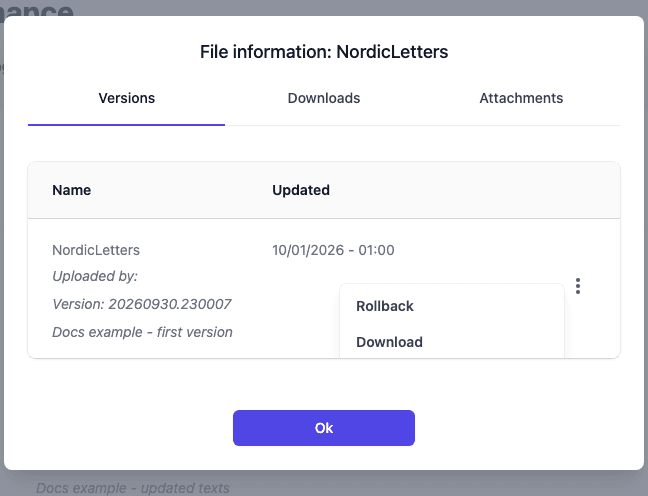
Information opens File information with three tabs.
Versions lists the earlier versions of the file, with their comments. Open the menu (three dots) on a version and choose Rollback to make that version the current one in this environment, or Download to save it.
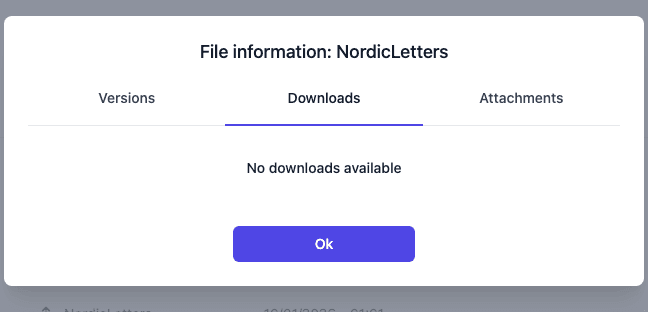
Downloads lists the downloads the servers of the environment have made. It says No downloads available when no server has downloaded the file yet.
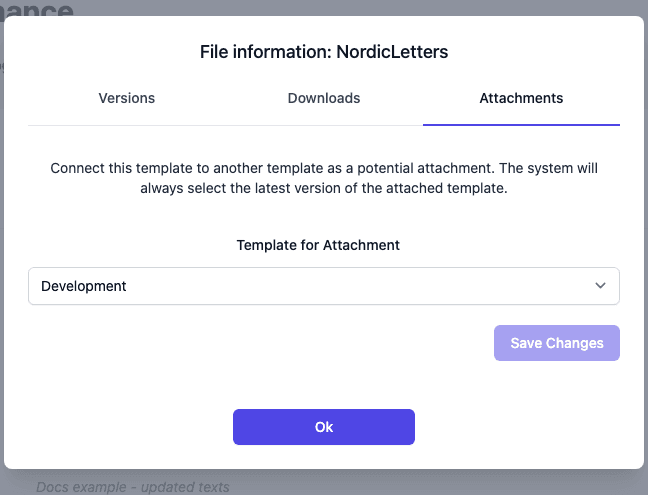
Attachments connects the file to another template as a potential attachment. Choose a value under Template for Attachment and click Save Changes. The system always uses the latest version of the attached template.
Limits and notes
- Only
.mflfiles can be uploaded, at most 100 MB each. Your installation can set a different limit. - A comment is required for every upload.
- To publish from a build pipeline, see CI/CD deployment.
- The order of the environments is set on the Environments page.