Home and server status
Home shows the health of every active environment group at a glance. Use it to see whether your servers are connected and up to date, and to jump to the environment that needs attention.
What Home shows
Each active group has one card with:
- A traffic light for the whole group.
- A list headed Click to access environment: with one line per environment and a status icon.
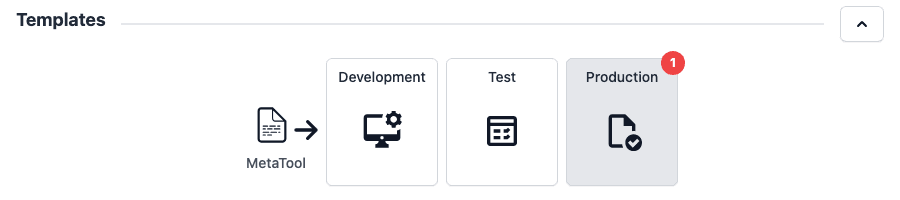
- A Templates overview that shows the path a logic file travels, from Metatool through each environment. A red number on an environment tile means a newer logic file or setting is waiting to be updated into that environment. Click the tile to open it on the Templates page.
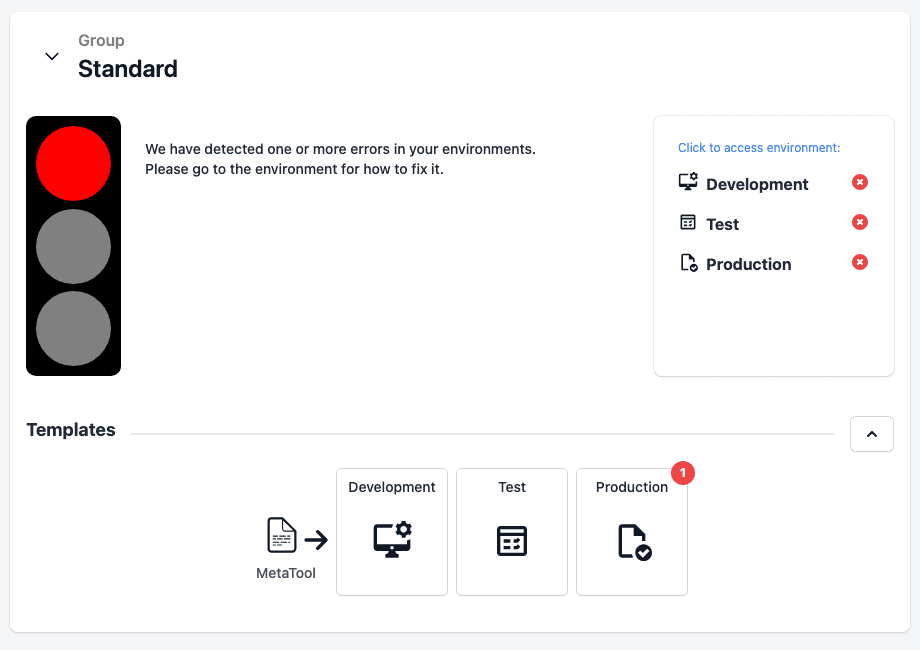
Right after you open Home, the light is grey and Pages Manager shows Validating server statuses… while it asks each server how it is doing.
A group that is connected to another installation (a virtual group) has no light. Its card says that the status of virtual groups is not supported, and you check its status in the installation that owns the group.
Read the light
| Light | What it says |
|---|---|
| Red | We have detected one or more errors in your environments. At least one environment has a problem that stops it working, for example a server that has timed out. |
| Yellow | We have detected one or more warnings in your environments. Nothing is broken yet, but something needs a look, for example an environment with no active servers. |
| Green | One or more environments are reporting to run OK. |
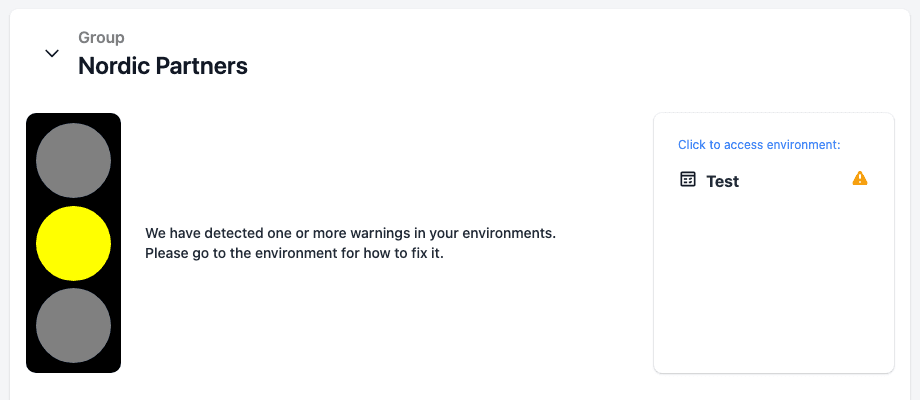
Open an environment to see its events
Click an environment in the list to open Events for that environment. Each event has a colour and a short explanation. Some events have a button that takes you straight to the fix.
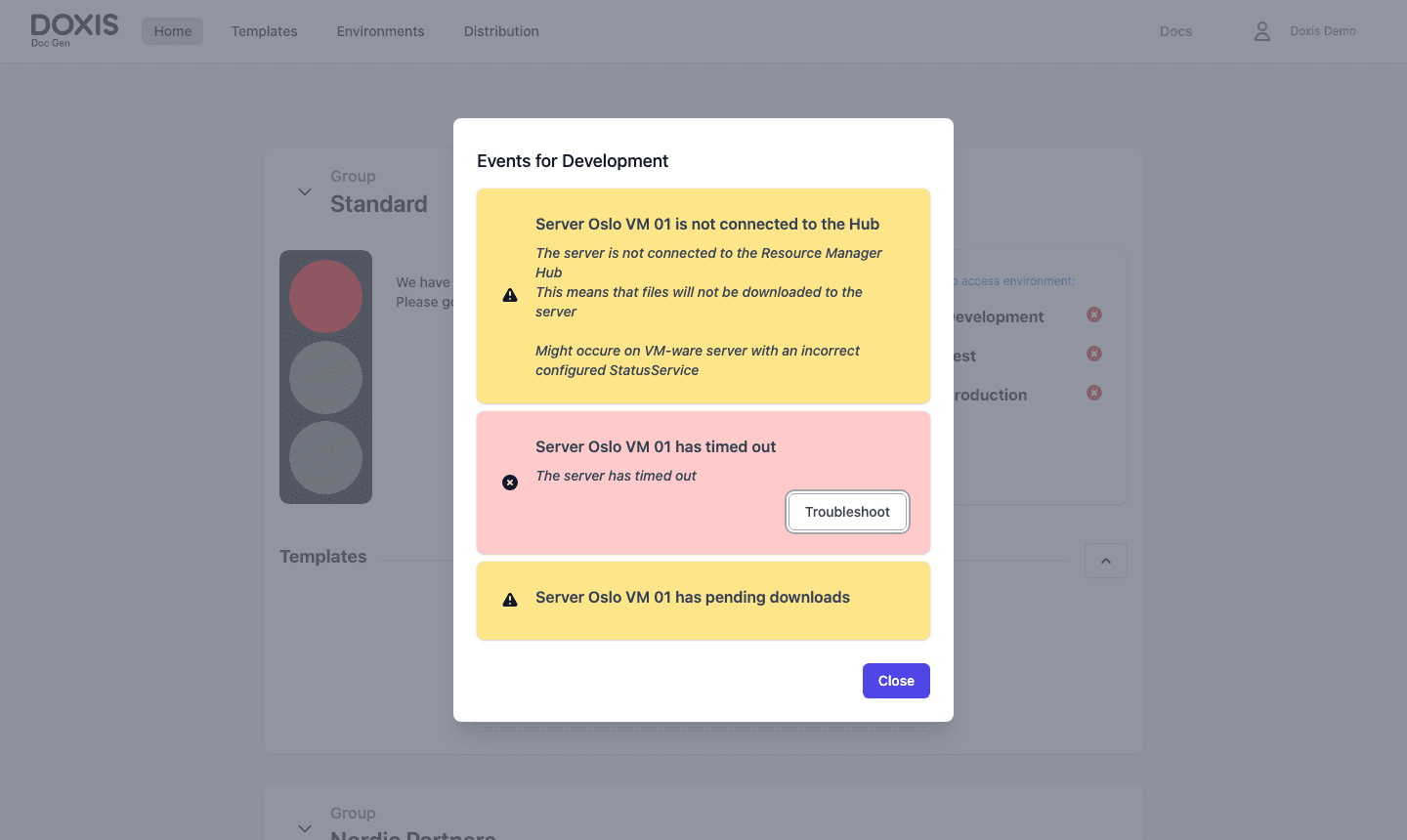
| Event | What it means | Button |
|---|---|---|
| Server … should be updated | A newer container image is available for a Kubernetes server. | Update opens the upgrade wizard. See Kubernetes servers. |
| Server … is running without remarks | The server has reported no events. | None |
| Server … is not connected to the Hub | The server is not connected to the Resource Manager Hub, so files are not downloaded to it. On a virtual machine server this usually means the status service on the server is not set up correctly. | None |
| Server … has pending downloads | Files are waiting to be downloaded to the server. | None |
| Server … is downloading logic files | A download is in progress. | None |
| Server … reported an unknown status | The server answered with a status Pages Manager does not know. On a virtual machine server this usually means the status service is not set up correctly. | None |
| Server … reported a failed download | The server could not download a file. | None |
| Server … has timed out | The server has stopped answering. | Troubleshoot opens a page that lists the environment and its server. |
| No active servers | The environment has no enabled server. | Configure opens Environments. |
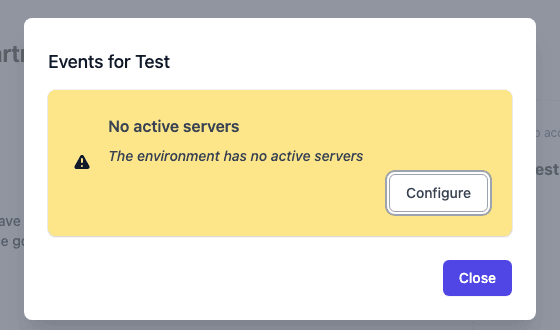
The action buttons appear only for users who may change environment settings.
Connection to the Signal Hub
Pages Manager uses the Signal Hub to learn when servers download files. If it cannot reach the Hub, a banner appears at the top of the page:
- Cannot retrieve status from Signal Hub. The Hub is not answering with valid status information. Server statuses may be missing or out of date.
- Pages Manager not connected to Signal Hub. The registered data owner is not valid. This can affect file download and status in Pages.
Both banners go away when the connection returns.
Server icons on the Environments page
The Environments page shows an icon beside each server. The icon shows whether a server is a virtual machine or a Kubernetes container. Hover over an icon to read what it says about the server. See Environments.