Text Library
Introduction
This section is about Text Library 2, the standalone Doc Gen service where you create and manage reusable texts. It is not the Text Library inside Studio. For that one, see Studio Text Library.
A text is a named piece of formatted content, such as a greeting, a legal clause or a signature, with a version for each language. Other Doc Gen products insert your texts so that every letter and form uses the same approved wording. You write a text once, deploy it, and fix mistakes in one place.
How it works
You create and edit texts in Development. Each text belongs to one group. When the content is ready, you deploy the groups to Test, then Pre-Production, then Production. The other environments show deployed copies, so you always change a text in Development and deploy it again.
Only texts with the status Active are deployed. Texts with the status Draft stay in Development.
Main ideas
- Text: a name, a unique identifier, a group, a status and content in one or more languages. See Texts and Create and edit a text.
- Group: every text belongs to exactly one group. You choose groups when you deploy. See Groups.
- Folder: a private or shared place for finding texts and controlling who can see them. See Folders.
- Styles, table styles and colors: saved formatting you apply in the editor. See Styles, Table Styles and Colors.
- Environments: Development, Test, Pre-Production and Production. See Deploy.
Open the app
Choose your environment here, then open the Text Library.
Open https://textlibrary-v2.metaforce.net and sign in. If your account does not have the license the Text Library needs, the app shows a Missing License page instead. Your administrator can give you access.
Text Library
The menu on the left groups the app into three areas.
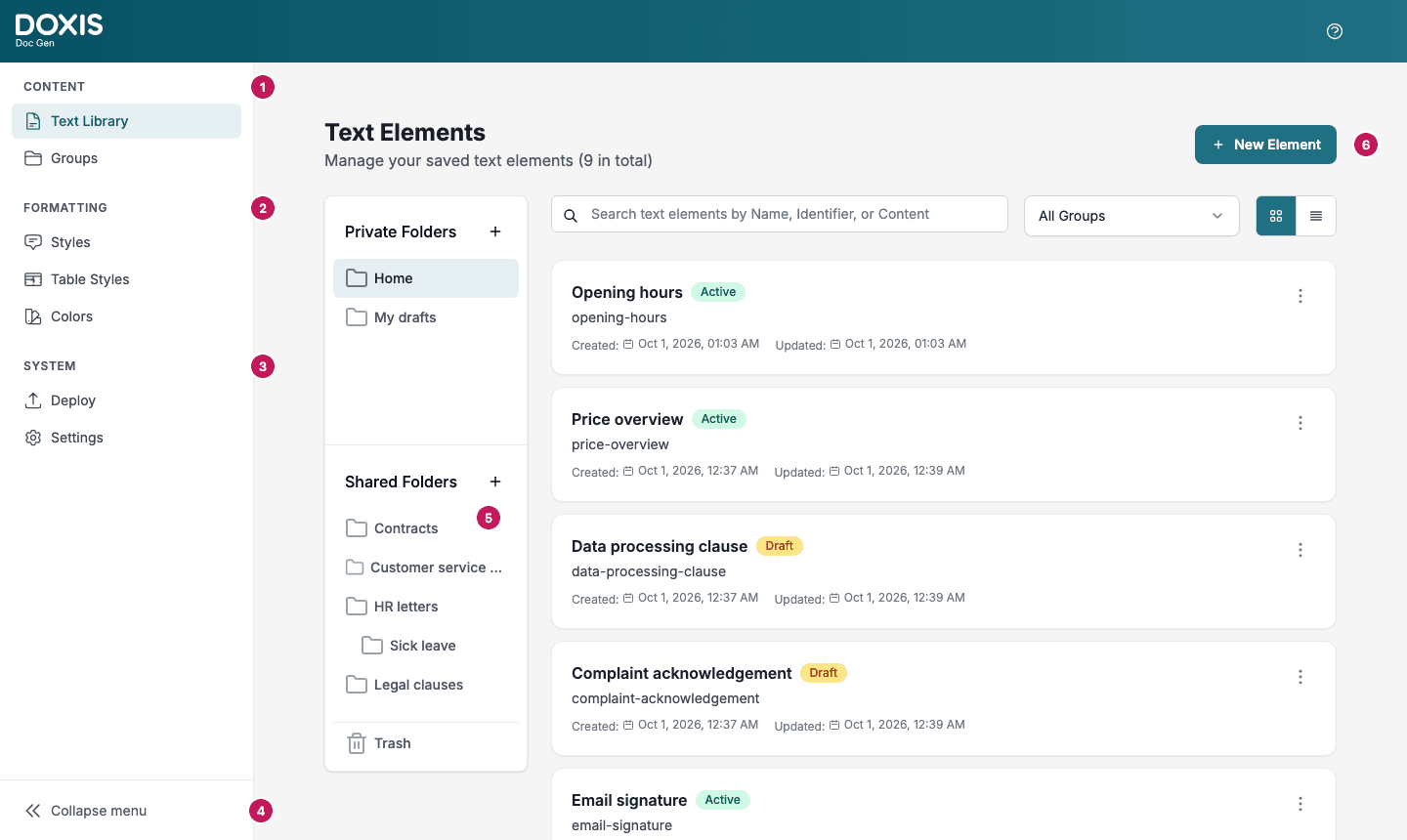
- Content holds Text Library, where you find and open texts, and Groups.
- Formatting holds Styles, Table Styles and Colors.
- System holds Deploy and Settings, which is where you import and export.
- Collapse menu shrinks the menu to icons. The user menu at the top right has Sign out.
- The folder panel next to the list of texts. See Folders.
- New Element opens the editor for a new text.
Groups
Every text needs a group, and a group that still contains texts cannot be deleted. See Groups.