Create and edit a text
A text has a name, a unique identifier, a group, a status and content in one or more languages. You write it on the editor page.
Create a text
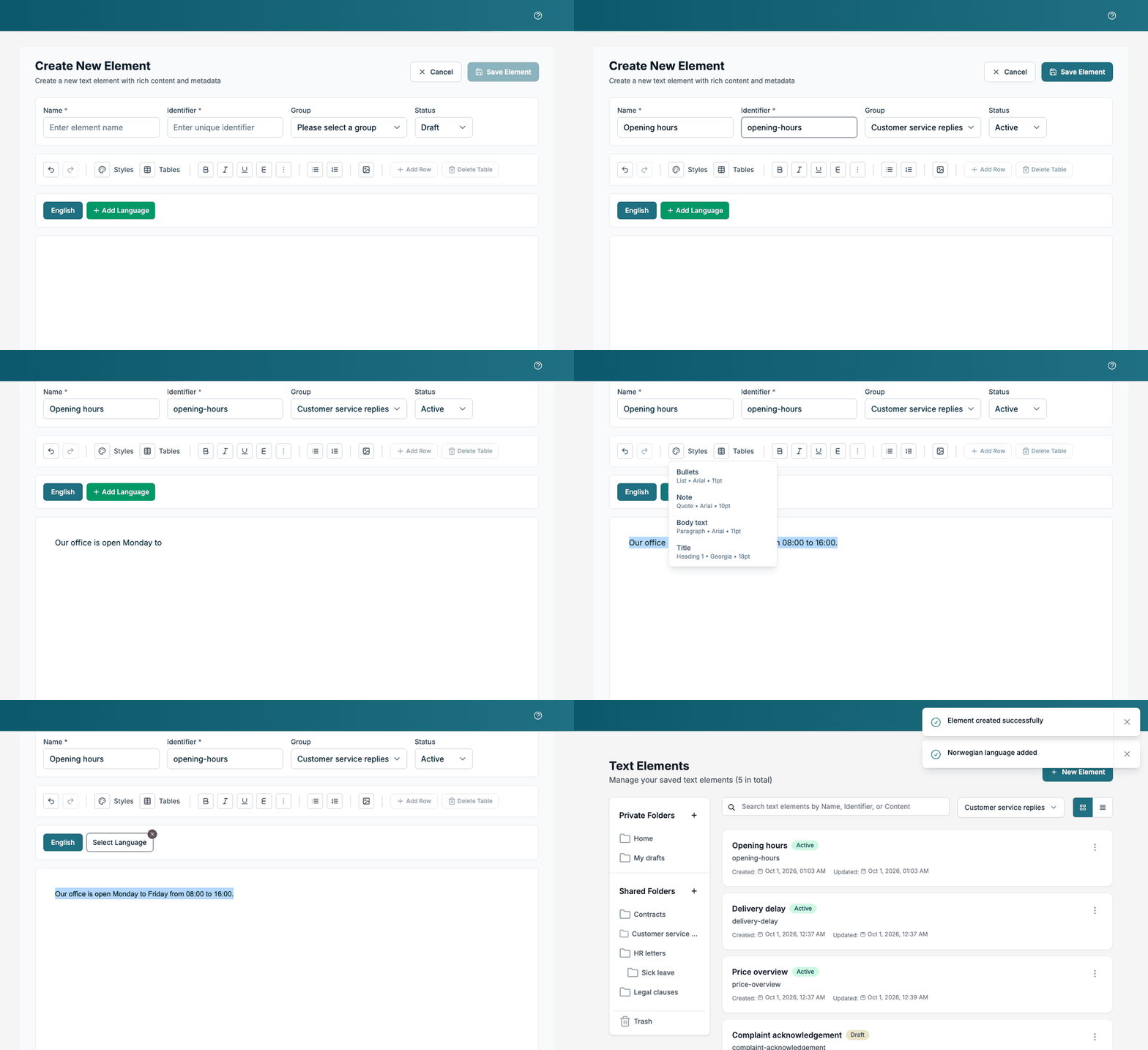
- On the Text Library page, click New Element. To place the text in a folder, select the folder first.
- Enter a Name and an Identifier. Both are required.
- Choose a Group. It is required: without one, the page shows Please select a group for the element.
- Choose a Status, Draft or Active. See Texts.
- Write the content in the editor.
- Click Save Element. The page shows Element created successfully and returns to the list, filtered to the text’s group.
Cancel returns to the list without saving. To change a saved text, click Edit in its row menu. The editor opens with the text filled in. Save Element saves your changes and shows Element updated successfully.
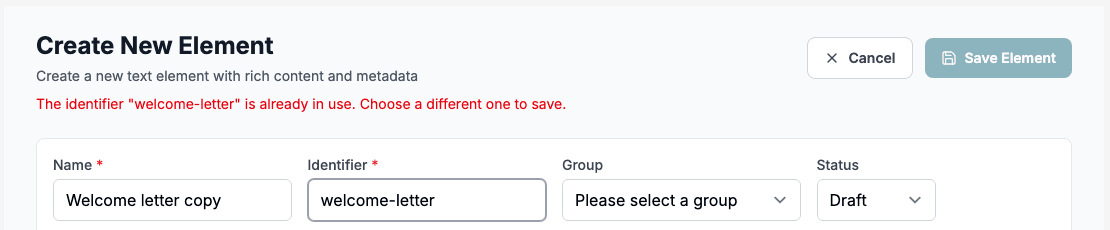
The identifier must be unique
An identifier names one text. When you save a text here, no other text may use the same identifier; upper and lower case count as the same. While you type, the page checks the identifier. If it is taken, it shows a warning and Save Element stays unavailable.
The editor page
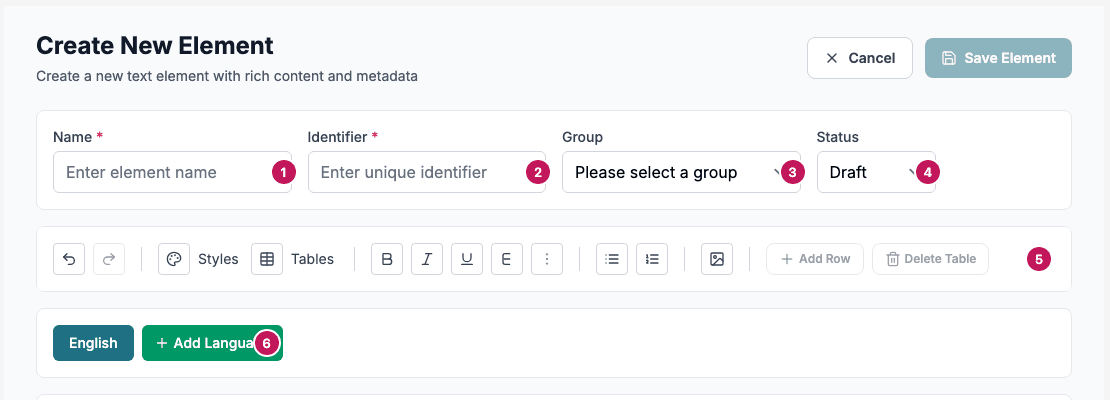
- Name: what people see in the list.
- Identifier: the unique key, for example
opening-hours. - Group: the group the text is deployed with. See Groups.
- Status: Draft or Active.
- The toolbar, described below.
- The language tabs. See Languages.
Toolbar
From left to right the toolbar has:
- Undo and Redo.
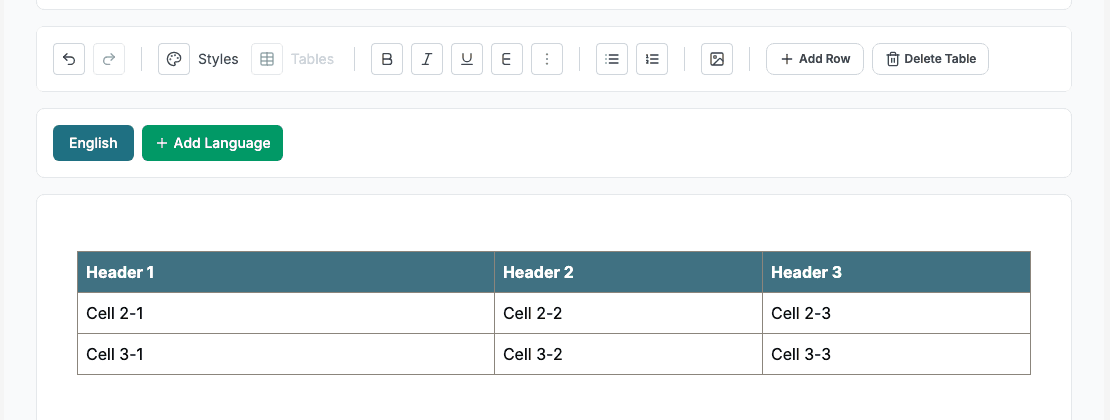
- Styles: lists your saved styles with their type, font and size. Select text, then choose a style.
- Tables: lists your saved table styles. Choose one to insert a table. It is unavailable while the cursor is inside a table.
- Bold, Italic, Underline and Strikethrough.
- Bullet List and Numbered List.
- Insert Image. Enter the web address of the image when the page asks for it. When an image is selected, a Width field appears next to the button.
- Add Row and Delete Table. They are available when the cursor is inside a table. Add Row offers Add Row Above and Add Row Below.
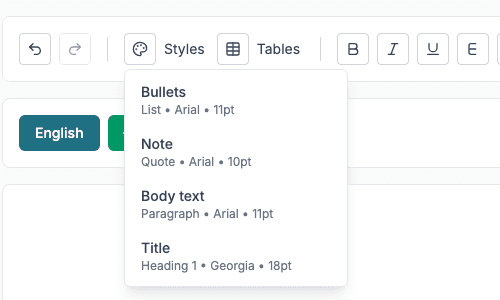
The editor has no alignment buttons, and applying a style does not change the alignment.
Tables
Create a table style first on the Table Styles page. Then choose it from Tables. If you have no saved table styles, the menu says so.
Languages
A new text starts with English. To add a language:
- Click Add Language.
- Choose a language from Select Language: Swedish, Finnish, Norwegian, Danish, Spanish, French, German, Italian, Portuguese, Dutch or Polish.
The new language starts as a copy of the first language’s content, so you only have to translate it. Switch between languages with the tabs. To remove a language, point at its tab and click the small red x, then confirm. A text must keep at least one language.
Safe content
When you save, and when a text is shown in a preview, scripts and unsafe markup are removed from the content. Links and images must use an http, https or mailto address; other kinds of addresses are removed. Write normal formatted text and it is kept as you wrote it.