Colors
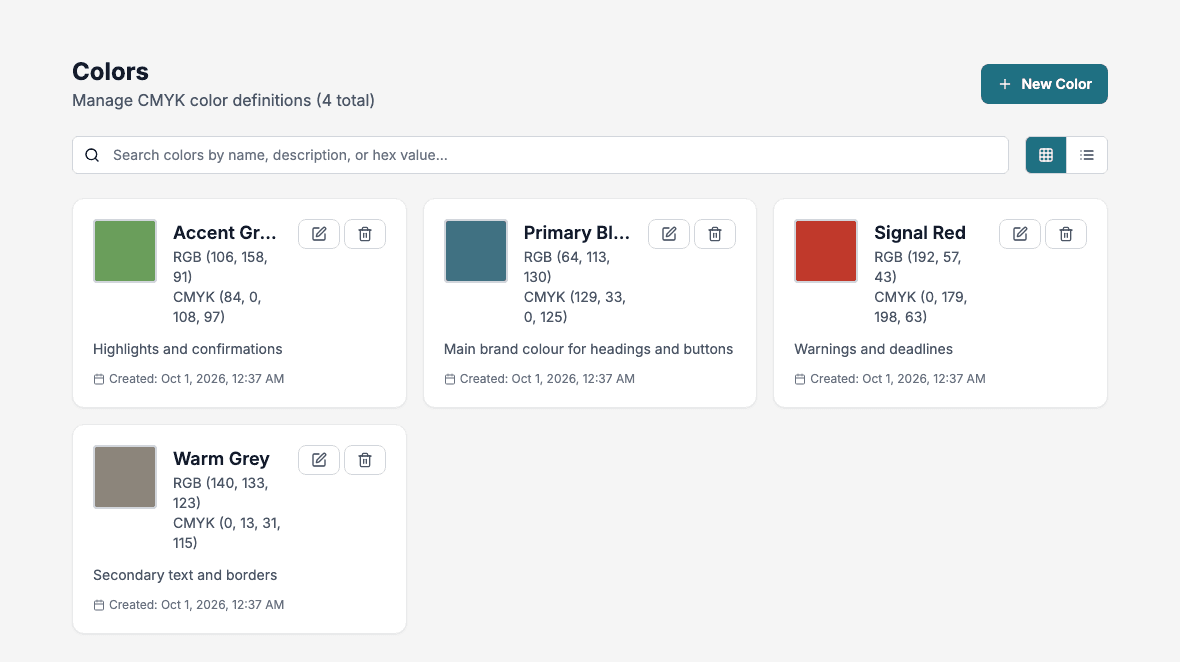
The Colors page stores named colors with their RGB, CMYK and hex values. Use it as a shared list of your brand colors.
The Styles and Table Styles pages have their own color inputs. They do not read this list, so copy a hex value from here when you need the same color there.
The color list
- Search: find colors by name, description or hex value.
- Card View and List View: the cards show the RGB and CMYK values, and the list view also shows the hex value.
- The pencil button edits a color. The trash button deletes it after you confirm.
If you have no colors yet, the page says No colors created yet. Create your first color to get started.
Create a color
- Click New Color.
- Enter a Color Name. It is required.
- Optionally enter a Description.
- Set the color with the Color Picker or with the RGB Values. The Hex field shows the result and cannot be typed into.
- Check the CMYK Values.
- Click Create Color.
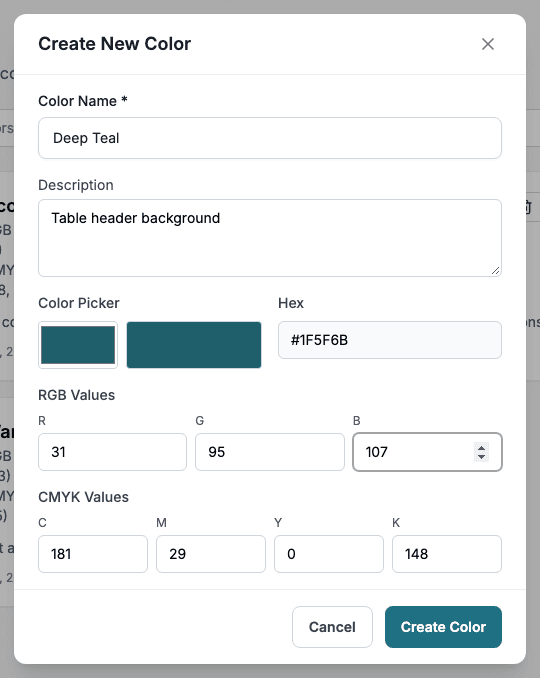
When you change the picker or an RGB value, the page calculates the CMYK values for you. If you type your own CMYK values, the page stops overwriting them and offers Use suggested with the calculated values. CMYK values in this app run from 0 to 255, not from 0 to 100.
Edit or delete
Change any value and click Update Color, or delete the color after confirming in Delete Color. Deleting a color does not change anything that already uses its values.