Groups
Every text belongs to exactly one group. Groups are what you choose when you deploy, so a group should hold texts that belong together, such as letters or legal clauses. Groups are separate from folders, which you use for finding texts and controlling access.
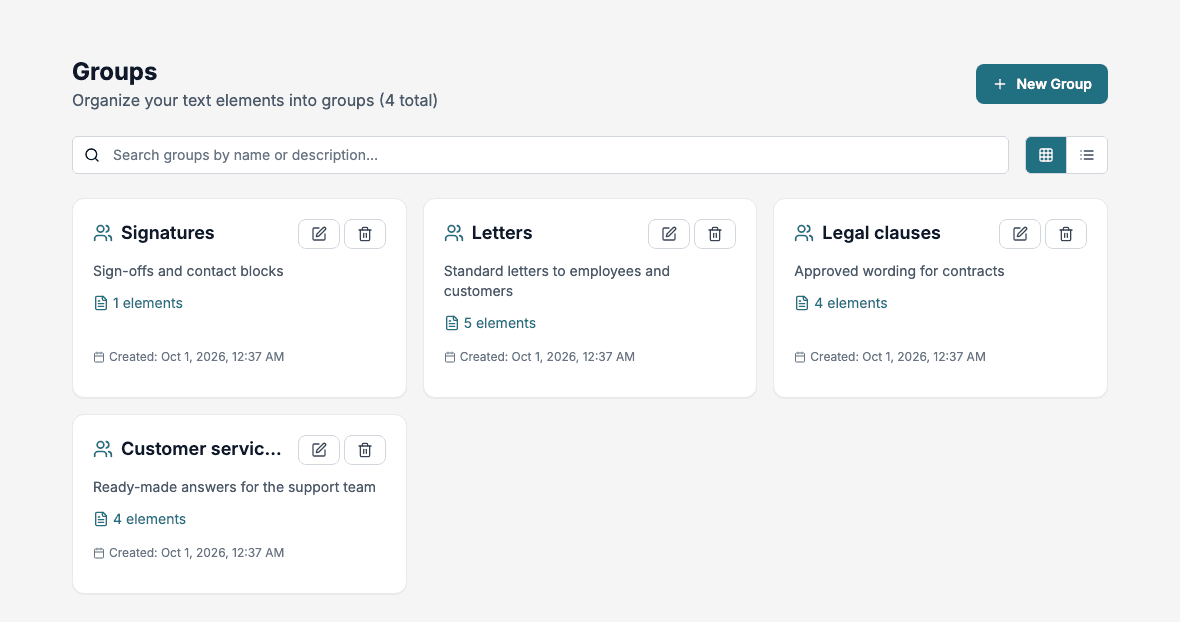
The group list
Each group shows its name, a description, the number of texts and when it was created.
- Search: type in Search groups by name or description.
- Card View and List View: switch the layout.
- Number of texts: click N elements to open the Text Library filtered to that group.
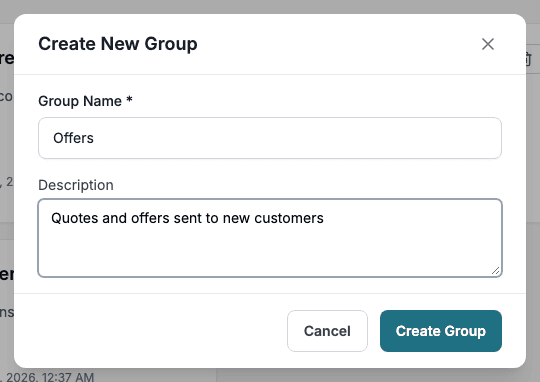
Create a group
- Click New Group.
- Enter a Group Name. It is required.
- Optionally enter a Description that says what the group is for.
- Click Create Group.
Edit a group
Click the pencil button on the group, change the name or description, and click Update Group. Existing texts stay in the group.
Delete a group
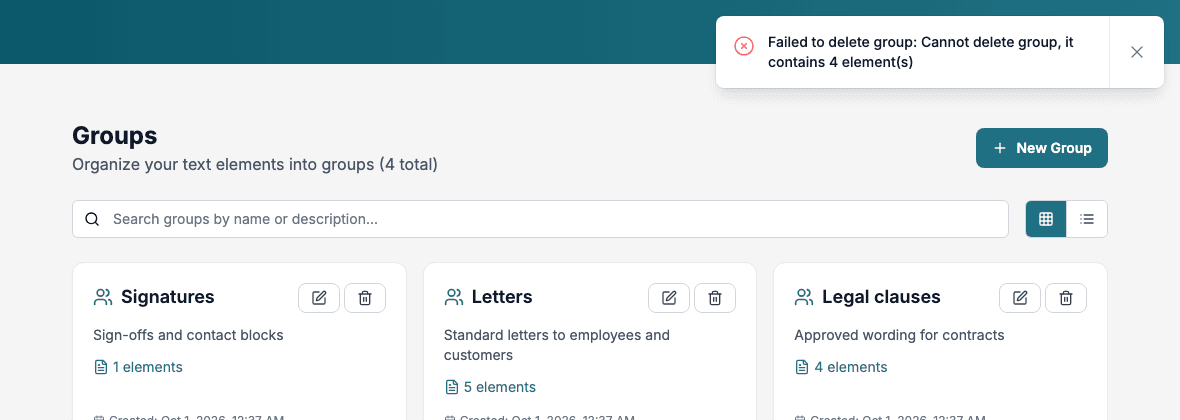
- Click the trash button on the group.
- Confirm by clicking Delete.
A group that still contains texts cannot be deleted. The page shows Failed to delete group: Cannot delete group, it contains N element(s). Move or delete its texts first.
Choose a group for a text
Select the group in the Group field of the editor. A text belongs to one group at a time.
Best practices
- Use short, descriptive names.
- Avoid many small groups, because you choose groups one by one when deploying.
- Add a description, especially when several people share the library.