Texts
The Text Library page, with the heading Text Elements, lists your texts. Use it to find a text, read it, see where it is deployed, move it to a folder or delete it. To write a new text, see Create and edit a text.
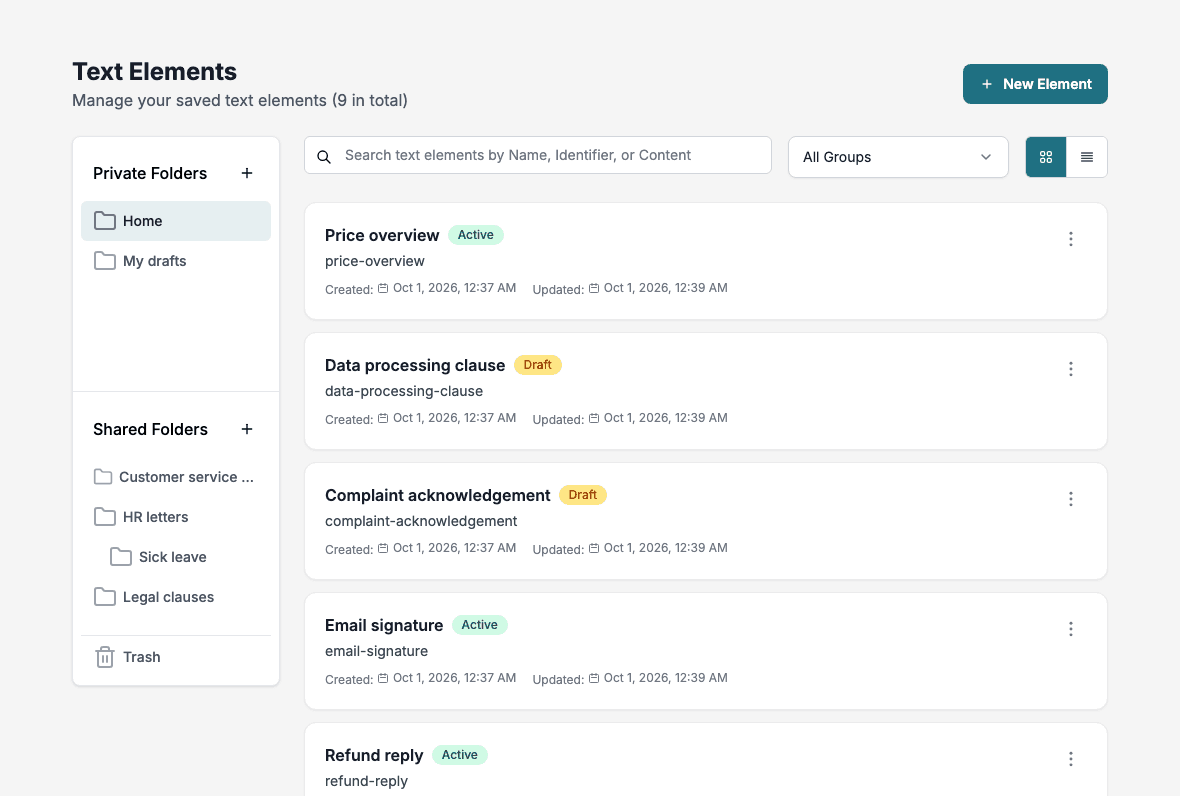
Find a text
- Folders: choose Home, one of your private folders or a shared folder in the panel on the left. Click Private Folders or Shared Folders itself to see the texts of every folder in that area. See Folders.
- Search: type in Search text elements by Name, Identifier, or Content. Inside a folder, the search also covers its subfolders and shows the folder path before each name.
- All Groups: pick a group to show only its texts. Choosing a group clears the selected folder, and choosing a folder clears the group.
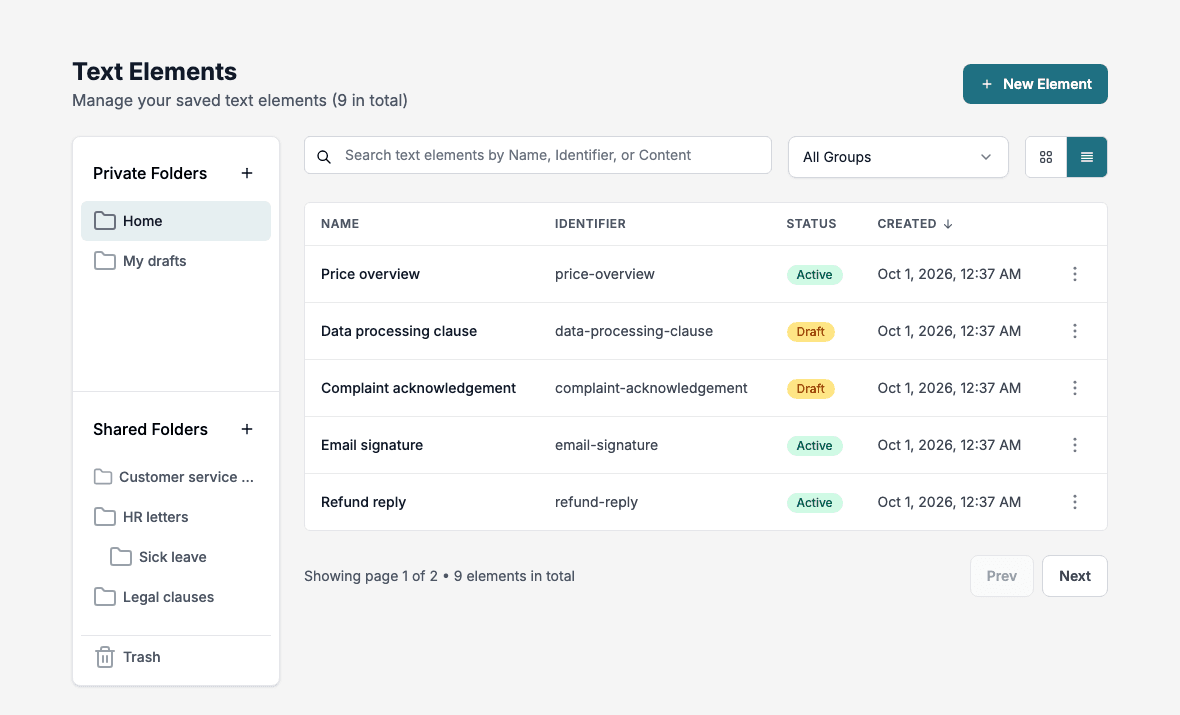
- Card View and List View: switch between cards and a table.
- Prev and Next: the list shows five texts per page.
In list view the columns are Name, Identifier, Status and Created. Click a column heading to sort.
Status
Each text has one of two statuses:
- Active: the text is deployed when you deploy its group. See Deploy.
- Draft: the text stays in Development and is not deployed.
You set the status in the editor.
Row actions
Click the three dots on a text to open its menu.
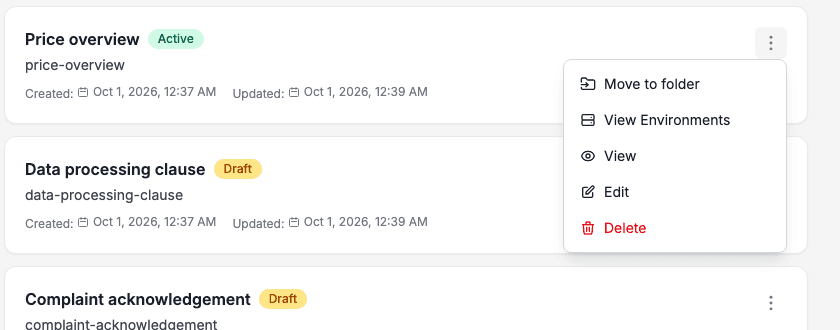
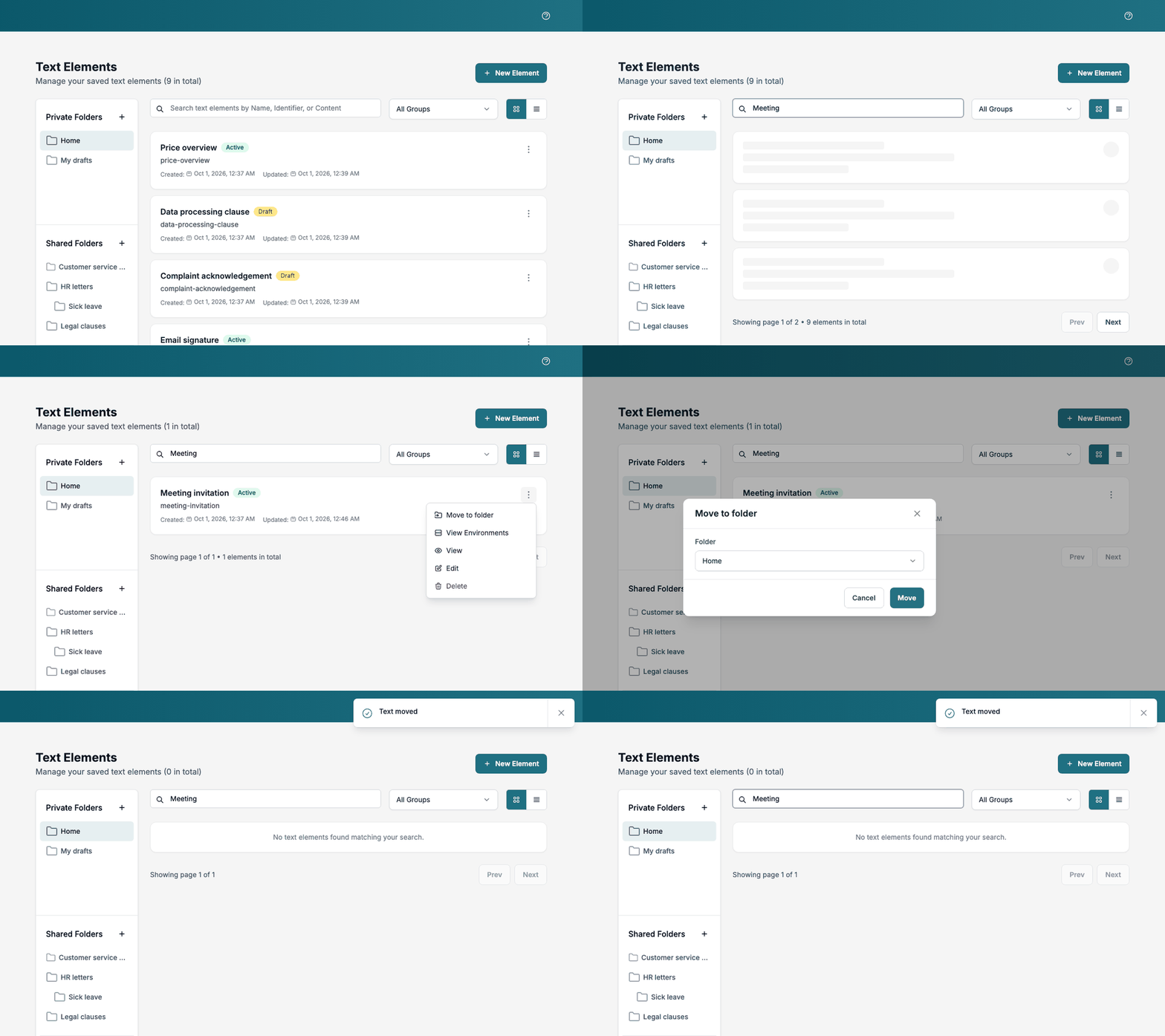
Move to folder
- Open the menu and click Move to folder.
- Choose a Folder. Home means the text is in no folder.
- Click Move. The page shows Text moved.
View Environments
View Environments shows the text as it is deployed in each environment. The tabs are Development, Test, Pre Production and Production. A tab that reads (Not deployed) is disabled because the text has not reached that environment. Choose a language tab to read the content in that language.
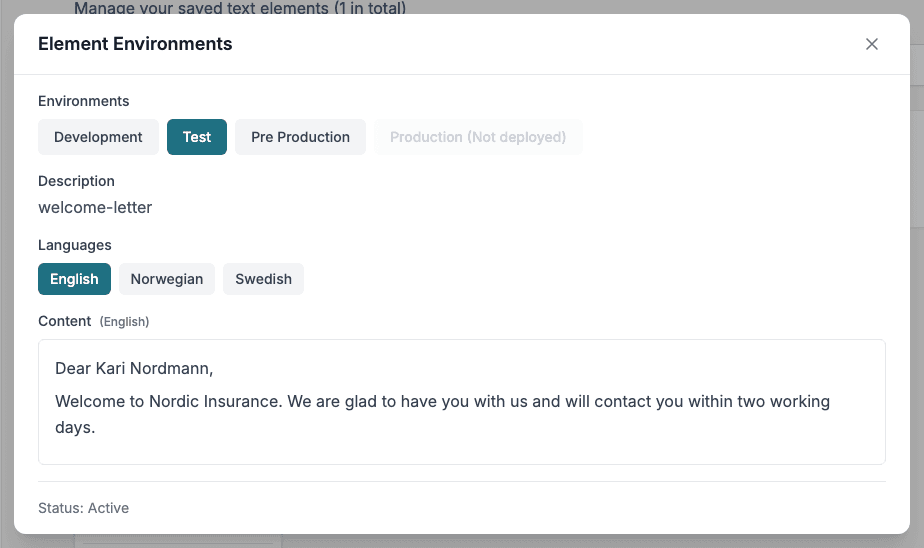
Use this to check that a deployment arrived, or to compare an older deployed copy with the one in Development.
View
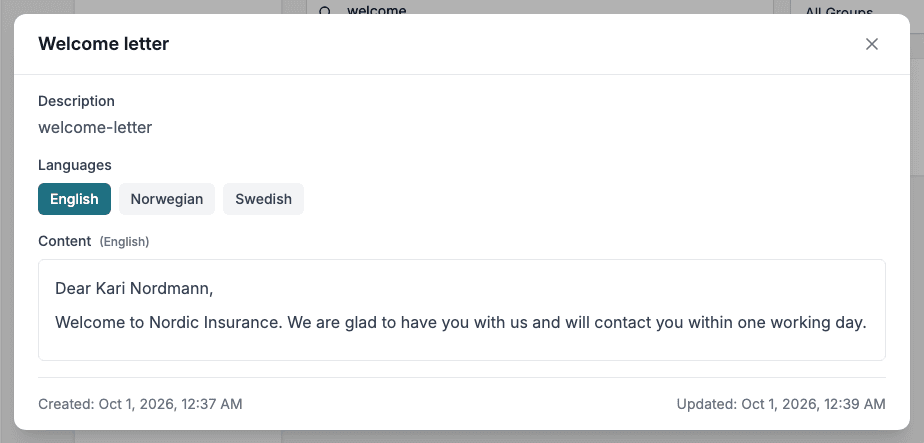
View opens the text read-only. It shows the identifier under Description, the languages, the content and when the text was created and last updated.
Edit
Edit opens the text in the editor.
Delete
- Open the menu and click Delete.
- Confirm the question Are you sure you want to delete …? This action cannot be undone. by clicking Delete.
A deleted text leaves the list and appears under Trash. See Folders.
Best practices
- Give every text a clear name and a lower-case identifier such as
welcome-letter. - Keep each text short and reusable.
- Use styles and table styles instead of formatting by hand.
- Keep texts that are not ready as Draft until they are approved.