Folders
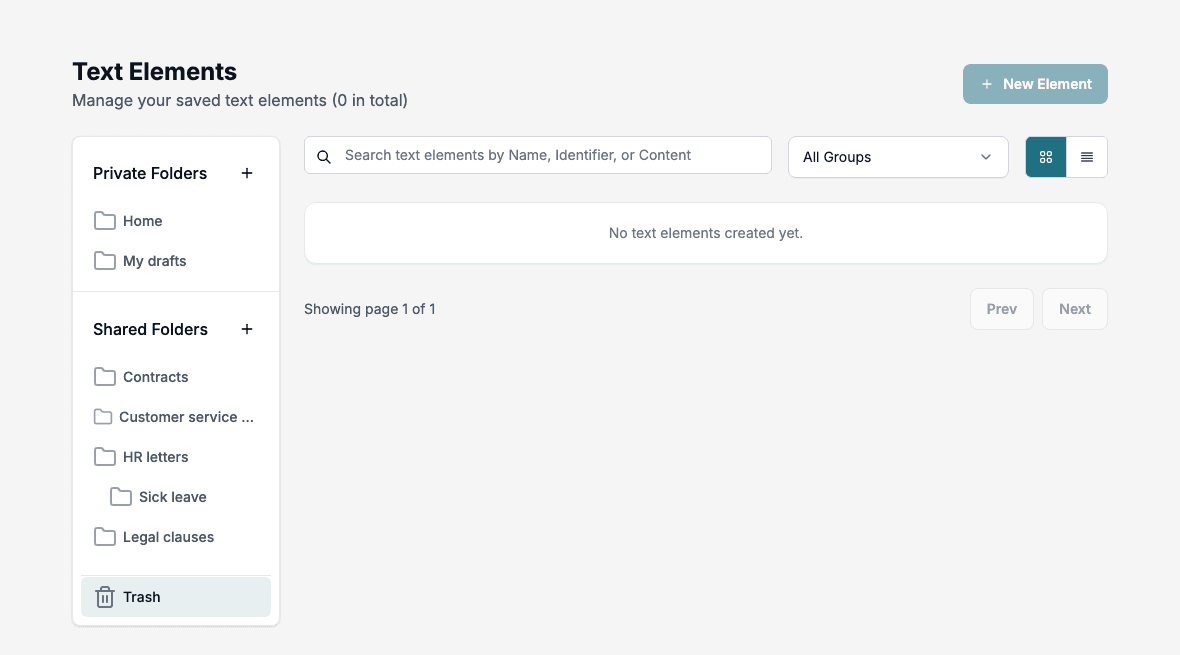
Folders help you find texts and decide who can see them. They are separate from groups: a folder is for browsing and access, while a group is required for every text and decides what you deploy.
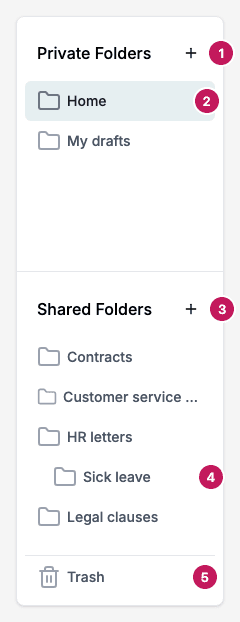
- Private Folders: folders only you can see. The plus button creates one. Click the heading itself to see the texts in Home and in all your private folders.
- Home: texts that are in no folder.
- Shared Folders: folders for the whole company, optionally restricted to access groups. The plus button creates one. Click the heading itself to see the texts in all shared folders you can open.
- A subfolder, shown indented under its parent.
- Trash: deleted texts.
Create a folder
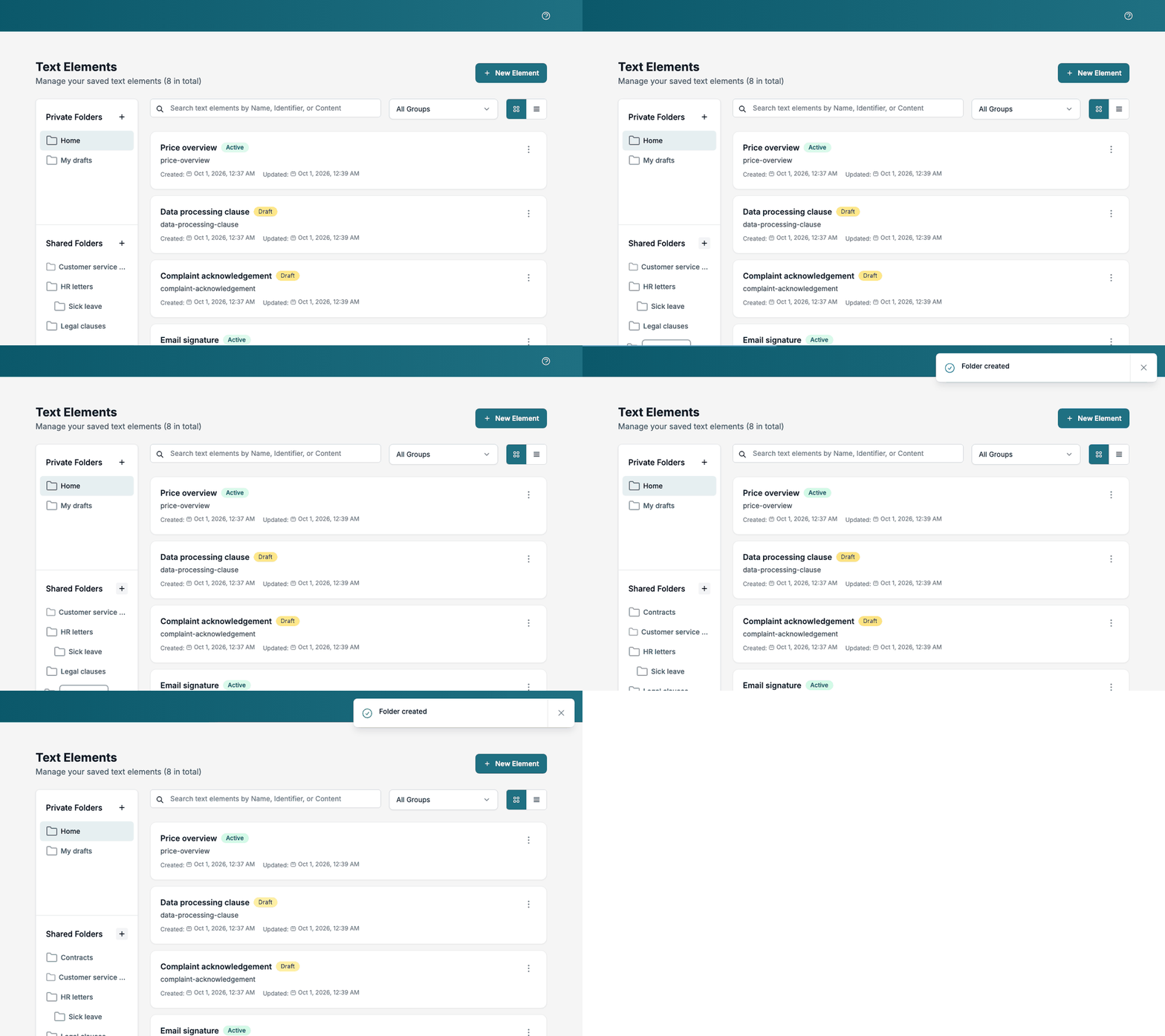
- Click the plus button next to Private Folders or Shared Folders.
- Type a name and press Enter, or click the check mark.
The page shows Folder created. The name must differ from every other folder you can see, subfolders included. If it does not, the page shows Folder name already exists.
Folder menu
Select a folder, then click the three dots next to its name.
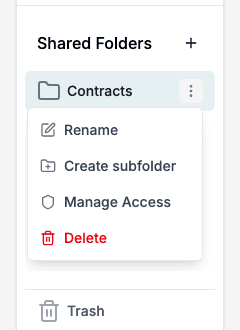
- Rename changes the name.
- Create subfolder adds a folder inside it. Folders go one level deep, so a subfolder cannot have subfolders of its own. A subfolder is private or shared like its parent. Only top-level folders offer this item.
- Manage Access is for shared top-level folders. See below.
- Delete removes the folder after you confirm. The texts in it return to Home. The texts of a deleted subfolder move up to its parent. When you delete a folder that has subfolders, the subfolders are removed and all their texts move to Home.
Manage Access
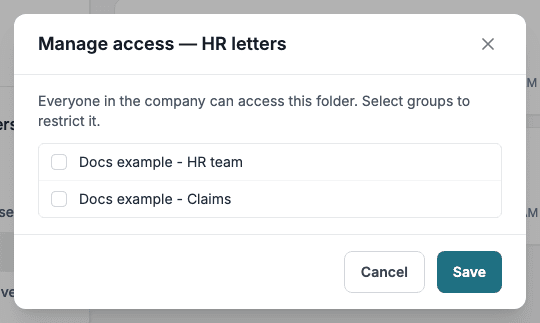
By default everyone in the company can open a shared folder. To restrict it:
- Select the shared folder and choose Manage Access in its menu.
- Tick the access groups that may use the folder.
- Click Save.
With no group ticked, everyone in the company has access. The person who created a shared folder can always manage and delete it.
Trash
When you delete a text, it appears under Trash. New Element is unavailable there, and the page has no button to restore a text or to empty the trash.
Related
- Move a text between folders: Texts.
- Import texts into a folder: Import and export.