Table Styles
A table style is a saved layout for tables: rows, columns, widths, colors, borders and text formatting. You insert a table from the Tables menu in the editor, so tables such as price lists look the same everywhere.
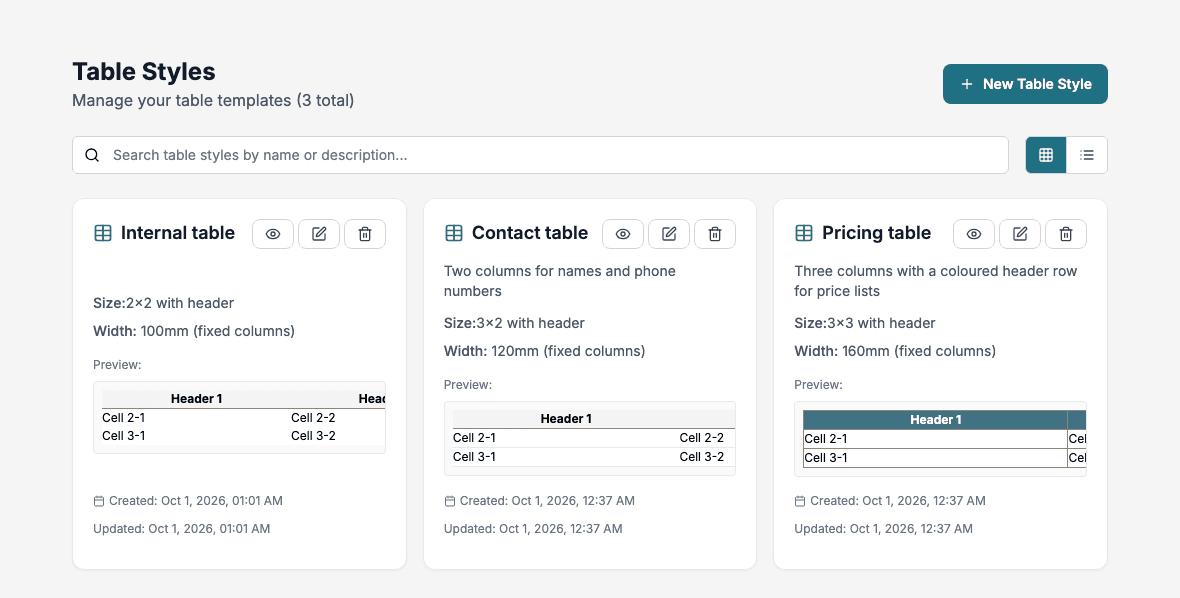
The table style list
Each table style shows its name, description, size, width and a small preview.
- Search: find table styles by name or description.
- Card View and List View: switch the layout.
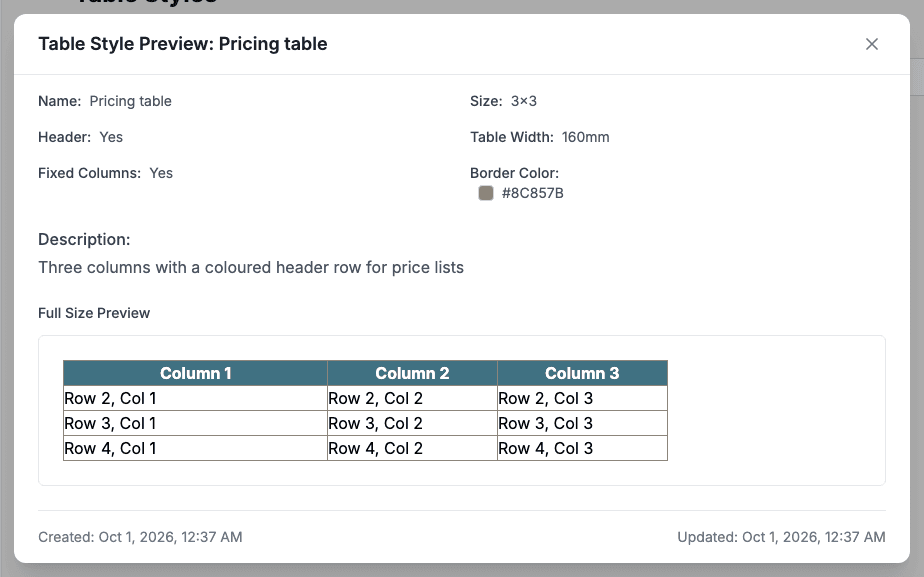
- The eye button opens Table Style Preview with the full table. The pencil button edits. The trash button deletes after you confirm.
Create a table style
Click New Table Style, fill in the page and click Save Table Style. The Preview at the top shows the result as you work.
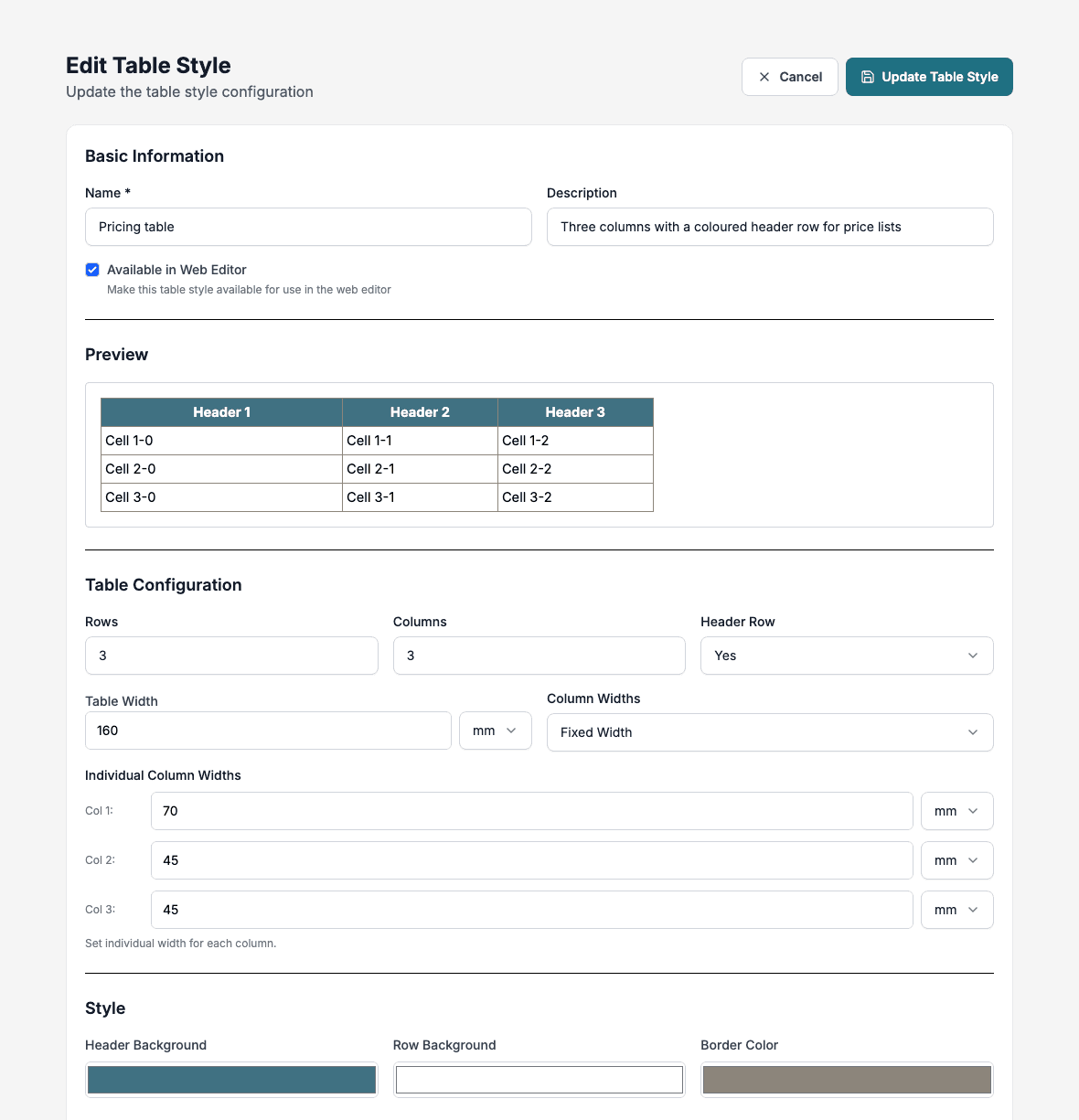
Basic information
- Name: required.
- Description: optional. It helps others choose the right style.
- Available in Web Editor: only ticked table styles are offered to the other Doc Gen products that read your table styles. The Text Library’s own editor lists every saved table style, ticked or not.
Table configuration
- Rows and Columns: the size of a new table.
- Header Row: Yes or No.
- Table Width: in millimetres.
- Column Widths: Fixed Width, with a width in millimetres for each column under Individual Column Widths.
Style and borders
- Header Background, Row Background and Border Color.
- Cell Borders: for header cells and body cells separately, set the top, right, bottom and left border width in points, the line style and the color.
Text
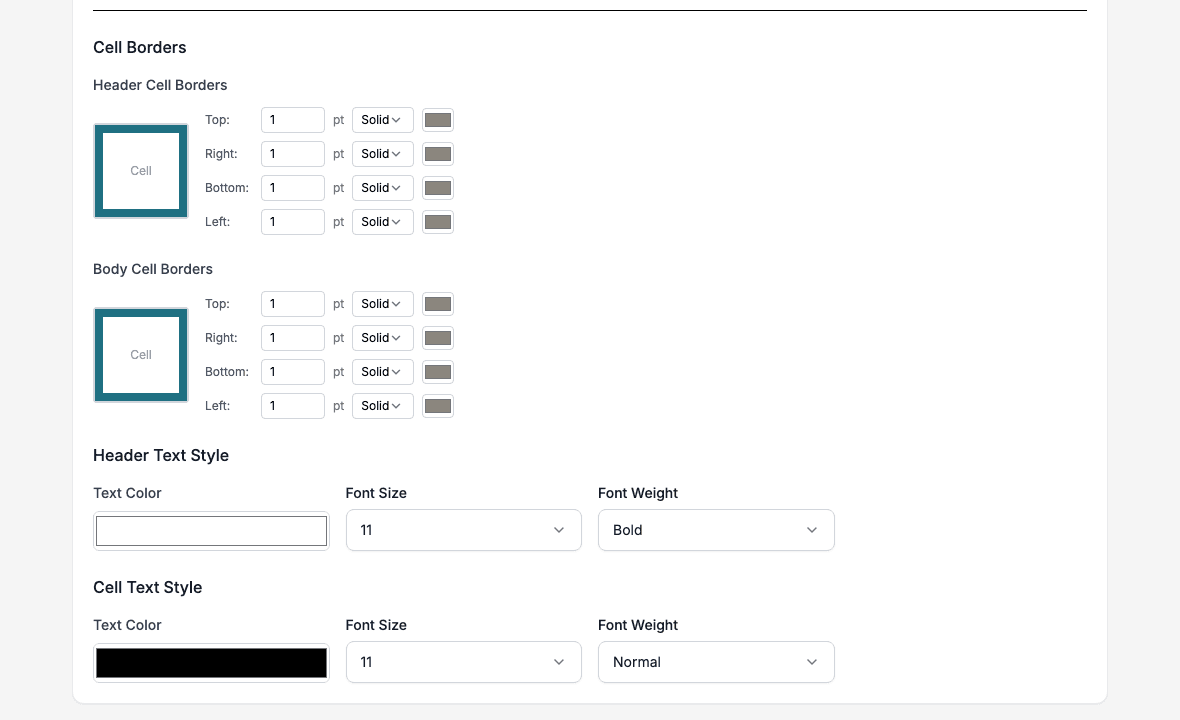
- Header Text Style and Cell Text Style: Text Color, Font Size and Font Weight. The weights are Normal, Bold, Lighter and Bolder.
When you edit a style, the button reads Update Table Style. Changes apply to tables you insert afterwards, not to tables already in a text.
Insert a table in a text
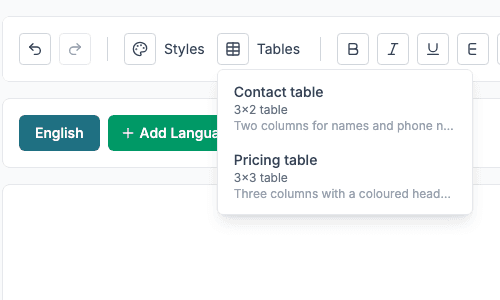
In the editor, open Tables and choose a style. The menu lists each saved table style with its size and description. If none are saved, it says No saved table styles available.
With the cursor in the table, Add Row adds a row above or below and Delete Table removes the table.
Best practices
- Use clear names such as Pricing table.
- Keep header styling distinct from the body.
- Test a style with real content before you rely on it.