Import and export
Settings has one card, Data Management. Use it to export your Text Library as a JSON file and to import texts from one. This helps you keep a copy of your texts before large changes and bring texts in from another library.
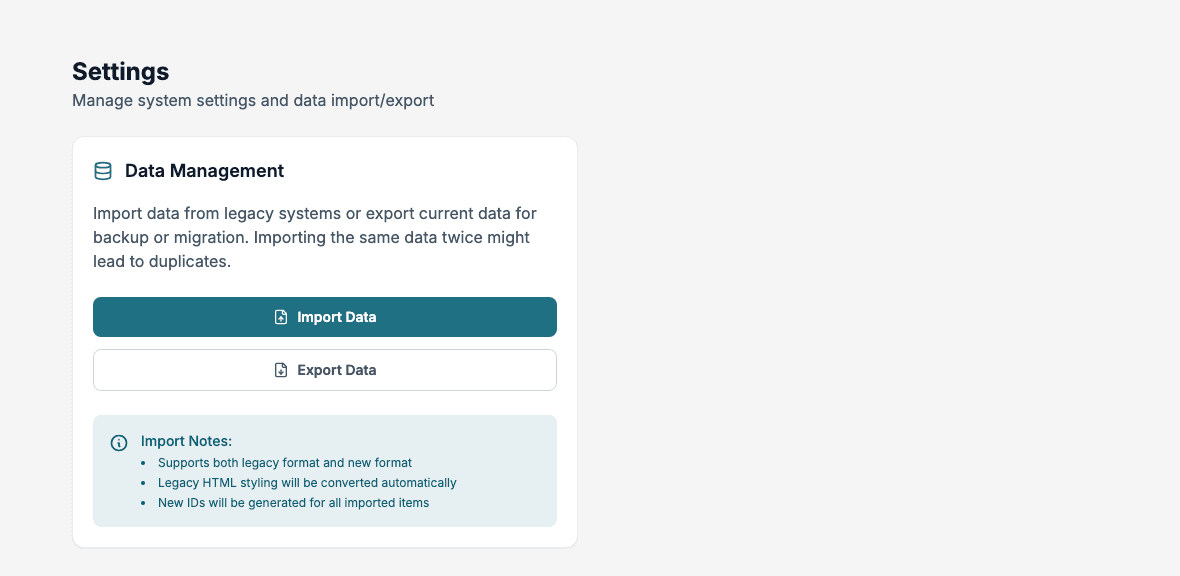
Export data
- Open Settings under System.
- Click Export Data.
- Choose the Export Scope: Export All Data, or Export Group: followed by the name of one group.
- Click Export & Download.
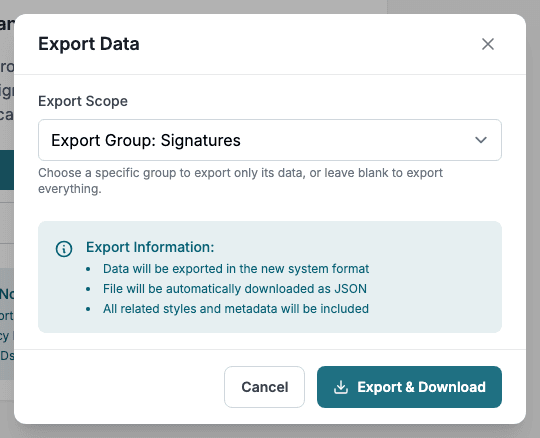
Your browser saves a JSON file whose name starts with text-library-export- and ends with the date and time. The file holds the texts with the status Active, the groups, and all styles and table styles. When you export one group, it holds only that group and its Active texts, but still every style and table style. Draft texts, texts in folders you cannot open, and colors are not exported.
Import data
- Open Settings and click Import Data.
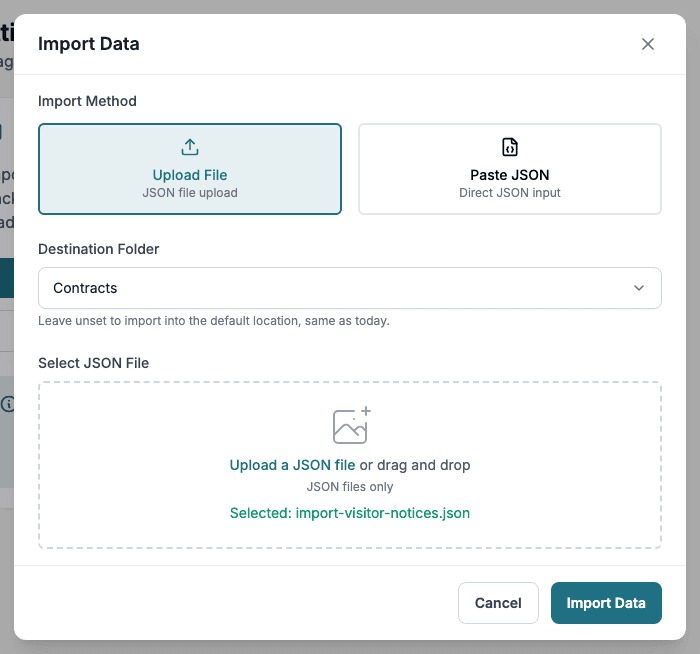
- Choose the Import Method: Upload File or Paste JSON.
- Optionally choose a Destination Folder. No folder (default) puts the texts in Home. A folder keeps the imported texts together.
- Select the JSON file, or paste the JSON.
- Click Import Data.
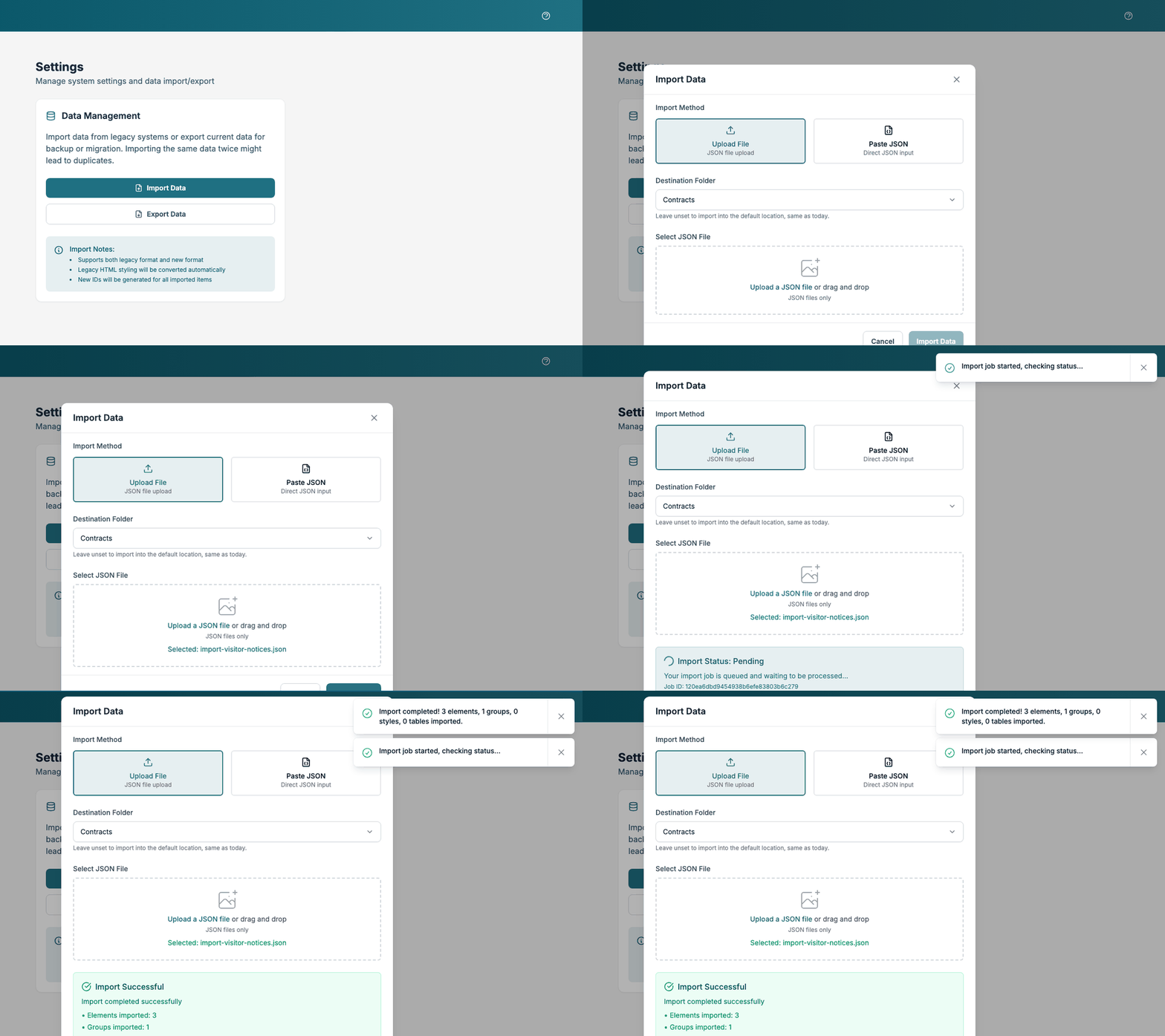
The import runs in the background. The dialog shows Import Status while it works, then Import Successful with the number of elements, groups, styles and tables imported.
What to know before you import
- Only JSON files are accepted.
- Both the older format and the current format work, and older HTML formatting is converted.
- Imported texts get the status Active.
- Importing the same data twice can create duplicates, as the Data Management card warns. Import a file once and check the result in Text Library, Groups, Styles and Table Styles.
Best practices
- Export before you make large changes. Keep in mind that Draft texts are not in the export.
- Import into a destination folder, so you can find and review the new texts.
- After an import, open Groups and check that each imported text is in the group you expect.