Apps
The Apps screen holds the connections between Workflow and external services. Open it with Apps in the left navigation. A workflow action that talks to an external service uses one of these connections.
Note: To use Microsoft Outlook, Kivra, Digipost, SFTP or OpenAI in a workflow, first add a connection here.
Available apps
| App | Purpose | Example |
|---|---|---|
| Microsoft Outlook | Send email | Send a confirmation when a workflow completes |
| Kivra | Send secure digital mail to recipients in Sweden | Send invoices or letters to a Kivra inbox |
| Digipost | Send secure digital mail to recipients in Norway | Deliver documents to a Digipost mailbox |
| SFTP | List, download and move files on an SFTP server | Import data files from a partner |
| OpenAI | Moderate content and send prompts | Check a text before it is sent on |
Other apps, such as Tables, REST API, Archive and Editor, need no connection here. Viewpoint uses a connection that is set up in CenterPoint Administration.
Add a connection
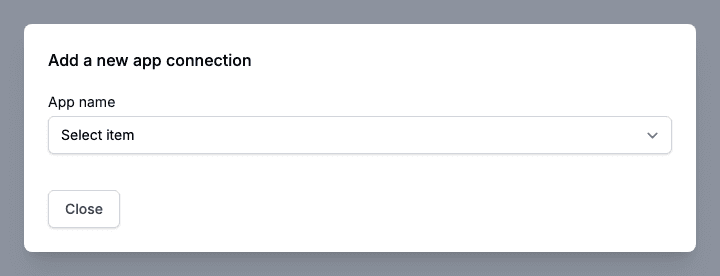
- Click Add connection.
- In App name, choose an app. The first entry, Select item, is a placeholder.
- Fill in the fields the app asks for and click Save. Microsoft Outlook has no fields: it opens the Microsoft sign-in instead.
Microsoft Outlook
Choosing Microsoft Outlook opens the Microsoft sign-in straight away. Sign in with the Microsoft account that the workflow should send mail from. The administrator of your Microsoft Entra tenant must grant the connector consent to send mail. See the Microsoft article Grant tenant-wide admin consent to an application. The connector needs permission to send mail as you and to send mail on behalf of others or yourself.
Kivra
| Field | Value |
|---|---|
| Environment | Sandbox for tests or Production |
| Tenant key | The key of your integration, created in the Kivra developer portal |
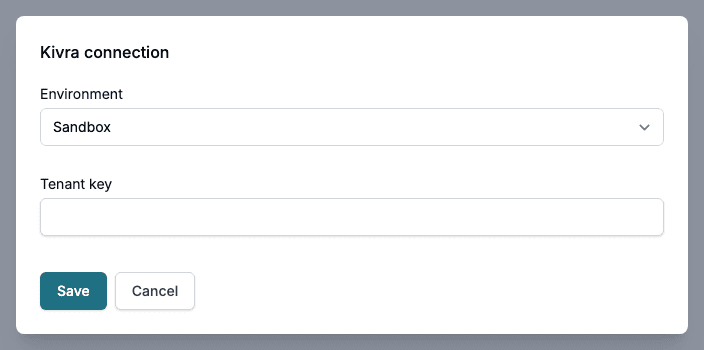
Workflow checks the tenant key with Kivra when you click Save. A key that Kivra does not accept is not saved, and the message says that the Metaforce client is not authorized to deliver content for that tenant key. Contact Kivra in that case.
Digipost
| Field | Value |
|---|---|
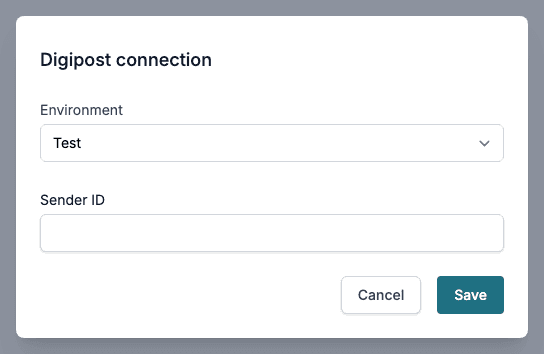
| Environment | Test or Production |
| Sender ID | The sender identifier of your Digipost account |
SFTP
| Field | Value |
|---|---|
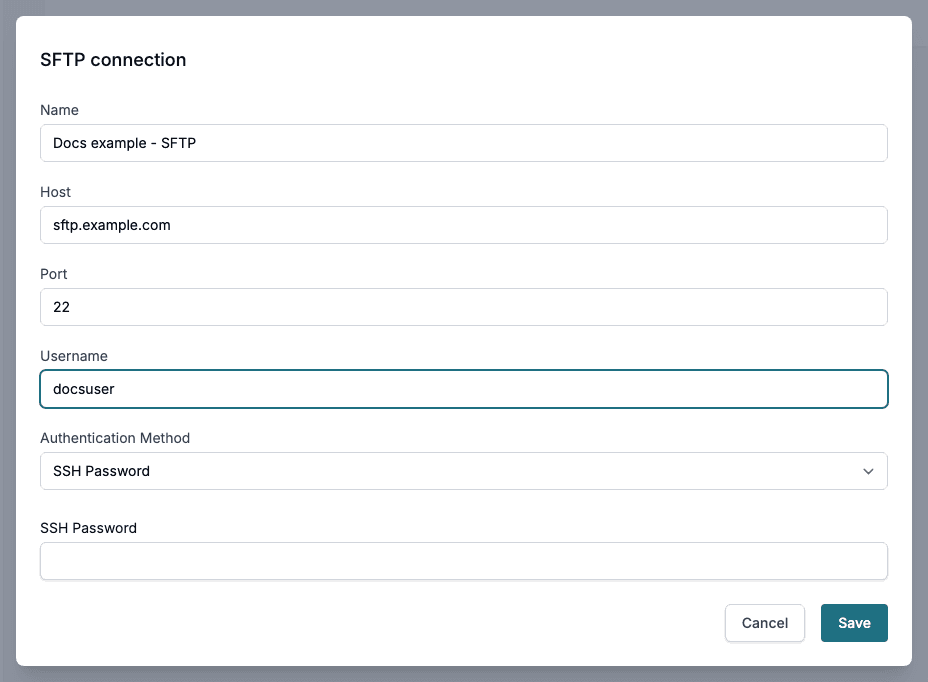
| Name | A name for the connection |
| Host and Port | The address of the SFTP server |
| Username | The account on the server |
| Authentication Method | SSH Password, or SSH Key pair with a Key File and a Passphrase |
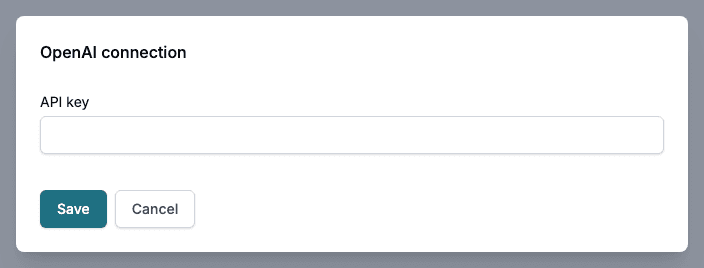
OpenAI
Enter the API key of your OpenAI account. Workflow checks the key with OpenAI when you click Save, and rejects a key that OpenAI does not accept.
Workflow also checks an SFTP connection when you save it. A connection that cannot be reached is not saved.
Manage connections
The list on the Apps screen shows each app that has at least one connection, with the number of connections and of workflows that use them. An error marker shows an app with a connection problem. Click an app to open its page.
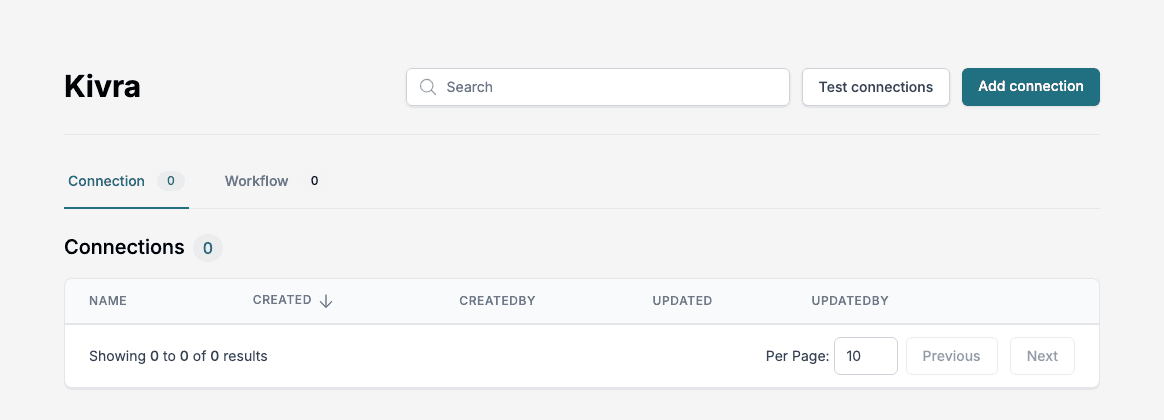
The page of an app has two tabs with their counts, Connection and Workflow, and three controls above them:
- Search filters the list of the open tab by name.
- Test connections tests every connection of the app at once.
- Add connection adds a connection of this app.
The Connection tab lists the connections with Name, Created, CreatedBy, Updated and UpdatedBy. The menu of a connection offers:
- Edit connection name (not for Kivra and Digipost)
- Reconnect, for example when credentials changed or expired. For Microsoft Outlook it opens the Microsoft sign-in again, for the other apps it opens the connection form
- Test connection
- View Workflows, which opens the Workflow tab filtered to the workflows that use this connection
- Delete, which asks for confirmation first
The Workflow tab is titled All Workflows using followed by the app, or by the connection when you came from View Workflows. It lists each workflow with Name, State, Created and Updated.