Home
Home is the first screen of Workflow. Open it with Home in the left navigation. It lets you start a new workflow and shows the workflows created most recently in your company.
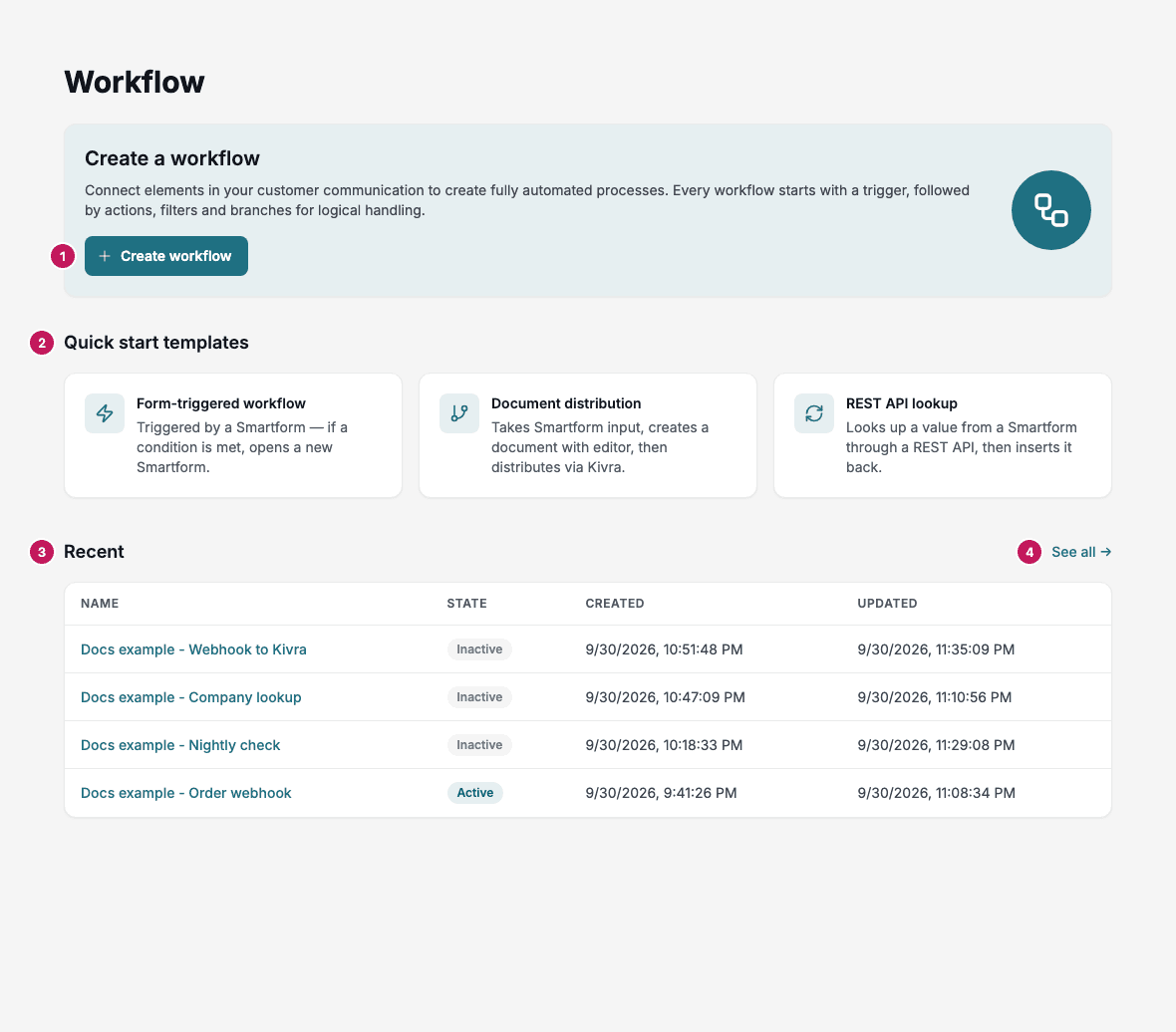
- Create workflow opens the Create a workflow dialog.
- Quick start templates start a workflow from a ready-made example.
- Recent lists the ten newest workflows.
- See all opens the full Workflows list.
The top bar
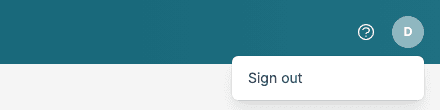
The bar at the top of every Workflow screen has the help button and your user button. Click your user button and then Sign out to end your session. You are signed out of Workflow and sent to the sign-in page.
If your session ends by itself, Workflow shows a screen instead. See Troubleshooting.
Create a workflow
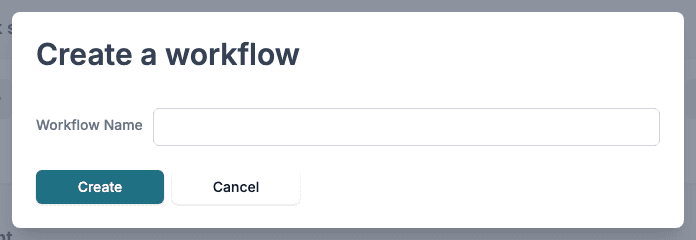
Click Create workflow, type a Workflow Name and click Create. The editor opens with an empty workflow. Click Cancel to close the dialog without creating anything.
When you create a workflow from the Workflows screen, it is placed in the folder you have selected.
Quick start templates
Each template is a workflow with its first steps already set up.
| Template | What it does |
|---|---|
| Form-triggered workflow | Starts from a Smartform and, if a condition is met, opens a new Smartform |
| Document distribution | Takes Smartform input, creates a document with the Editor and distributes it through Kivra |
| REST API lookup | Looks up a value from a Smartform through a REST API and inserts it back |
The templates are shown only when your company has the licence for the product the template uses. See Limits and requirements.
Recent
Recent shows Name, State, Created and Updated for the ten workflows that were created last in your company, newest first. Click a name to open the workflow in the editor. When you have no workflows yet, the list says No workflows created and offers New workflow.