Troubleshooting
This page lists the problems you are most likely to meet in Workflow, what each one means and what to do. Start with the heading that matches what you see.
A workflow does not activate or publish
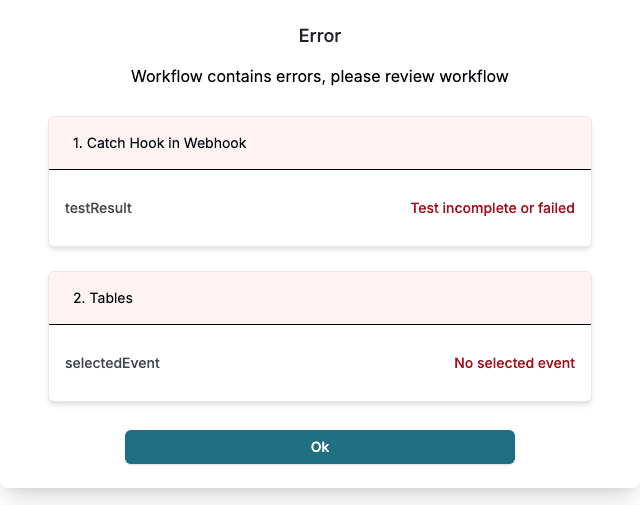
Click Activate and Workflow checks every step. If a step has a problem, the dialog Error lists it and the workflow stays inactive. Publishing a workflow that has errors is refused while the workflow is active.
- Read the list. Each step is named, with the part that has the problem and a message.
- Run Test Action on every step that has it, and Test Trigger on a trigger that has it, until each shows Test Successfull. The message Test incomplete or failed means a test is missing or failed.
- Fix the other messages, for example Repeat on day required on a monthly or yearly Calendar schedule.
- Click Activate again.
The warning Placeholders missing ref does not stop the workflow. Workflow asks whether to activate anyway. It means a field uses a value that is not available from an earlier step, so check that field first.
The common messages are explained in Why Activate can refuse.
A webhook does not start a run
The answer of the webhook URL tells you why.
| Status | Meaning | What to do |
|---|---|---|
200 | The request was accepted and the run is queued | Open the History tab of the workflow and click Refresh. The run starts after the answer |
404 | The URL is not in use. The trigger was set up again or removed | Open the trigger, copy the new URL and register it in the sender |
413 | The body is larger than about 900 KB | Send less data |
429 | More than 30 requests in one minute from the same IP address | Wait a minute and spread the requests out |
If the answer is 200 and there is still no run, check these.
- Environment. Each environment has its own URL and runs the version of that environment. If no version exists there, nothing runs. See Environment.
- Active. The workflow has to be active. Look at the state badge at the top of the editor.
- Filter. A Filter step can stop the run. The run then shows fewer tasks and the filter step is marked Filtered.
- Date. On the History tab the Date filter shows the last 30 days by default.
The URL has this form. The key is different for each workflow and each environment.
POST https://api.workflow.metaforce.net/Webhook/Catch/<key>A run failed or stopped early
- Open the workflow and click History.
- Set Status to Failed, or find the run by its time.
- Open the run. The step that failed is marked Failed and shows its error message.
- Click Run details and open Data in to see the values the step received, and Data out for what it returned.
- Fix the step or the data, publish and send the trigger again.
A run that a Filter step stopped is not a failure. See Run history and Data.
A link says “This link is no longer valid”
Some links that Smartforms and workflows send open a page in Workflow. When the link is incomplete, or the workflow or step it points to is no longer there, the page says This link is no longer valid. Ask the sender for a new link, or start the process again so that a new link is made.
You cannot sign in
| You see | Meaning | What to do |
|---|---|---|
| Your session has expired | You were signed out | Click Sign in again |
| We could not sign you in | Something went wrong while signing you in | Click Sign in again |
| Missing License and You do not have a license to access Workflow - Admin. | Your company or your user has no Workflow licence | Ask the administrator of your company to give you access. See Limits and requirements |
To end your session yourself, click your user button at the top right and then Sign out.
Where to look
| You want to know | Open |
|---|---|
| Whether a run worked and what each step did | History, see Run history and Data |
| The data of a run, or to export it | Data, see Run history and Data |
| Who changed the workflow and when | Log, see Change Log |
| Which version runs in which environment | Versions, see Versions |